October 7, 2026 | Fall Newsletter | | | |
Welcome
Upcoming Conferences
Upcoming Workshops & Webinars
Outgoing Loans
| |
PastPerfect 5.0
Using Outgoing Loans
Outgoing Loan Forms and Reports
Oral History & Recording List
| |
PastPerfect Web Edition
Using Outgoing Loans
Setting up Outgoing Loan Documents
New Features in Latest Update
Feature Highlight: Account Information
Feature Highlight: Contact List Fields
On-Demand and Live Webinars
| |
Online Collections
Collections Spotlight
Staff Pick
| |  |
|
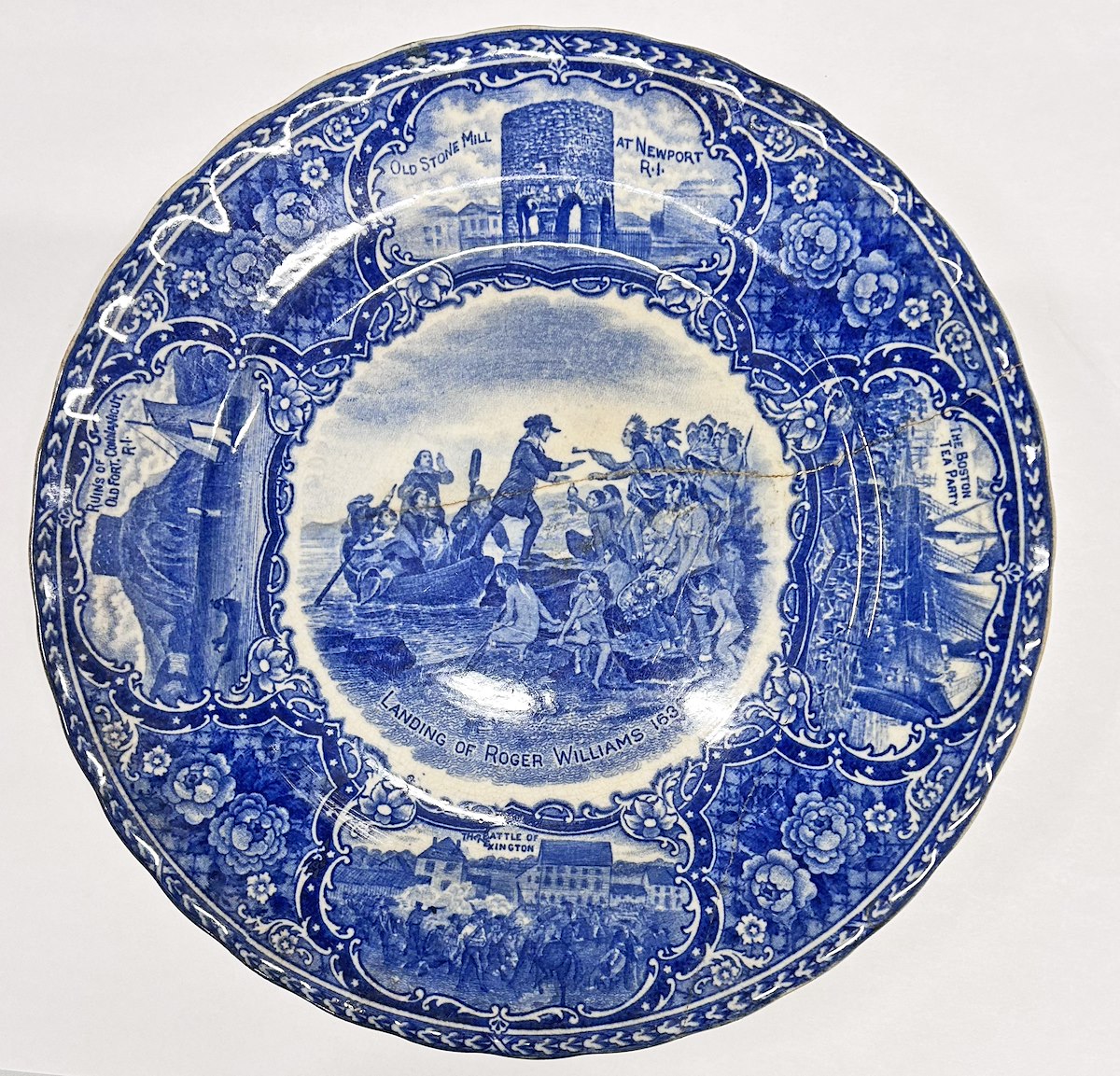
This Week in History - 1635
Rhode Island founder banished
from Massachusetts
| | | |
In this issue, we are continuing with our collections management essentials series with information about outgoing loans. This series started last Fall with temporary custody and continued in Spring with information about deaccessions and in the Summer with incoming loans.You can find past newsletters on our website.
Outgoing loans are a way to collaborate with other institutions and can expand your organization's reach to new audiences. However. the opportunity needs to be balanced with considerations of the item's condition and the ability of the borrower to care for it. Is the item in a stable enough condition to be handled, packed, transported, and exhibited? Plus, what assurances does the borrowing organization give for how they will protect the item? As the lender, your organization should outline the terms and conditions of the loan to ensure both institutions are proper stewards. This issue includes information on using Outgoing Loans in both PastPerfect 5.0 and PastPerfect Web Edition.
Since October is American Archives Month, we are starting a series of articles for PastPerfect 5.0 users highlighting features within the Archives catalog. In this issue, we are highlighting the Oral History screen view and Recording List. For Web Edition users looking to learn more about the Archives catalog, check out our Archives Catalog Training Class.
If you have any questions on the topics in this newsletter or anything PastPerfect, please reach out to us. Our normal business hours are Monday through Friday, 9:00am to 5:30pm Eastern. You can reach us by calling 1-800-562-6080 or emailing support@museumsoftware.com.
| | | |
There may be times when your organization agrees to allow other institutions to borrow items from your collection. You can use the Outgoing Loans section in PastPerfect to record this information and print related documentation.
Outgoing Loan records are used to record details about the borrowing institution,
important dates, and the insurance and shipping information for the loan. After the Outgoing Loan record is created, you can then add catalog records from your collection to the loan. Any catalog records on a loan will display "Item on Loan" next to the Home Location at the top of the record.
Once the items are returned to your organization, you can update the record to note the date of return and mark the loan as returned. This will move the record from Active to Returned Loans. If items will be returned to your organization over time, you can return individual items without returning the whole loan. If a loan will be extended, you can also record when the loan was renewed and the new date items are set to be returned.
As the lending institution, you are responsible for producing the loan documents that will set the terms of the Outgoing Loan. These documents should include information about the borrowing institution, details about the items and their current condition, when the items will be returned to your organization, and who is responsible for the insurance and shipping of the items. Both PastPerfect 5.0 and PastPerfect Web Edition include built-in templates for creating the Loan Agreement and Terms & Conditions. There is also an Outgoing Loan Return Receipt that can be printed after an outgoing loan has been returned to your organization.
You can find more information on creating and working with Outgoing Loan records in our PastPerfect 5.0 User Guide and PastPerfect Web Edition User Guide.
| | | Using Outgoing Loans in PastPerfect 5.0 | |
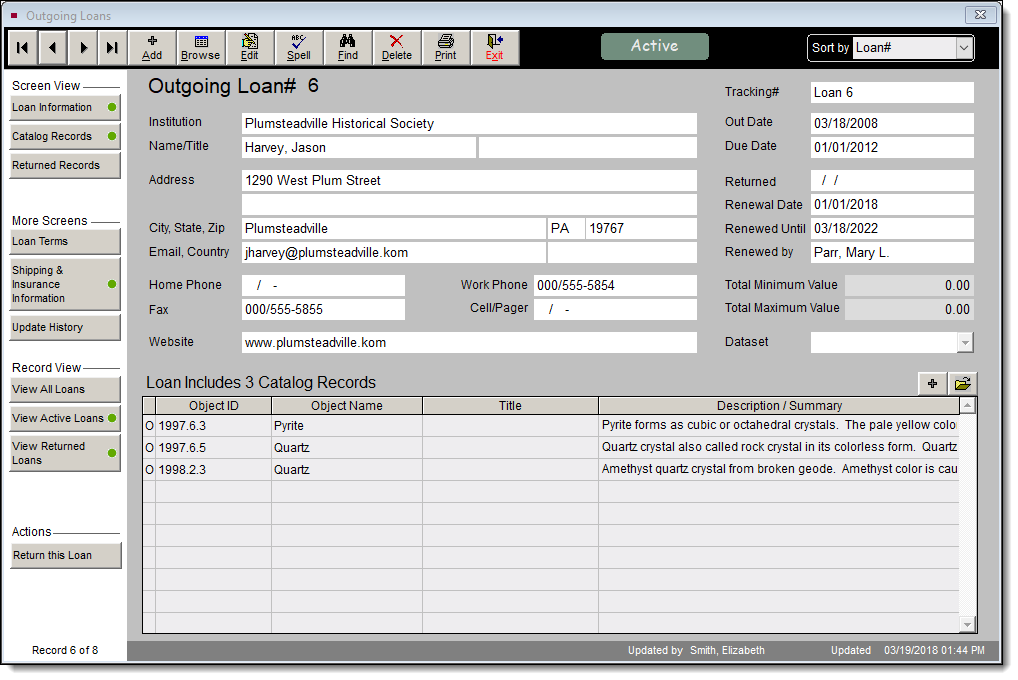
Outgoing Loan records are accessed from the Activities section in the lower left of the PastPerfect 5.0 Main Menu. At the top of a record is the Outgoing Loan #. Loan numbers are assigned at the time you create a new record. There is also a Tracking # field that can be used to record your internal institutional loan number or a loan number assigned by the borrowing institution.
When adding a new Outgoing Loan, you have the option to select the borrowing institution from Contacts. This will fill in the contact information fields on the Outgoing Loan record. Otherwise this information can be entered manually. There are additional fields for recording the loan's purpose, location, method of transportation, and any notes about the loan. You can also track the start and end date of the loan, as well as renewal date if the loan is extended. Total Minimum Value and Total Maximum Value will auto-populate based on the value information that has been recorded for the items on loan.
Under "Screen Views" in the left sidebar, you can click the "Catalog Records" button to view the items on the loan and the "Returned Records" button to view items that have been returned. Double click on an item's row in the grid to view an abbreviated catalog record where you have the option to perform actions such as returning that specific item or recalling that item to the loan.
The "More Screens" section has additional views with fields where you can enter custom terms for the loan as well as shipping and insurance information. Unless you select to use custom terms on the Loan Terms screen, the Terms of Loan form will contain the default terms from Setup | Collections. To set up the default terms for Outgoing Loans, use the Main Menu's Setup drop-down menu and select "Collections". Click "Outgoing Loans" in the left sidebar. Use the paragraph field "Default Terms of Outgoing Loan" to outline how the borrowing institution will care for the items according to your organization's policies and guidelines.
| Under "Record View", you can click on the "View Active Loans" button to view all active loans and the "View Returned Loans" button to view all returned outgoing loans. Returned Loans are any loan where the entire loan has been returned using the "Return this Loan" button under "Actions". When an entire loan is returned, the Returned date is populated and all items still on the loan receive the same return date. The loan will then be listed in the Loan History on each of the catalog records. | | | Outgoing Loan Forms and Reports | |
PastPerfect 5.0 has the ability to produce a variety of forms and reports for Outgoing Loans. From an Outgoing Loan record, you can print the Loan Form, Terms of Loan, Detail Object List, and Custom Loan Form for that loan. These forms can be printed from the Print button in the top navigation bar and will be automatically populated with information from the Outgoing Loan record. You also have an option to print a Blank Loan Form and Blank Terms of Loan.
Outgoing Loan forms can also be accessed from the Reports section. From the Main Menu, click "Reports" and in the left sidebar, click "Loans Outgoing" under Report Types. Select the form type you wish to print by double clicking on the name. Then you can select the individual Outgoing Loan to print the form. You can also print reports of your Outgoing Loans. This includes a list of all Outgoing Loans, as well as Overdue Loans and Returned Loans.
If you wish to modify the layout of your forms or reports, you can select the form or report name, and then select Custom Layout 1 or 2 on the right, and then click "Modify Selected Layout". This will open the Report Designer screen where you can make changes to the layout. For information on modifying forms and reports, please view the PastPerfect 5.0 User Guide topic on Advanced Reports Modifications: https://museumsoftware.com/WebHelp/#t=Chapters%2FPP5-19a.htm.
| | | Oral History & Recording List | |
Each of PastPerfect's catalogs contain fields specific to certain item types. In Archives, there are fields specifically for recording information about oral history interviews, which you can find under the Oral History Screen View. Oral History is just one of multiple screen views with specialized fields in Archives.
The Scope and Content field enables you to summarize the interview describing the subjects, places, and events. The Narrator's Name is where you record the name of the person being interviewed. You can also record the interviewer's name, where and when the interview took place, and length of the interview. PastPerfect 5.0 has a Donor Release Form as well as a date field to record when the interview release form was signed. The Donor Release Form can be customized in Reports | Archives. If the donor has placed any limitations on using information from this oral history interview, you can note them in Restrictions.
There are also fields to note the Recording Media and Media Quantity such as multiple tapes or digital files. If the interview was transcribed, you can record who transcribed the interview and when and where the transcription took place.
The Recording List allows you to note each subject and the time that subject was discussed in the interview.
With the MultiMedia add-on you can attach audio files, video files and/or the transcript as document (Word, PDF) format to the Archives record.
For more information, view the User Guide topic on the Oral History Screen View: https://museumsoftware.com/WebHelp/#t=Chapters%2FPP5-8i.htm.
| | | Using Outgoing Loan Records in Web Edition | |
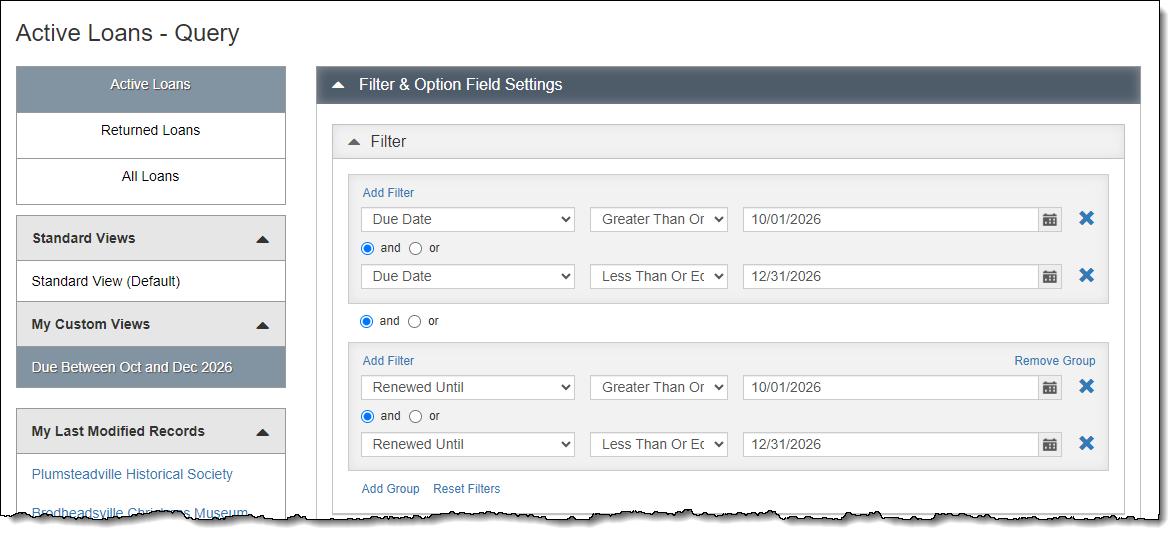
Web Edition's Outgoing Loans can be accessed by clicking "Loans" in the main navigation bar or the colored tile for "Outgoing Loans" on the home page. Clicking either of these will open the Active Loans - Query screen. From the Query screen, you can:
- create new outgoing loan records
- view Active, Returned, or All Loans
- search for records using filters or the quick search above the browse grid
- change the fields that appear in the browse grid using Options
- print a list of loan records in either Grid or List format
Like other Web Edition Query screens, you can filter for records and choose fields to view in the grid and include on reports. Filters can be built using any of the Outgoing Loan fields. For example, you can user a filter to find loans with due dates within a date range. Option fields change which fields are displayed in the browse grid and can be used to sort records and included on printed reports. Once the Filter and Option field selections have been applied, these can be saved as custom views to come back to later.
| |
To open a loan record click the Loan Number link in the browse grid. At the top of the Outgoing Loan record are fields for the unique Loan Number, Loaned To (borrower), Out Date, Due Date, Renewal Date, Renewed By, Renewal Date, Renewal Until (date), and Return Date. There are also fields to record the Purpose of the loan, such as research or an exhibit, Location at the borrowing institution, and a brief Description of Items that are part of this loan.
The action buttons at the top right allow you to create a new Outgoing Loan record, return this entire loan, print the loan record, and produce this loan's documents based on the templates your organization created in Settings | Accessions & Loans Documents.
The additional accordions allow for adding and removing catalog records, tracking loan related activities, as well as recording information about the contact at the borrowing institution, insurance details, and shipping information. Like other record types, you can attach media files to loan records and link to websites.
More information about Outgoing Loans can be found in the Web Edition User Guide: https://museumsoftware.com/we/OutgoingLoans.html.
| | | Setting up Outgoing Loan Document Templates | |
For each Outgoing Loan record in Web Edition, you can produce an Outgoing Loan Agreement, Outgoing Loan Terms & Conditions, and Outgoing Loan Return Receipt. The templates for these documents are set up under Settings | Accessions & Loans Documents. These templates allow you to create the layout and basic text for a document, and you can insert field place holders that will populate automatically from the Outgoing Loan record. The rich text interface tools allow you to insert images and links as well as style text. We suggest setting up your loan documents before you begin entering Outgoing Loan records. If you edit your template after you enter an Outgoing Loan record, you will need to rebuild the document for that loan.
More information about the Outgoing Loan document templates can be found in the User Guide: https://museumsoftware.com/we/AccessionsLoansDocuments.html. Information about using the rich text interface can be found in this User Guide topic: https://museumsoftware.com/we/LetterEmailTemplateModifications.html.
| | | New Features in Latest Update | | | |
The latest update, published on September 3, 2026, includes the following changes:
General
- New "Account Information" page available to Administrators to view information about storage usage and user accounts
- Updated page navigation for grids throughout software
- New "Ends With" condition available for use in filter statements on Query screens
- New Custom Field Type "Multiple Entry Authority File"
- Ability to display all entries, including one-time use entries, when viewing an authority file
Collections
- Ability to sort results in Full Catalog Search by Object ID, Relevance, or Record Order
- Search Terms Used and Subjects Used reports now include one-time use entries
Development
- "Company" added as a searchable field to the Contacts Query quick search
- Ability to change the fields displayed in the grid on Contact Lists
- Letters are sorted alphabetically when accessed from the Contact record, Query screen, or Contact List screen
Public Access
- Next and Prior buttons added to Public Access to allow navigation between records of search results or the Associated Catalog Records on an Exhibit, Person, Site, or Search Term record
To see a full list of features and fixes from each update, click "Version History" in the footer while you are logged into the Web Edition software.
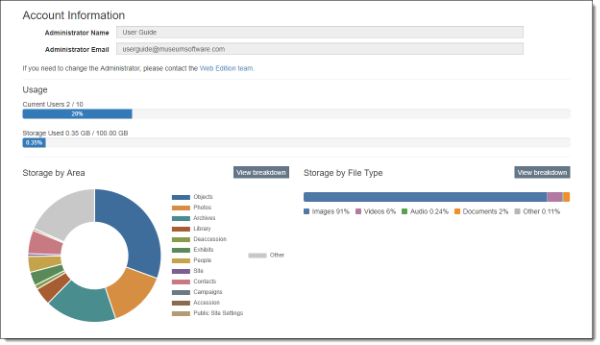
| | | New Feature Highlight: Account Information | In the latest update, we added an Account Information screen under the Settings menu. This screen displays the main Administrator's name and email address, along with information about your organization's usage. This screen is only available to users in the Administrator Role. | |
Current Users: This displays the number of current user accounts and the maximum number of users allowed at your current package level.
Storage Used: This displays the total amount of storage currently used and the maximum storage amount at your current package level.
Storage by Area: This chart displays the percentage of storage used within each program area. Click "View breakdown" to see this information presented in a list.
Storage by File Type: This bar displays the percentage of storage used by each general file type. Click "View breakdown" to see a list of the specific file types and percentage of storage used.
| | | New Feature Highlight: Change Contact List Fields | |
We've now added the ability to change the fields that appear when viewing a Contact List. Users can now select the fields that appear in the browse grid, which can also be used to sort the records. These fields are also included when the list is printed and exported to CSV.
To select fields, go to the specific Contact List you want to view. Click "Field Options" to open the accordion. Select a field(s) you want to include from the Available Fields list on the left. Use the right arrow button to move the field(s) to the Included Fields list. You can change the order of Included Fields by clicking on a field name and then moving it up or down. Click "Apply" to see the field(s) appear in the browse grid. Click a column header to sort the records by that field.
Click "Print" to produce a report that includes all Included Fields or click "Export to CSV" to include your selected fields in a CSV file.
If you do not see a Contacts field in the Available Fields list, go to Settings | Contact Filer & Option Fields to make the field available as an Option field.
For more information on working with Contact Lists, see the User Guide section: https://museumsoftware.com/we/ContactLists.html.
| | | Informational Webinar Available Live or On-Demand | |
Curious about upgrading to PastPerfect Web Edition? We invite you to register for our one hour informational webinar that walks through the collections and contacts capabilities of our cloud-based software. You can attend a scheduled live session or watch our on-demand recording at your convenience. Register for either webinar here: https://museumsoftware.com/demo.html.
After the webinar, if you think Web Edition is the right choice for your organization, contact the team at webedition@museumsoftware.com to get started on the next steps.
| | |
Staff Pick
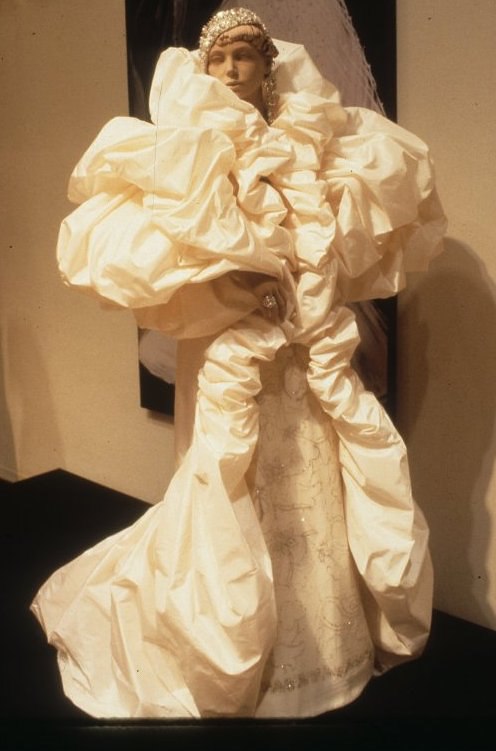
We've asked our staff to choose an item from one of the many online collections of our clients: something that reminds them of a favorite memory or experience, sparks their interest, or simply makes them smile. This time, Madeline selected this coat from the collection of the Kent State University Museum because:
"This coat is a work of art! It's so exciting to see a new-to-me piece from Bob Mackie! I love Fashion History, my mom is a huge fan of Cher, and I'm a theatre kid at heart. Naturally, Bob Mackie was an early favorite. His attention to detail and storytelling through design made him a trailblazer in fashion for the performing arts. Everything he created was daring and original—this piece is no exception. What an amazing item in this beautiful collection!"
| |
| | | | |