|
One Cool Tip Newsletter
September 14, 2026
| Your daily dose of tech-savvy brilliance! | |
😀Greetings! Happy Back-to-Work Monday, Cool Tipper!
Get ready to streamline your digital life with simple, actionable tips delivered straight to your inbox.
Cool Tip Theme: Citations in Microsoft Word
Learn how to add citations in Microsoft Word, reuse sources, and automatically generate a bibliography for school, research, and business documents.
New here? Subscribe to the One Cool Tip Newsletter for daily updates. It's FREE!
| |
3️⃣
If you enjoy the One Cool Tip newsletter, please forward this newsletter to THREE friends or colleagues or share it on social media using the links below.
Leave a $$$ Tip!
Share this One Cool Tip Newsletter!
| | |
🚨AI Is Helping Scammers and Hackers Work Faster🚨
A new threat intelligence report from Anthropic highlights how cybercriminals, scammers, and other bad actors are using AI to operate more efficiently and at a larger scale.
The report describes cases involving fraud schemes, fake apps, surveillance efforts, and cyberattacks where AI helped automate research, content creation, and other tasks that once required significant time and expertise.
The good news is that the report also shows that AI companies are identifying and disrupting many of these activities.
The takeaway is simple: be more cautious than ever when responding to emails, text messages, online offers, or urgent requests for money or personal information.
AI can make scams look more professional and convincing, but the classic warning signs still apply.
If something feels rushed, unexpected, or too good to be true, take a moment to verify it before clicking, sharing, or paying.
And in Other News...
- A Big Win for Student Privacy in the Age of AI
As artificial intelligence becomes more common in schools, parents are asking an important question: what happens to student data?
A new national AI safety and privacy standard announced by Microsoft, the American Federation of Teachers, and the United Federation of Teachers aims to give families and educators stronger protections and greater transparency.
The agreement includes safeguards that prevent student and educator data from being used to train AI models, requires human oversight for AI-driven decisions, and gives schools more control over how AI tools are used.
For parents, the biggest takeaway is that privacy and safety are becoming a larger part of the conversation around classroom technology.
The new framework emphasizes clear explanations about what data is collected, how it is used, and what protections are in place.
As AI tools continue to enter schools, consumers should expect greater transparency and stronger safeguards to help keep student information secure.
| |
| 🤔 How do you currently handle citations in Microsoft Word? | | | | |
Help support One Cool Tip. Use this Amazon link when you shop online.
Check out these Cool Deals:
| | |
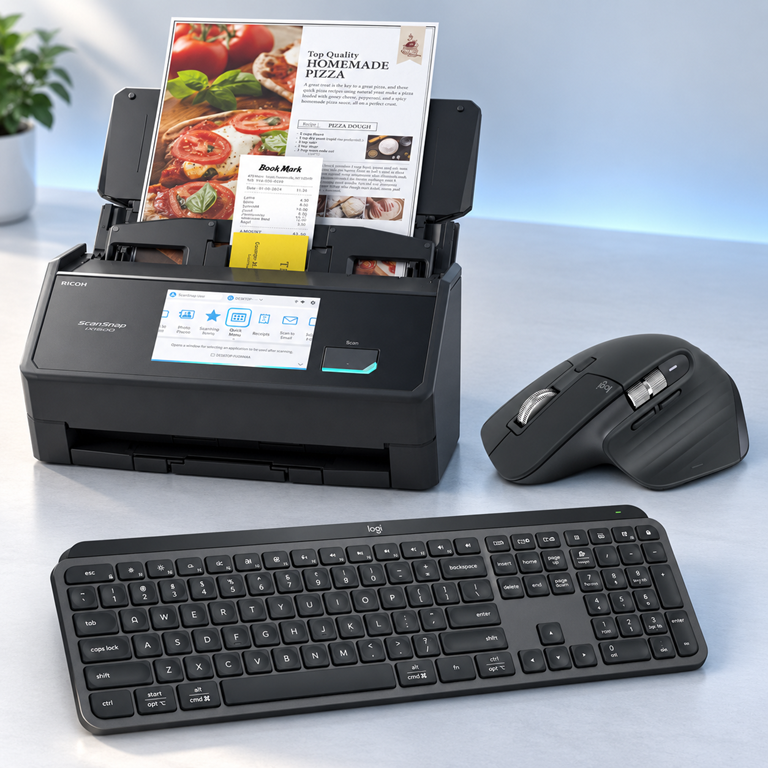
📄 ScanSnap iX2500 Document Scanner: A fast document scanner can digitize print sources, receipts, reports, and handouts before you organize the supporting material for a Word project.
Save 26%. Now $379.99. 4.3 Stars. Check it out on Amazon!
⌨️ Logitech MX Keys S Wireless Keyboard: A comfortable full-size keyboard is useful for long research papers, reports, and citation-heavy editing sessions.
Save 8%. Now $119.99. 4.4 Stars. Check it out on Amazon!
🖱️ Logitech MX Master 3S Wireless Mouse: Its customizable buttons and precise scrolling can make long-document navigation and editing more efficient.
Save 10%. Now $89.99. 4.5 Stars. Check it out on Amazon!
*Prices accurate when originally published.
One Cool Tip may earn a commission from qualifying purchases.
| | |
Add Citations in Microsoft Word Without the Headaches
Microsoft Word can format citations, save source details, and create a bibliography while you write. This guide shows you how to use those tools so you can spend less time managing references and more time improving your document.
Formatting citations by hand can turn a straightforward writing project into a tedious hunt for punctuation, italics, dates, and author names.
Whether you are writing a school paper, preparing a business report, documenting research, or creating source-based content, consistency matters.
A missing field or incorrectly formatted reference can make an otherwise polished document look unfinished.
Here’s a Cool Tip: Let Word handle the bibliography while you focus on writing.
Microsoft Word includes citation tools that let you add sources, insert citations, reuse references, and generate a bibliography.
Word supports several citation formats, including APA, Chicago, GOST, IEEE, ISO 690, and MLA.
The styles shown can vary depending on your version of Word.
Feature Explanation
Microsoft Word’s citation feature helps writers credit sources without manually formatting every reference.
The core tools appear on the References tab in desktop Word.
From there, you can select a citation style, add a source, insert an in-text citation, and create a bibliography or works cited list.
The process separates source information from citation formatting.
You enter details such as the author, title, year, and publication information.
Word then uses those details to format the citation according to the selected style.
After you add a source, Word places it in the available citations list.
You can cite the same source again without reentering its information.
This can be helpful for:
- Students writing research papers.
- Educators preparing academic material.
- Business users creating sourced reports.
- Researchers organizing references.
- Writers and creators documenting factual claims.
The citation manager is not a new Word feature, but it remains easy to overlook.
Many users still type citations and bibliographies manually, even when Word can complete much of the formatting for them.
What You’ll Gain
- Save time by entering each source only once.
- Keep citations consistent across a long document.
- Reuse sources without repeatedly typing publication details.
- Generate a bibliography or works cited list from cited sources.
Step-by-Step Instructions
Here's how to do it.
Windows
Add a New Citation and Source
-
Open your document in Microsoft Word.
-
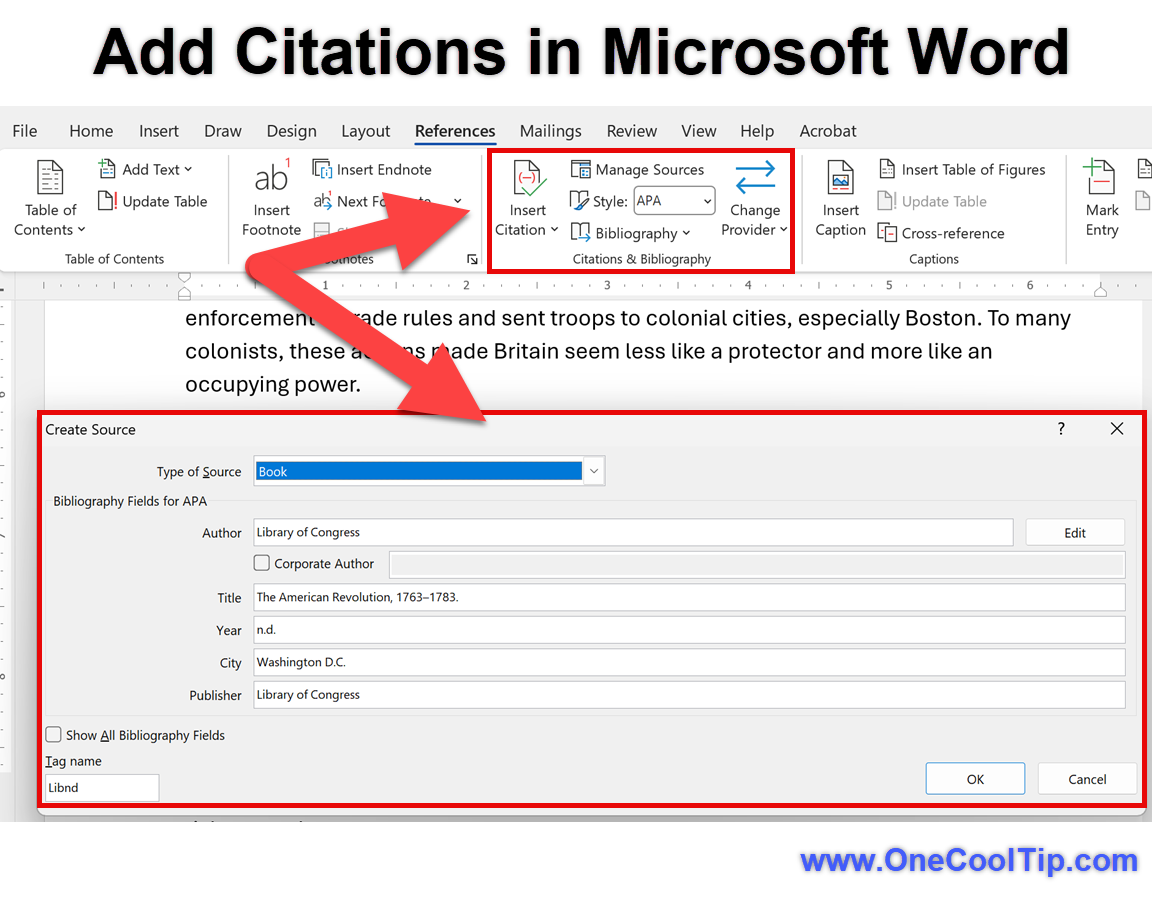
Select the References tab on the ribbon.
-
Find the Citations & Bibliography group.
-
Open the Style menu and select the citation style required for your document.
-
Place the cursor at the end of the sentence or phrase you want to cite.
-
Select Insert Citation.
-
Choose Add New Source.
-
In the Create Source dialog box, open the Type of Source menu.
-
Choose the appropriate source type, such as a book, website, journal article, or report.
-
Enter the requested source information.
-
If necessary, select Show All Bibliography Fields to display additional fields.
-
Select OK.
| | fig. 1 - Add Citations in Microsoft Word | | |
Word inserts the citation at the cursor position and adds the source to the list of available citations. Microsoft Support: Add citations in a Word document
Reuse an Existing Source
- Place the cursor where you want the citation to appear.
- Go to References > Insert Citation.
- Select the source from the available citations list.
Word inserts another citation using the active citation style. Microsoft Support: Add citations in a Word document
Add a Page Number or Other Citation Detail
- Select the inserted citation.
- Open Citation Options.
- Select Edit Citation.
- Enter the applicable page number or other available detail.
- Confirm the change.
Create a Bibliography
-
Place the cursor where you want the bibliography to appear.
-
Open the References tab.
-
Select Bibliography.
-
Choose one of the available bibliography formats.
Word creates a formatted list using the sources cited in the document.
If you add another citation later, select the bibliography and choose Update Citations and Bibliography.
macOS
The desktop version of Word for Mac includes tools for adding sources, citations, and bibliographies.
-
Open the document in Word for Mac.
-
Select the References tab.
-
In the Citations group, choose the required citation style.
-
Place the cursor at the end of the sentence or phrase you want to cite.
-
Select Insert Citation > Add New Source.
-
Choose the source type.
-
Enter the source details.
-
Select OK.
To edit a source on Mac, open the References tab, select Citations, point to the source, open its menu, and choose Edit Source.
The Mac Source Manager can also add, edit, or delete sources from the list.
Pros and Cons
Pros:
- Faster source entry: Add a source once and cite it again later.
- Consistent formatting: Use one selected citation style throughout the document.
- Automatic bibliography creation: Build a reference list from cited sources.
- Useful source management: Edit and reuse saved source information.
- Flexible applications: Helpful for school papers, research documents, business reports, and articles.
Cons:
- Accuracy still depends on the user: Incorrect source details produce incorrect citations.
- Institutional rules may differ: A school, publisher, or employer may require formatting adjustments.
- Mobile and web limitations: The full desktop workflow is not documented for every Word platform.
- Style availability can vary: The options shown may depend on the installed version of Word.
Feature Access
-
Who gets the feature: Users of supported desktop versions of Microsoft Word.
-
Supported Windows versions: Word for Microsoft 365, Word 2024, Word 2021, Word 2019, and Word 2016.
-
Supported Mac experience: Microsoft provides a separate citation and bibliography procedure for the desktop version of Word for Mac.
Score
Criterion | Score (0–10) | Justification
Value | 8
The feature solves a real writing problem by reducing repetitive source entry and generating bibliographies from cited material.
Usability | 8
The main controls are grouped on the References tab, although users must understand citation styles and enter source details accurately.
Wow Factor | 5
It is practical rather than flashy. Automatic bibliography creation remains helpful, but the feature is mature and familiar.
Total: 21/30 | 👍 Good
Word’s citation manager is a valuable, underused tool for anyone who regularly creates source-based documents. Dedicated reference managers may offer more advanced research features, but Word’s built-in tools are convenient when you want to keep writing and citation management inside one document.
Key Takeaways
- Microsoft Word can store source information, reuse citations, and create a bibliography from the sources cited in a document.
- The feature saves time, but you still need to enter accurate information and compare the final formatting with your required style guide.
- For the complete source-management workflow, use a supported desktop version of Word.
Cool Tip Snapshot
-
Feature Name: Citations and Bibliography.
-
Platform(s): Microsoft Word desktop for Windows and macOS.
-
Quick Benefit: Add reusable citations and generate a bibliography.
-
Best For: Students, educators, researchers, writers, and business professionals.
-
Access Type: Included with supported versions of Microsoft Word.
-
Difficulty: Easy
Try It Yourself
Open a Word document and add one source through References > Insert Citation.
Then tell us how it worked in the comments.
Don't forget to subscribe to the One Cool Tip newsletter, and share this Cool Tip with your family, friends, classmates, and coworkers.
READ MORE
Read the Full Cool Tip.
| | |
Check Out These Cool Tips & Tricks
-
Pick Style: Choose the required citation style before inserting your first source. Go to References > Style and select the format specified by your instructor, publisher, or organization.
-
Use Types: Select the correct source type so Word displays the fields appropriate for a book, article, report, or website. Choose it from Type of Source in the Create Source dialog.
-
Show Fields: Reveal extra fields when a source needs editors, volume numbers, access dates, or other details. Select Show All Bibliography Fields while creating or editing the source.
-
Add Pages: Include a page number for a quotation without changing the main source record. Open the inserted citation’s options, choose Edit Citation, and enter the page.
-
Reuse Sources: Avoid entering the same source more than once. Use References > Insert Citation and select the existing source.
-
Use Placeholders: Keep writing when source details are not yet available. In supported Windows versions, choose Insert Citation > Add New Placeholder, then complete it later through Manage Sources.
-
Search Sources: Find an older source by author, title, tag, or year. Open Manage Sources and use its search or sorting controls.
-
Check Records: Treat Word as a formatter, not a fact-checker. Compare each saved source record with the original publication before submitting the document.
-
Refresh List: Update the bibliography after adding or editing citations. Select the bibliography and choose Update Citations and Bibliography.
-
Verify Style: Compare Word’s finished output with the current required style guide. Review capitalization, author order, dates, URLs, italics, and punctuation before publication.
| | ICYMI - In Case You Missed It ... | | | | |
Take a Peaceful Drive With Slow Roads
Slow Roads turns your web browser into an endless scenic drive with no races, deadlines, or destinations. Choose a vehicle, customize the surroundings, and take a leisurely digital road trip whenever you need a change of pace.
Read the Full Version.
Read the Newsletter Version.
| | |
Tomorrow's Cool Tip is waiting to amaze you.
Until then, go forth and conquer the tech world with your newfound knowledge!
Be sure to visit www.OneCoolTip.com for Cool Tech Tips for a Cooler Life!
And if you Like One Cool Tip, please support with TipJar!
Enjoy!
Rodger
Chief Cool Tipper
onecooltip.com@gmail.com
| |
| What do you think of today's OneCoolTip newsletter?
| | | | Connect with One Cool Tip! | | |
|
As an Amazon Associate, One Cool Tip may earn a small commission from qualifying purchases.
Our media content is intended solely for informational purposes. Please do not construe anything here as legal, tax, investment, financial, marital or other advice.
Copyright © 2026 | www.OneCoolTip.com | All Rights Reserved
|
| | | |