One Cool Tip Newsletter

November 4, 2026

Your daily dose of tech-savvy brilliance!

😀 Greetings! Happy Windows Wednesday, Cool Tipper!


Get ready to streamline your digital life with simple, actionable tips delivered straight to your inbox.


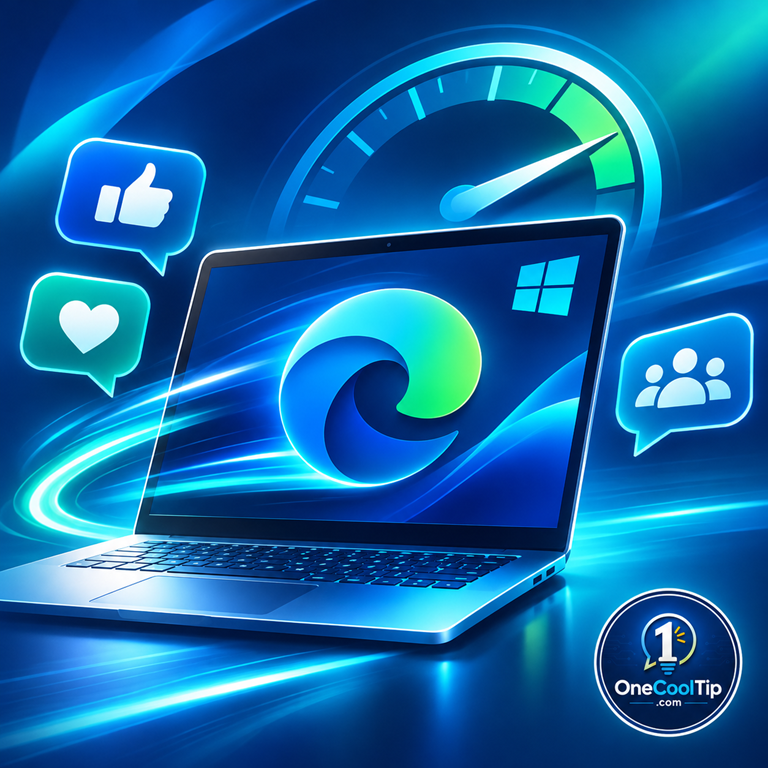
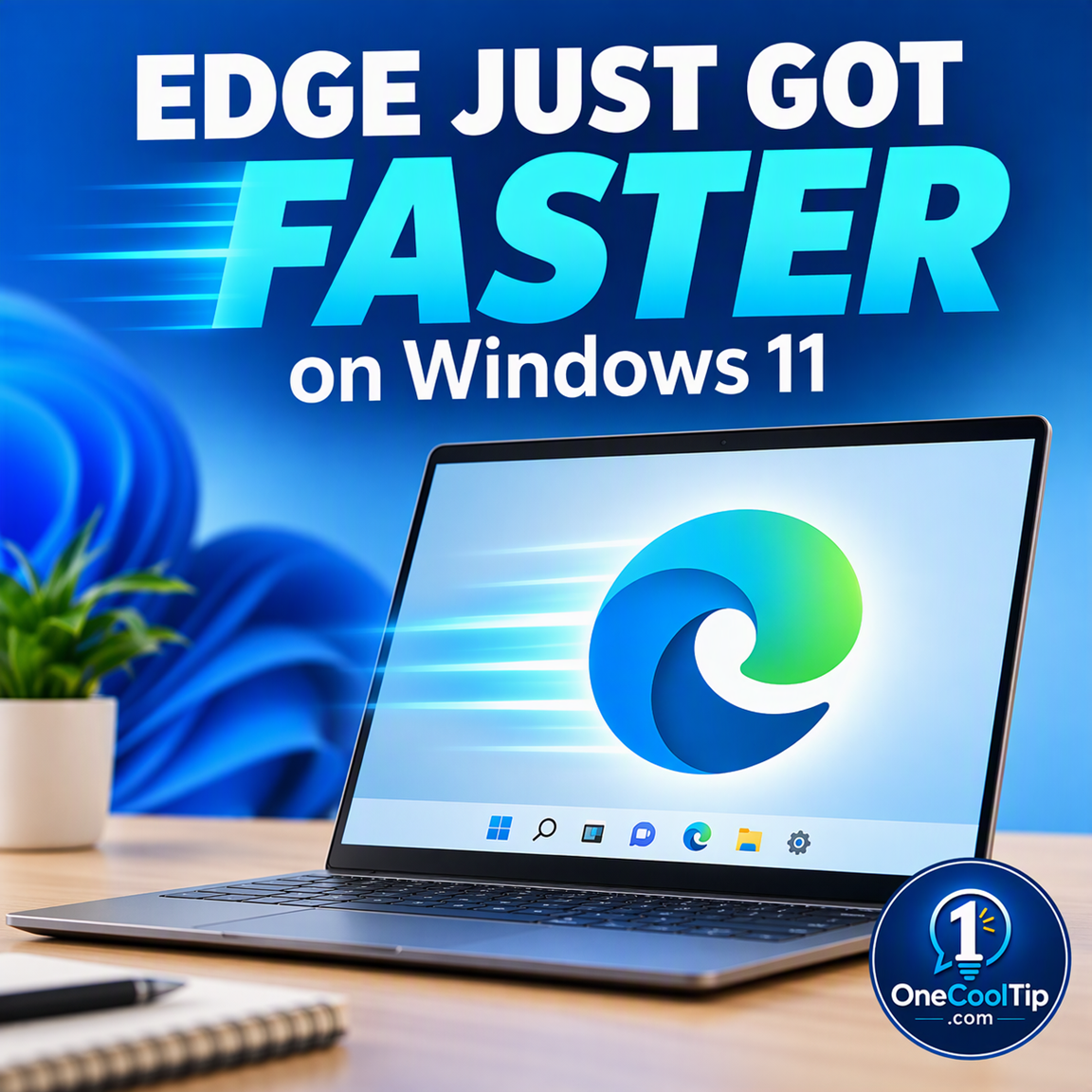
Cool Tip Theme: Faster Microsoft Edge Launch


Microsoft Edge now launches faster on supported Windows 11 PCs. Learn how accelerated app launches work and whether your computer qualifies.


New here? Subscribe to the One Cool Tip Newsletter for daily updates. It's FREE!

3️⃣

If you enjoy the One Cool Tip Newsletter, please forward this newsletter to THREE friends or colleagues or share it on social media using the links below.


Leave a $$$ Tip!


Share this One Cool Tip Newsletter!

X Share This Email
LinkedIn Share This Email
Pinterest Share This Email

🚨 Flying Frontier? Watch Out for This Phishing Scam 🚨


Frontier Airlines is warning customers about an active phishing campaign using emails designed to steal personal and payment information.


The airline says it will not email customers asking them to revalidate a flight, confirm credit card information, or provide payment details to receive a refund.


If you receive one of these messages, don't click its links, reply, or enter any personal, login, or payment information.


Instead, check your reservation by going directly to Frontier Airlines through its trusted website or app.


If you've already provided payment information in response to a suspicious email, contact your card issuer or financial institution.


The Cool Tip:


Never let an urgent-looking travel email rush you into clicking.


Verify it directly with the airline first.


  • That “Free” Download Could Cost You More Than You Think


Microsoft Security Research is warning about a fake-download campaign targeting people searching for cracked software, free games, activators, plugins, and unofficial utilities.


The downloads use tampered installers that can quietly install additional software, sometimes without the user’s informed knowledge or consent.


Infected PCs could be used to route other people’s internet traffic, contribute computing resources, or run additional utility-style software.


To reduce your risk, avoid cracked software, key generators, unofficial game installers, and software activation tools.


Also keep Microsoft Defender protections enabled.


The Cool Tip:


Download software from trusted sources because a tempting “free” installer could bring along much more than you bargained for.


And in Other News...


  • Microsoft AI CEO: Don’t Build Conscious AI


Mustafa Suleyman, CEO of Microsoft AI, is drawing a firm line on one of AI’s biggest questions: Should machines ever become conscious?


He says there is currently no evidence that AI systems are conscious, feel emotions, experience the world, or deserve welfare protections.


Suleyman argues that developers should deliberately design AI systems so they do not become conscious or develop their own intrinsic motivations.


If evidence of consciousness began emerging during training, he says AI development should stop until those properties could be designed out.


Instead, he believes AI should be built with the purpose of improving human well-being while remaining under human control.


The Cool Tip:


As AI gets more capable, the debate may increasingly shift from what AI can do to what we should allow it to become.

Cool Tip Poll

🤔 How much does browser launch speed matter to you?

Cool Deals of the Day

  • Have you tried the Upside app? Everyday cash back on gas, groceries and dining.


Help support One Cool Tip. Use this Amazon link when you shop online.


Check out these Cool Deals:

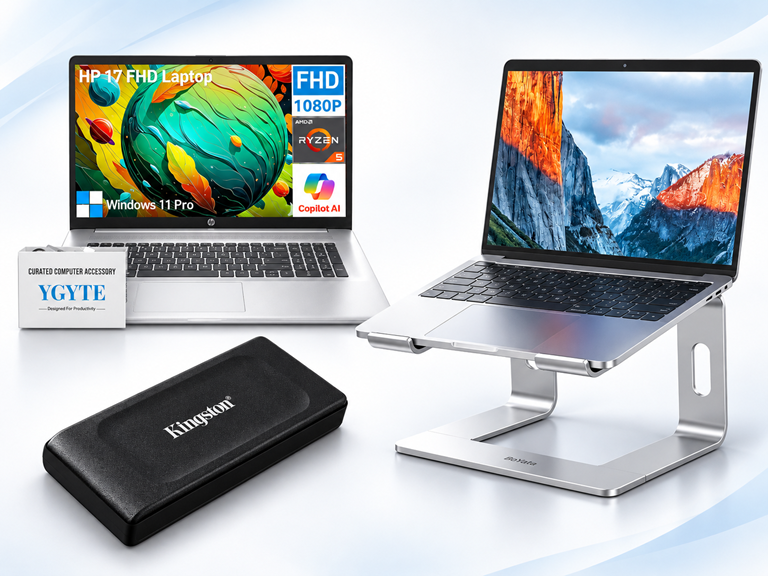
💻 HP 17-inch Windows 11 Laptop: The most directly relevant upgrade here because accelerated Edge launches specifically depend on Windows 11. 

Look! Now $1,599. 4.8 Stars. Check it out on Amazon!


🖥️ BESIGN LS03 Aluminum Laptop Stand: A simple desk upgrade that raises compatible 10- to 15.6-inch laptops and provides an open design for airflow.

Amazon's Choice! Now $16.99. 4.8 Stars. Check it out on Amazon!


💾 Kingston XS1000 2TB External SSD: Portable external storage can be handy for backups and moving files between your Windows PCs.

Save 12%. Now $380.99. 4.5 Stars. Check it out on Amazon!


*Prices accurate when originally published.

One Cool Tip may earn a commission from qualifying purchases.

Fuel Your Adventure

Try Big Mike's Jerky!


bigmikesjerky.com


Today's Cool Tip

Microsoft Edge Now Launches Faster on Windows 11

Microsoft has reduced the time it takes to reopen Edge on supported Windows 11 PCs when the browser is already running.


The improvement works automatically on qualifying systems, so there is no new feature to find or setting to enable.

By Rodger Mansfield, Technology Editor

November 4, 2026

Subscribe


You click a link or select Edge from the taskbar, but the browser takes a moment to appear. 


That short delay becomes more noticeable when your computer is already juggling several applications.


Microsoft is addressing that pause with accelerated app launches, a Windows capability now supported by Edge. 


Most qualifying users should see a 15% launch-speed improvement, with gains of up to 33% under heavy multitasking. Those measurements apply when Edge is already running.


The improvement requires Edge 150 or later and Windows 11 version 25H2, 26H1 or 26H2 with KB5127936 or a later update. 


Support began rolling out with Edge 150 and is now available on systems that meet those requirements.


Here’s a Cool Tip: Check Edge and Windows for the updates needed to get faster launches.


Feature Explanation


Accelerated app launches improve the way Windows communicates with an Edge process that is already running.


Before this change, Windows started an intermediary process when you selected Edge or opened a supported link. 


That process checked whether Edge was running and then forwarded the request to the existing browser process.


Edge can now register with Windows when it starts. 


When you launch the browser again, Windows can notify the existing Edge process directly, eliminating the extra intermediary step.


This is sometimes called a warm launch because the application is already active. 


It differs from the first launch after starting a computer.


The improvement supports launches from the Start menu and taskbar, along with supported links assigned to open in Edge by default. 


The company is working on additional launch scenarios, including opening PDF files, so readers should not assume every way of opening Edge currently receives the same benefit.


There is no new button or interface to learn. 


If your Edge and Windows versions qualify, the improvement works in the background.


What You’ll Gain


  • Spend less time waiting for an existing Edge process to open a browser window.
  • Get a potentially larger benefit when your PC is handling several applications.
  • Avoid adding another browser setting to your routine.
  • Make frequent links and taskbar launches feel more responsive.


Step-by-Step Instructions


Here's how to do it.


Windows


You don't activate Accelerated App Launches with a switch. Instead, confirm that your computer has the necessary Windows and Edge updates.


Step 1: Check your Windows version


  1. Click Start.
  2. Select Settings.
  3. Open System > About.
  4. Find Windows specifications and check the Version field.


Supported versions are Windows 11 25H2, 26H1 and 26H2.


Step 2: Check for Windows updates


  1. Open Settings > Windows Update.
  2. Click Check for updates.
  3. Install applicable updates and restart if prompted.
  4. Confirm your system has update KB5127936 or a later applicable update that includes it.


If KB5127936 is not offered, it may not apply to your installation or may not yet be available through your update channel. 


Step 3: Check your Edge version


  1. Open Microsoft Edge.
  2. Click the three-dot menu in the upper-right corner.
  3. Select Help and feedback > About Microsoft Edge.
  4. Verify you're running version 150 or later.
  5. Install any available update and restart Edge if prompted.

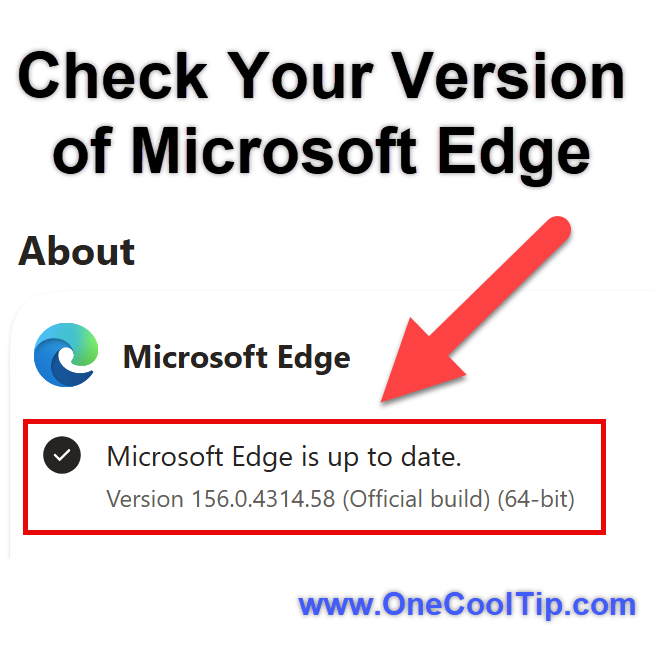
fig. 1 - Check Your Version of Microsoft Edge

Shortcut: Enter edge://settings/help in the address bar to go directly to the update page.


Step 4: Give it a try


  1. Open Edge and visit a website.
  2. Switch to another program, such as Word or File Explorer.
  3. Return to Edge using its taskbar icon or Start menu.
  4. Pay attention to how quickly the browser responds.


The difference may be subtle on a fast PC and more noticeable when multitasking. 


Startup Boost: A Related Setting


Startup Boost is separate from accelerated app launches. 


It keeps minimal Edge processes running in the background so the browser can open faster.


To review the setting:


  1. Open Edge.
  2. Select Settings and more > Settings.
  3. Select System and performance.
  4. Find Startup boost and turn it on or off.


Startup Boost is available on devices running most versions of Windows, although eligibility may depend on the device and installed extensions.


Pros and Cons


Pros:


  • Faster repeated launches: Microsoft reports a 15% launch-speed improvement for most qualifying users.
  • Better performance during busy sessions: Microsoft measured gains of up to 33% under heavy multitasking.
  • No setup required: Accelerated launches work automatically on supported systems.
  • Supports common launch methods: Start menu, taskbar and supported links open in Edge by default.


Cons:


  • Limited Windows support: The feature requires specific Windows 11 releases and updates.
  • Specific Edge version required: Users need Edge 150 or later.
  • Results will vary: Microsoft’s figures cover a range of launch conditions rather than guaranteeing the same improvement on every PC.
  • Not every launch method is covered: Microsoft is still working on additional scenarios, including opening PDF files.


Troubleshooting and Limitations


Problem: Edge does not seem to open any faster.


  • Why it happens: Your computer may not meet the version requirements, or the difference may be difficult to notice during light use.
  • Fix or workaround: Confirm that you have Edge 150 or later, a supported Windows 11 release and KB5127936 or later.


Problem: You cannot find an Accelerated App Launch setting.


  • Why it happens: Microsoft does not document a consumer-facing toggle for this capability.
  • Fix or workaround: Check your Edge and Windows versions instead of looking for a new switch.


Problem: Startup Boost is missing or turned off.


  • Why it happens: Startup Boost is a separate feature. Microsoft says conflicting extensions can cause it to turn off automatically.
  • Fix or workaround: Open edge://settings/system/manageSystem and review the Startup Boost setting. If it remains unavailable, check your extensions or ask your organization’s administrator about managed policies.


Problem: Opening a PDF does not seem faster.


  • Why it happens: Microsoft says it is still working on extending accelerated launches to additional scenarios such as PDF files.
  • Fix or workaround: No user workaround is documented. Continue installing Edge and Windows updates.


Feature Access


Accelerated app launches require:


  • Microsoft Edge 150 or later
  • Windows 11 version 25H2, 26H1 or 26H2
  • KB5127936 or a later qualifying update


Score

Criterion | Score (0–10) | Justification 
Value | 8
The feature reduces a small but frequently encountered delay, particularly for people who repeatedly launch Edge during busy work sessions.
Usability | 9
There is nothing new to configure once the required Edge and Windows updates are installed.
Wow Factor | 6
The engineering is clever, but users will experience it as a modest improvement rather than a dramatic new feature.
Total: 23/30 | 👍 Good
Accelerated app launches will not change how you browse, but they can make Edge feel more responsive during everyday Windows use.
Unlike Startup Boost, which keeps minimal browser processes running in the background, accelerated app launches improve how Windows sends a launch request to an Edge process that is already running.


Key Takeaways


Supported Windows 11 computers can now open an existing Edge process more quickly, particularly during heavier multitasking. 


The improvement works automatically, but users need the required Edge and Windows versions before they can benefit.


Cool Tip Snapshot


  • Feature Name: Accelerated App Launches
  • Platforms: Supported Windows 11 versions
  • Quick Benefit: Faster repeated Edge launches
  • Best For: Frequent Edge users and multitaskers
  • Access Type: Included with supported Edge and Windows 11 versions
  • Difficulty: Easy


Learn More


Microsoft’s official announcement explains how accelerated app launches work, which Edge and Windows versions qualify, and the conditions behind its performance measurements.


Try It Yourself


Update Edge and Windows, then watch how quickly Edge appears the next time you launch it during a busy work session. 


Comment with your results, subscribe to the One Cool Tip newsletter for FREE, and share this Cool Tip with family, friends and coworkers.


READ MORE


Read the Full Cool Tip!

Check Out These Cool Tips & Tricks


  • Startup Boost: Let Edge keep minimal processes ready in the background so it can start more quickly. Go to Settings > System and performance > Startup boost to control it.


  • Check Updates: Staying current helps ensure you receive eligible Edge improvements. Enter edge://settings/help in the address bar to view your installed Edge version.


  • Windows Update: Accelerated launching requires a compatible Windows release and update. Open Settings > Windows Update to check your PC.


  • Pin Edge: Accelerated launches support the taskbar. Right-click Edge on your taskbar and choose Pin to taskbar if you want quick access.


  • Use Start: Launching Edge from the Start menu is another scenario Microsoft specifically says accelerated launching supports. Open Start, find Edge and launch it normally.


  • Default Browser: Supported links that open in Edge by default can take advantage of accelerated launches. Review your Windows default-app settings if you want links associated with Edge.


  • Background Check: Don't automatically assume an Edge background process is a problem. Startup Boost intentionally keeps minimal browser processes running to improve startup performance.


  • Extension Check: Some extensions can conflict with Startup Boost. If the setting unexpectedly switches off, Microsoft's support documentation says an incompatible extension can be responsible.


  • Managed PCs: Your organization can control Startup Boost through Edge policy. If you cannot change the setting on a work PC, check with your administrator.


  • PDF Patience: Don't assume accelerated launching has reached every Edge scenario yet. Microsoft specifically says it is working on additional uses such as opening PDF files.

ICYMI - In Case You Missed It ...

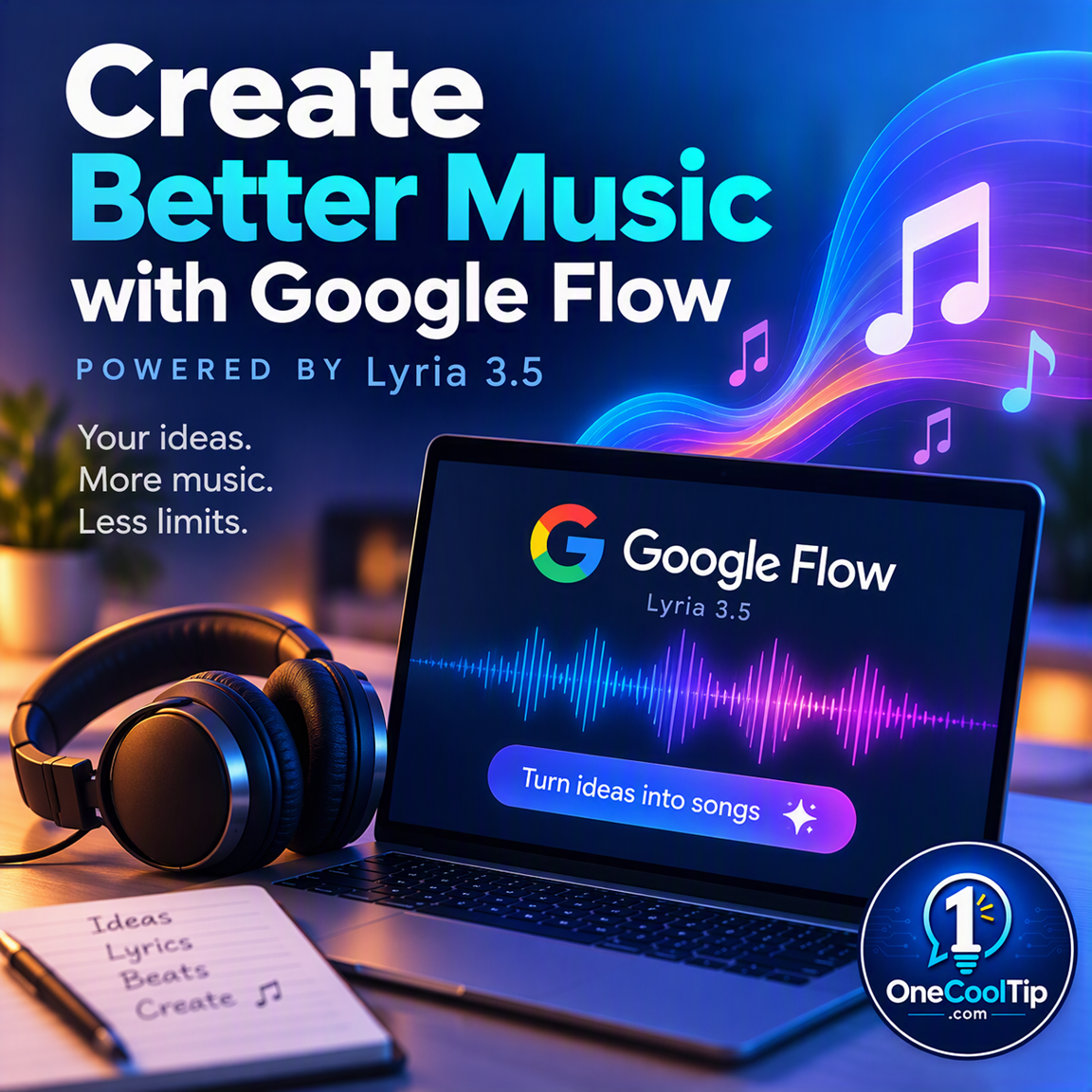
Create Studio-Quality Songs With Google Flow Music and Lyria 3.5


Google recently launched the Lyria 3.5 model inside Google Flow Music to give creators advanced control over their AI-generated tracks. This update brings improved vocal expression, complex melodies, and precise tempo adjustments to help you craft exactly the sound you want.


Read the Full Version.


Read the Newsletter Version.

Looking for your next adventure?


Call Denise at Travel For You.

314.660.3039


Sign Up for the Monthly Newsletter


http://www.travelforyouvacations.com/


https://www.facebook.com/TRAVEL.FOR.U/


See You Tomorrow

Tomorrow's Cool Tip is waiting to amaze you.


Until then, go forth and conquer the tech world with your newfound knowledge!


Be sure to visit www.OneCoolTip.com for Cool Tech Tips for a Cooler Life!


And if you Like One Cool Tip, please support with TipJar!


Enjoy!


Rodger

Chief Cool Tipper

onecooltip.com@gmail.com


What Do You Think?

What do you think of today's One Cool Tip Newsletter?
Positive        Neutral        Negative
X Share This Email
LinkedIn Share This Email

Connect with One Cool Tip!

Facebook  X  Instagram  Web  Pinterest  YouTube  LinkedIn
 

As an Amazon Associate, One Cool Tip may earn a small commission from qualifying purchases.


Our media content is intended solely for informational purposes. Please do not construe anything here as legal, tax, investment, financial, marital or other advice.


Copyright © 2026 | www.OneCoolTip.com | All Rights Reserved