|
One Cool Tip Newsletter
November 22, 2026
| Your daily dose of tech-savvy brilliance! | |
😀 Greetings! Happy Sunday, Cool Tipper!
Get ready to streamline your digital life with simple, actionable tips delivered straight to your inbox.
Cool Tip Theme: Generate Sites in Gemini Notebook
Gemini Notebook now lets you convert your uploaded research, documents and notes into interactive, shareable websites with a single chat prompt. Skip the coding and static slide decks to turn raw source material into live dashboards, study tools and project trackers anyone can open in a browser.
New here? Subscribe to the One Cool Tip Newsletter for daily updates. It's FREE!
| |
3️⃣
If you enjoy the One Cool Tip Newsletter, please forward this newsletter to THREE friends or colleagues or share it on social media using the links below.
Leave a $$$ Tip!
Share this One Cool Tip Newsletter!
| | |
🚨 ⚡ Don’t Get Shocked by This Utility Scam🚨
A call claiming your electricity will be shut off unless you pay immediately should set off alarm bells.
Scammers may impersonate the utility, fake caller ID information and use threats to pressure customers into acting quickly.
Scammers may demand payment through store barcodes, gift cards, prepaid debit cards, payment apps or cryptocurrency.
If you receive a suspicious demand, hang up and verify the situation directly with your utility using the phone number or website you normally trust.
Customers should not share account numbers, passwords or other personal and financial information with unsolicited callers.
Taking a moment to verify the request could keep a convincing scare tactic from turning into a costly mistake.
The Cool Tip:
Slow down, hang up and contact your utility directly before paying anyone who threatens immediate disconnection.
And in Other News...
- 🌟 Google’s New Gemini 4 Neon Brings More AI Muscle
Google has introduced Gemini 4 Neon, a new AI model designed to balance advanced reasoning with faster, more cost-efficient performance.
It can tackle demanding tasks involving writing, research, coding and analysis, while also working with spreadsheets, PDFs, photos and information from Google apps such as Gmail and Docs.
For everyday users, one of the biggest benefits is getting quicker help with complicated, multi-step tasks without automatically relying on Google’s larger Gemini 4 Carbon model.
Neon can help with jobs such as analyzing bills, reviewing multiple receipts and researching current information from the web.
Gemini 4 Neon is rolling out in the Gemini app for Google AI Pro and Ultra subscribers, who can select it from the model drop-down.
The Cool Tip:
If you subscribe to Google AI Pro or Ultra, look for Gemini 4 Neon in the Gemini model picker and give it a try on your next complicated research or analysis task.
| |
| 🤔 What would you build first with Gemini Notebook's site maker? | | | | |
🛍️ Cool Deals for Faster Research and Web Building
These everyday workspace upgrades make it easier to organize sources, review generated websites and share projects smoothly.
⌨️ Logitech MX Keys S Wireless Keyboard
Type detailed prompts and edit project notes comfortably across multiple computers without hand fatigue.
$109.99 · Save 15% · 4.4
Shop the Logitech MX Keys S on Amazon
🖱️ Logitech MX Master 3S Wireless Mouse
Scroll smoothly through long research PDFs and test interactive web dashboards with precision.
$75.99 · Save 24% · 4.6
Shop the Logitech MX Master 3S on Amazon
🖥️ ASUS ZenScreen 15.6-Inch Portable USB-C Monitor
Keep your Gemini Notebook sources open on one screen while previewing your generated website on the other.
$179.99 · Look! · 4.5
Shop the ASUS ZenScreen Portable Monitor on Amazon
*Prices accurate when originally published.
One Cool Tip may earn a commission from qualifying purchases.
| |
Have you tried the Upside app? Everyday cash back on gas, groceries and dining.
Help Support One Cool Tip.
Use this Amazon link when you shop online.
| | Turn Your Notes Into Interactive Websites With Gemini Notebook | | |
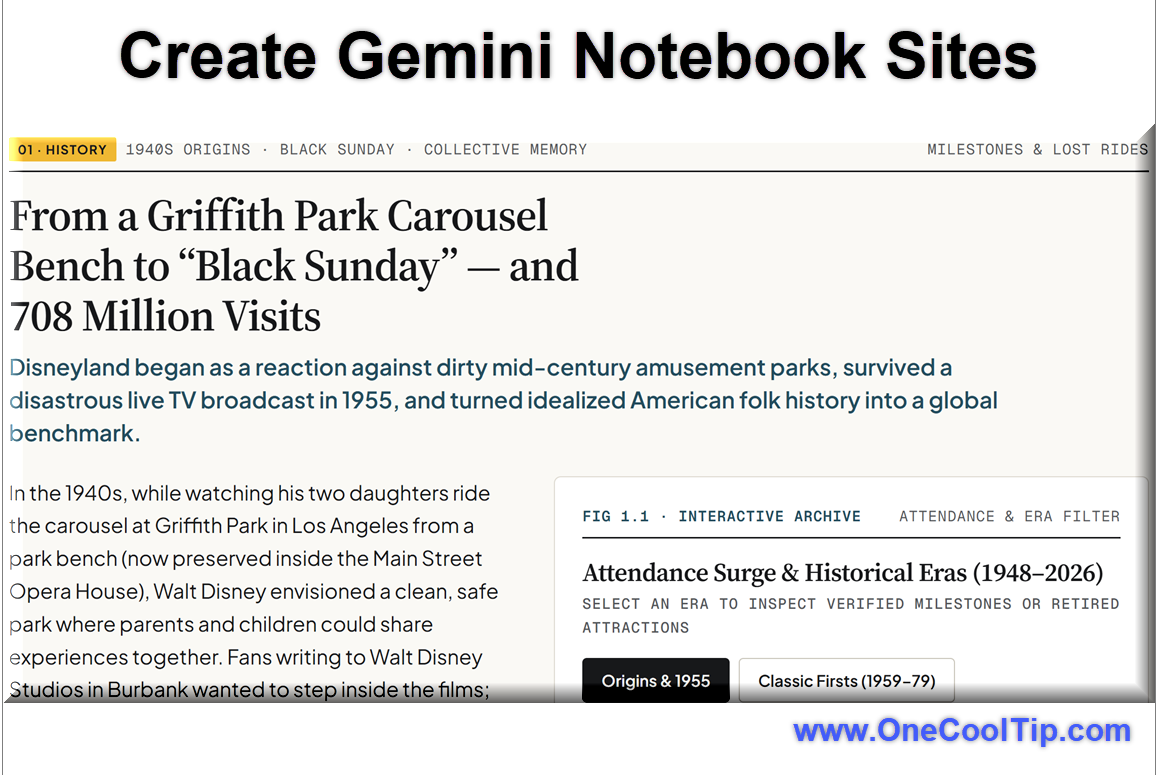
Gemini Notebook now lets you convert your uploaded research, documents and notes into interactive, shareable websites with a single chat prompt.
Skip the coding and static slide decks to turn raw source material into live dashboards, study tools and project trackers anyone can open in a browser.
| | |
By Rodger Mansfield, Technology Editor
November 22, 2026
Subscribe
You spend hours gathering PDFs, meeting notes, spreadsheets and web links inside a research notebook.
Then comes the hardest part: sharing what you learned with a team, a class or a family group without forcing everyone to read a 20-page document.
Most people default to copying and pasting text into a static slide deck or a long email.
That takes extra time, and the final result rarely lets readers explore the information on their own.
Google has added a direct shortcut inside Gemini Notebook, the research assistant previously known as NotebookLM.
You can now ask the chat tool to build an interactive, shareable website directly from your notebook sources.
Here's a Cool Tip: Type "make me a site" in Gemini Notebook chat to turn your research sources into a live, shareable webpage.
Feature Explanation
The site generator is a newly available feature inside the web version of Gemini Notebook at notebook.google.com.
Instead of exporting summaries or building a presentation by hand, you describe the kind of interactive page you want inside the Chat panel.
Gemini Notebook reads the sources you have added to that notebook and builds a working webpage, which then appears in the Studio panel.
Google highlights interactive dashboards, project management trackers, work tools and visual narratives as primary examples.
Once the page finishes generating, you can interact with it inside Studio, open it in a full-screen browser tab, share a link or download the site file.
This matters because it bridges the gap between private research and team presentation.
You do not need to know HTML, CSS or JavaScript, and you do not have to move your files into a separate website builder.
Business teams, students, teachers and everyday organizers benefit most because they can turn static notes into visual, clickable tools in minutes.
What You'll Gain
Save time by turning uploaded documents and links into a finished webpage without writing code.
Make complex information easier to explore with interactive dashboards, study tools and project trackers.
Share findings cleanly by sending a direct link or downloading the generated site file instead of emailing a folder of attachments.
Step-by-Step Instructions
Here's how to do it.
Web/Desktop:
-
Open your web browser, go to notebook.google.com and sign in with an eligible Google account (users must be 18 or older).
-
Open an existing notebook where you have edit access, or create a new notebook and upload your documents, links or notes.
-
Click inside the Chat panel input box.
-
Type "make me a site" followed by a clear description of what you want to build. For example: make me a site about my Disneyland research. Or make me a site for an interactive project tracker showing milestones, owners and deadlines from these meeting notes.
-
Press Enter.
-
When the site is ready, open the Studio panel and select your generated site to view and test it.
-
To view it full screen, select More next to the site in the Studio panel, then choose Open in new tab.
-
To share a link, select More next to the site in Studio, choose Share, confirm the notebook is shared with your recipient or with Anyone with a link, select Copy link to artifact and click Save.
| | |
Pros and Cons
Pros:
-
Zero coding required: You describe the layout and purpose in plain English, opening web creation to non-technical users.
-
Grounded in your sources: The site pulls directly from the documents and notes in your notebook rather than generic web filler.
-
Flexible viewing and exporting: You can interact with the site in Studio, open it in a new tab, share a link or download the file directly.
-
Saves your personal inputs: Checkboxes, notes and text fields you fill out are saved and reappear when you reopen the site.
-
Broad web access: Available globally on the web for users ages 18 and older.
Cons:
-
Web-only at launch: Native mobile app support is not yet available.
-
Full-notebook sharing requirement: Viewers opening a shared link must have access to the entire notebook, not just the webpage.
-
No collaborative editing on shared sites: Users only see their own inputs on a shared site, so a team cannot check off shared tasks together in real time.
-
Account and usage restrictions: Public sharing requires a consumer Google account, users must be 18 or older and usage limits apply
Who Should Skip This
Skip this feature if you need a permanent public business website with a custom domain, e-commerce checkout or strict brand styling.
You should also pass if you want a live, multi-user tracker where teammates see each other's checkmarks in real time, since shared sites only display each person's own inputs.
Finally, skip it if you cannot share the underlying notebook sources with your viewers, if your organization restricts AI sharing or if you are under 18.
Troubleshooting and Limitations
Problem: You cannot generate or delete a site in a shared notebook.
-
Why it happens: Generating and deleting sites requires edit access to the notebook.
-
Fix or workaround: Ask the notebook owner to upgrade your permission to editor, or create a copy of the notebook if copying is enabled.
Problem: Teammates cannot see the checkboxes you marked or notes you typed on a shared site.
-
Why it happens: By design, shared sites only display each individual user's own inputs; even the site owner cannot see what other viewers enter.
-
Fix or workaround: Use generated sites for reference dashboards, study guides or personal checklists rather than live collaborative task boards.
Problem: A shared link stops working or a recipient gets an access error.
-
Why it happens: Viewers must have access to the full notebook, or the site may have been deleted or had sharing turned off.
-
Fix or workaround: Open Studio > More > Share, verify the notebook is shared with the recipient or Anyone with a link, and copy the link again.
Problem: The feature does not appear on a student or family member's account.
-
Why it happens: Site generation is limited to users ages 18 and older, and mobile apps do not yet support it.
-
Fix or workaround: Confirm the user is 18 or older and signed in at notebook.google.com in a web browser.
Privacy and Data Notes
Before sharing a site link, remember one critical rule from Google's documentation: anyone viewing a shared site link must also have access to the full notebook.
That means recipients can view the underlying PDFs, notes and files you uploaded, not just the polished webpage.
Always open your generated site in a new tab first to inspect every section, chart and text block.
Keep sensitive personal records, confidential HR documents or private client data out of any notebook you plan to share publicly.
On the plus side, any checkboxes, notes or text entries you type into a shared site remain visible only to you.
If you use a work or school Google Workspace account, Google states that your uploads, queries and responses are not reviewed by human reviewers or used to train AI models, though you should still follow your organization's sharing policies.
Feature Access
Site generation is available globally on the web (notebook.google.com) for users ages 18 and older, including Google Workspace subscribers.
Usage limits apply to creating sites.
Public link sharing and access management require a consumer Google account with owner or editor access. Mobile app support is coming soon.
Score
Criterion | Score (0–10) | Justification
Value | 8
Turns dense research notes into useful dashboards, study tools and trackers in minutes.
Usability | 7
Easy to prompt in Chat and manage in Studio, though full-notebook sharing adds friction.
Wow Factor | 8
Generating a live, downloadable webpage directly from your own sources feels genuinely practical.
Total: 23/30 | 👍 Good
Turning source-grounded research into an interactive webpage with one prompt is a practical upgrade for anyone who regularly shares summaries, study guides or project updates.
Compared with Google Sites or traditional slide builders, Gemini Notebook trades fine-grained design control and live team editing for speed and automatic source synthesis.
Key Takeaways
Gemini Notebook's site generator removes the hassle of sharing research by converting your uploaded files into clickable webpages through a single chat prompt.
Just remember to review your notebook sources before sharing a link, since viewers need access to the full notebook and everyone sees only their own interactive inputs.
Cool Tip Snapshot
-
Feature Name: Generate Sites in Gemini Notebook
-
Platform(s): Web (notebook.google.com)
-
Quick Benefit: Turn uploaded notebook sources into interactive, shareable and downloadable websites with one chat prompt.
-
Best For: Business teams, students, educators and project planners.
-
Access Type: Free with usage limits (Global web access for users 18+; public sharing requires a consumer account)
-
Difficulty: Easy
Learn More
Read Google's official Gemini Notebook Help guide for step-by-step instructions on generating, viewing, downloading, sharing and deleting interactive sites.
Try It Yourself
Open a notebook at notebook.google.com, type "make me a site" in Chat and see what it builds from your own notes.
Subscribe to the FREE One Cool Tip Newsletter for daily tech shortcuts and share this article with family, friends and coworkers who still build status reports by hand.
READ MORE
Read the Full Cool Tip!
| | |
Check Out These Cool Tips & Tricks
-
Specify the Layout: Telling Gemini Notebook the exact format you want leads to cleaner, more useful webpages. Add words like "dashboard," "timeline" or "checklist" right after typing "make me a site."
-
Curate Your Sources: Removing unrelated files before generating a site keeps off-topic details off your finished page. Uncheck or delete extra sources in your notebook before sending the prompt.
-
Describe Your Audience: Mentioning who will read the page helps the tool choose the right tone and structure. Add a short phrase like "for clients," "for high school students" or "for family members" to your prompt.
-
Open Full Screen: Viewing your generated site outside the sidebar makes it much easier to test buttons and layouts. In the Studio panel, click More next to your site and select Open in new tab.
-
Download a Copy: Saving a local copy lets you share or archive your interactive page without granting full notebook access. Click More next to the site in Studio and select Download.
-
Ask for Filters: Interactive elements make long lists much easier for readers to scan. Include "with filterable categories or tabs" in your "make me a site" description.
-
Highlight Key Dates: Pulling deadlines into a dedicated section turns raw meeting notes into an actionable schedule. Ask Gemini Notebook to place milestones and due dates at the top of the page.
-
Combine File Types: Mixing PDFs, Docs, Slides and web links gives the site richer context than a single document. Upload all related project files into one notebook before prompting Chat.
-
Check Notebook Permissions: Viewers cannot open a shared site link unless they can also view the underlying notebook. Open More and Share in Studio to verify the notebook is shared before copying the link.
-
Protect Private Files: Because shared site links require full notebook access, sensitive documents in the same notebook can be exposed. Create a clean, dedicated notebook with only shareable files before building a public site.
| | ICYMI - In Case You Missed It ... | | | | |
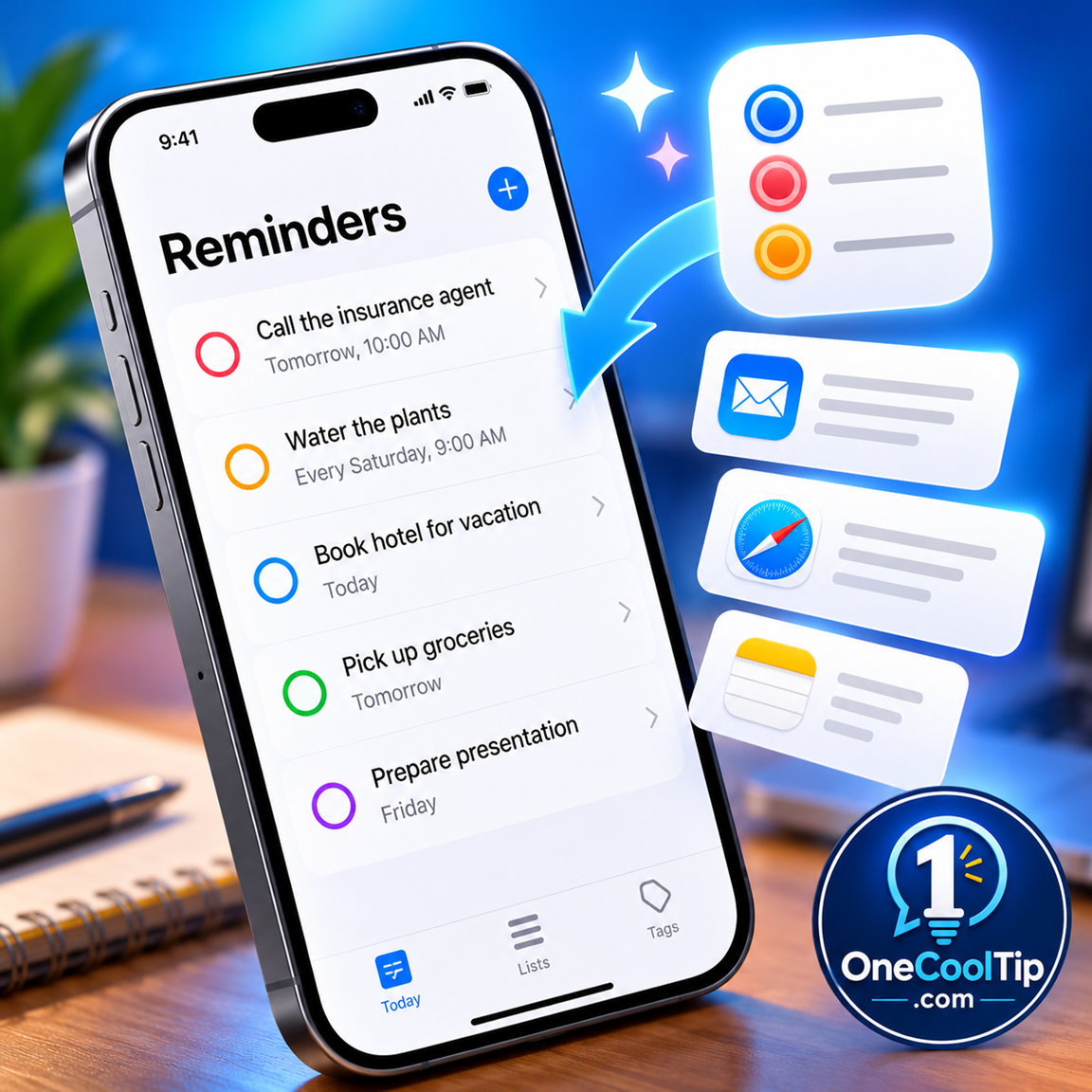
Make iPhone Reminders Smarter With iOS 27
Your iPhone can do more than remind you about appointments and deadlines. With iOS 27 and Apple Intelligence, Reminders can understand everyday instructions, suggest tasks from emails and webpages, and help organize your to-do lists.
Read the Full Version.
Read the Newsletter Version.
| | |
Tomorrow's Cool Tip is waiting to amaze you.
Until then, go forth and conquer the tech world with your newfound knowledge!
Be sure to visit www.OneCoolTip.com for Cool Tech Tips for a Cooler Life!
And if you like One Cool Tip, please support us with TipJar!
Enjoy!
Rodger
Chief Cool Tipper
onecooltip.com@gmail.com
| |
| What do you think of today's One Cool Tip Newsletter?
| | | | Connect with One Cool Tip! | | |
|
As an Amazon Associate, One Cool Tip may earn a small commission from qualifying purchases.
Our media content is intended solely for informational purposes. Please do not construe anything here as legal, tax, investment, financial, marital or other advice.
Copyright © 2026 | www.OneCoolTip.com | All Rights Reserved
|
| | | |