|
Special Wednesday Edition
November 25, 2026 - Issue 211
| |
Happy Thanksgiving to all of my dedicated readers.
Thanksgiving kicks off the holiday season which can be one of the most cyber dangerous times of the year. This issue will kick off a series of special issues, all geared around giving you the tools to stay cybersafe while enjoying the holiday season.
Passwords and Passkeys
Remembering passwords, resetting forgotten ones, and checking security codes can make signing in feel like a chore. Passkeys offer a different approach: prove it is you using a device you already trust, without typing an account password. This week’s Cybersecurity Friday explains what passkeys are, why they matter, and how to start using them safely.
| | |
Our family gets in the car to go to Thanksgiving dinner.
-
Dad: "The car won't start, maybe the starter is shot."
-
Mom: "Did you remember to put gas in the car?"
-
Brother: "Maybe it's a dead battery."
-
IT Professional: "I got an idea! Everybody get out of the car and get back in!"
Enjoy the holiday with your family and enjoy every moment, my dedicated readers.
| | This Week's Cybersecurity All-Stars | | |
This week's issue brings the return of recognizing our weekly "Cybersecurity All-Stars". I had stopped doing this for some reason. So, beginning this week that error will be corrected.
Week of November 9 - November 21, 2026
- Nick Fink
- Michele Wholey
- Kris Hines
- Joe Miles
- Staci King
- Christine Foster
- Mikey Clements
- Thesa Eadie
Well done. Stop by the IT Department to claim your All-Star merch and show off your cybersecurity skills to your work mates.
| | Latest Vulnerabilities Report | |
As a Chief Information Security Officer, I receive regular reports from the Center for Internet Security (CIS). I am not sure why I haven't thought of this sooner, but "Cybersecurity Friday" is a great place to share these important security alerts. Beginning with this issue, I will share the alerts I have received.
Take the time to review them and if they apply to you, take action and as always, feel free to reach out to me with any questions.
| | Understanding Microsoft's Global Outage | | |
Last week provided an important reminder that even the largest technology companies in the world can experience significant outages.
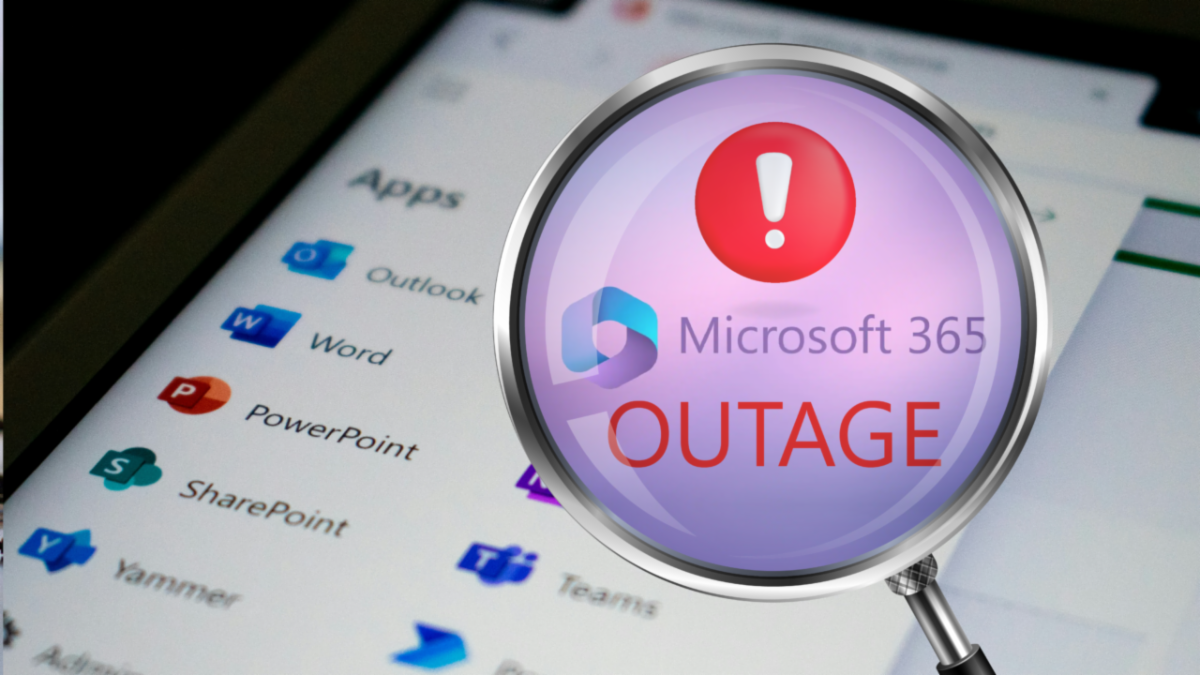
Beginning on Thursday, November 12, Microsoft experienced a major global disruption that affected Microsoft 365 services, including Outlook, Exchange Online, Teams, Copilot, and portions of other Microsoft cloud services. The problems continued into Friday, with Microsoft ultimately reporting that service had been restored to remaining affected customers and regions on Saturday, November 14.
| |
For our organization, the impact was isolated to email flow and some management services. Our employees couldn't access email and calendars, however Microsoft Teams remained operational for meetings and voice services. Our organization was lucky that the outage did not impact us in a more severe way, buy for many others if had a major operational impact.
Was It a Cyberattack?
Whenever a large technology provider experiences an outage, one of the first questions is naturally:
Was this a cyberattack?
In this case, Microsoft says the answer is no.
Microsoft reported that it was not aware of malicious activity associated with the outage. Instead, the problem originated within Microsoft's own infrastructure.
Microsoft's subsequent explanation identified a previously undetected software defect affecting its networking gateway servers. A change in how network traffic was distributed increased the load placed on those servers at a time when available capacity had already been reduced because of maintenance. Under those conditions, the previously dormant defect surfaced.
At the peak of the incident, more than 80% of the servers supporting the affected networking gateway service became unresponsive. Normal redundancy and automated recovery mechanisms were unable to contain the problem, contributing to a cascading failure that spread across regions.
Put simply, several individually manageable circumstances happened at the same time. Making this the “perfect storm”.
The cloud provides tremendous reliability, but no technology is available 100% of the time.
| | |
What is a Passkey
A passkey is a digital credential that lets you sign in to a supported website or app using your fingerprint, face recognition, device PIN, or another supported unlock method. You do not invent it or memorize it. Your device or credential manager creates and stores it for your account.
A passkey is not your fingerprint, and it is not another name for a password or a text-message code. Your fingerprint, face, or PIN unlocks permission to use the passkey. The website receives proof that you have the right credential—not your fingerprint, face scan, or device PIN.
How A Passkey Works
Behind the scenes, passkeys use two mathematically related keys. The website keeps a public key. Your device, credential manager, or security key protects the matching private key. When you sign in, the service sends a fresh challenge. After you unlock your passkey, it signs that challenge, and the website checks the response using the public key.
Think of it as proving you have the correct key without handing the key to the website. The private key is not sent to the service during sign-in. A stolen database of public keys alone does not give criminals the credentials they need to sign in as you.
| | Why Passkeys are Important | | |
They resist phishing. Passkeys are tied to the legitimate website or service. A look-alike sign-in page cannot use your passkey for the real site. That is a major improvement over a password or verification code that someone can trick you into typing into a fake page.
They remove password reuse from that sign-in. Each account gets its own credential, rather than a secret you might reuse elsewhere. There is no memorable password for a criminal to guess or try against other accounts.
They make security easier to use. A fingerprint, face scan, or PIN can replace typing a password and, in supported sign-in flows, a separate verification code. A passkey with local user verification combines possession of the credential with proof that you can unlock it. It is not simply turning security checks off.
| | How To Create Your First Passkey | | |
Start with one personal account that offers passkeys. The wording varies, but the usual process is straightforward:
Prepare your device. Update your operating system and browser, and enable a strong screen lock. Use your own trusted device—not a public or shared computer.
Open the official app or website yourself. Sign in using your current method, then look in account security or sign-in settings for “Passkeys” or “Add a passkey.”
Choose where to save it. Select your compatible credential manager, device, or hardware security key. Make sure you recognize the storage location.
Confirm on your device. Follow the prompt to use your fingerprint, face, PIN, or security key. You are authorizing the creation of the credential, not choosing a new password.
Check your backup access. Review the service’s recovery options before relying on the passkey. Then test signing in while another trusted session or recovery method remains available.
A real example: For a personal Google Account, open your account’s passkey settings, select “Create a passkey,” and follow the prompts to unlock your device. Google notes that adding a passkey does not remove existing authentication or recovery methods. Its official passkey instructions explain requirements and available options.
| | Signing in With a Passkey | | |
Return to the legitimate website or app and choose “Sign in with a passkey,” or select the account when your browser offers it. You may still need to enter your username first. Confirm with your fingerprint, face, PIN, or security key, and the service checks the proof automatically.
If the passkey is on your phone but you are using a computer, some services offer “Use another device” and display a QR code. In a sign-in you started yourself, scan that code with your nearby phone and approve on the phone. Bluetooth may need to be enabled on both devices. This uses the phone to authenticate; it does not require saving your passkey to that computer.
Only approve a sign-in you initiated. Do not scan a passkey sign-in QR code sent by an unexpected message or approve a request because a caller tells you to. If the expected option does not appear, check the service’s official help and your device compatibility rather than following an unsolicited “fix.”
| | |
The holidays should be about people and traditions—not stolen accounts, missing gifts, or fraudulent charges. You do not need to become a cybersecurity expert to protect yourself. Shop carefully, verify unexpected requests, protect your accounts, and resist pressure to act immediately. Before you click, pay, donate, or share a code, give yourself permission to pause. That small habit is worth carrying into the new year.
| | Next week we are going start preparing for the Christmas holiday by learning how to stay cybersafe throughout the holiday season. | | |
William Mann, CGCIO | Borough of West Chester | | | | | |