**OPTIMUM EMAIL SUBSCRIBERS ONLY**


You may be aware that Optimum no longer gives out email address. Further, to wind-down their email business, if you do not access your Optimum or Optonline emails every 90 days your account will be automatically deleted.


Please pass this information to your friends, family, and neighbors, as we have no way to reach those subscribers who have already lost their Optimum and Optonline email accounts and are therefore not receiving our weekly blasts.


Also, if you have an Optimum or Optonline email and want to subscribe to SeniorNet with different email account, e.g., gmail, verizon, aol, etc. you can Subscribe here.


For all others, please do not resubscribe!

WINDOWS KEYBOARD TIPS & TRICKS

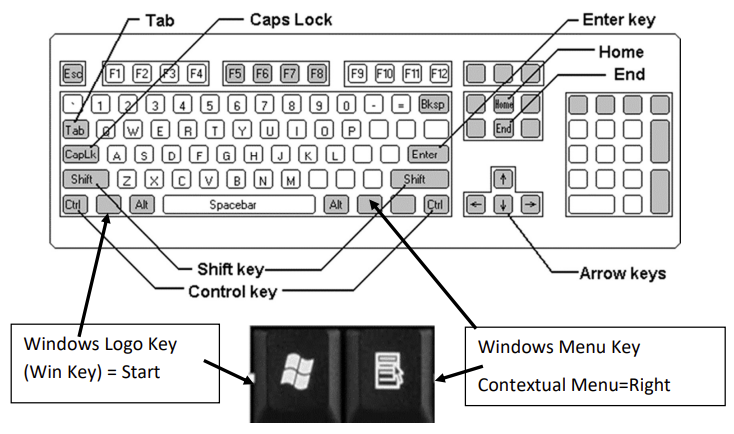
Mousing can make life both easier and frustrating on the computer. Here's some keyboarding tips to help you when mousing just isn't working for you.


Pick the ones that you'll use most often, and with repetition they'll become second nature to you.


And view this webpage if you want to see more keyboard commands than I'll ever remember. 😉

TO LAUNCH A PROGAM FROM THE DESKTOP: Instead of double-clicking on the program's icon, click once while pressing the ENTER key on the keyboard.


HINT:

  • Using the CTRL KEY is the same as using the SHIFT KEY to make a capital letter. To make a capital, you hold down the SHIFT KEY and then the letter you want to capitalize. Release both keys.
  • To use the CTRL KEY, you hold down the CTRL KEY and then the command letter indicated below. Release both keys.


CUT / COPY / PASTE: Highlight text first, same as you would with a mouse, then use the keyboard command.

  • Cut = CTRL + X
  • Copy = CTRL + C
  • Paste = CTRL + V


SAVE / SAVE AS

  • Save = CTRL + S
  • Save As = CTRL + SHIFT + S


FORMATTING TEXT: Highlight text first, same as you would with a mouse, then use the keyboard command.

  • BOLD = CTRL + B
  • ITALIC = CTRL + I
  • UNDERLINE = CTRL + U


SELECT ALL = CRTL + A (Highlights everything automatically.)


UNDO = CRTL + Z


WINDOWS KEY

  • VOICE DICTATION = WINDOWS KEY+ H
  • FILE EXPLORER = WINDOWS KEY + E


CONTEXUAL MENU (RIGHT-CLICKING) = MENU KEY (hamburger icon)


INSERT EMOTICONS = WINDOWS KEY + . (period) 👍

SUMMER CLASSES
REGISTER FOR HUNTINGTON LAB CLASSES

FSL SeniorNet at Family Service League, Olsten Family Center

790 Park Avenue, Huntington, NY 11743 1-631-470-6757

Facebook Spotlight


If you are confused by Facebook, or have never tried this social network, this class is for you. This 3-session class will help you understand, navigate, and enjoy using Facebook features on both desktop and mobile apps (iPad and iPhone).

  • iPhone (4) starts on Aug 8
  • PC Computing Basics 1 (4) starts on Aug 9
  • Facebook (3) starts on Aug 31
  • Smartphone Photography (4) starts on Sept 7

Private Instruction available at this location.

REGISTER FOR BAY SHORE ANNEX

FSL SeniorNet at Family Service League, South Shore Iovino Family Center

1444 Fifth Avenue, Bay Shore, NY 11706 1-631-647-3100

Private Instruction available at this location.

FREE WEBINARS & SEMINARS

Webinars are held over Zoom,

Seminars are at local libraries.

  • iPhone: The Camera Webinar on August 16
  • Android Phone: Getting Started Webinar on Sept 11
  • Windows 10: Survey of Settings & Desktop Webinar on Sept 13
  • Windows 11: An Introduction Webinar on Sep 20
  • Traveling with Your Smartphone Webinar on Sept 28
PRIVATE INSTRUCTION INFORMATION
IMPORTANT STUFF TO KNOW!

COVID PRECAUTIONS FOR ALL IN-PERSON CLASSES REVISED:

MASKING IS NOW OPTIONAL.

PROOF OF COVID VACCINATION IS NO LONGER REQUIRED.

-------------------------------

ALL CLASSES:

Registration is open until 10 AM sharp one day before the start of a class.

To participate in our classes, register and pay online with a credit or debit card. If you prefer to pay by check or cash, contact the office at 631-470-6757, or register in person at Open House in Huntington, Bay Shore & Blue Point.


ONLINE CLASSES:

To participate in our online courses, you need to download Zoom on your computing device*. The Zoom link will be included in the confirmation sent by ezregister.com. The teacher will also send the Zoom link and manual before the class.


WEBINARS ARE ONLINE:

Registration is open until one hour prior to the webinar's start time.

The Zoom link will be included in the confirmation sent by ezregister.com. The teacher will also send the Zoom link and handout before the webinar.


SEMINARS ARE IN-PERSON & LIBRARY HOSTED:

Registration is managed by our host library. Their registration link will be provided on their website, our email blasts, and our webpage.


SOLD OUT:

Please call 631-470-6757 or send an email to fslseniornet@fsl-li.org

to receive an email with information as to when the course (webinar, seminar, class or workshop) is offered again.

Please include the name of the course you are interested in.


COMPUTING DEVICES:

*Computing devices include Windows and Mac Desktops & Laptops,

iPads, and Android Tablets.

It is NOT recommended to Zoom using your smartphone

due to the smaller screen size.


ZOOM HELP IS AVAILABLE:

 If you need instructions on downloading and using Zoom, click here:

HOW TO JOIN A ZOOM CHAT. 

REGISTRATION PROCESS
SeniorNet Community Programs
COMPUTER DONATION / REFURBISHMENT PROGRAM
TECH CONNECT LIBRARY
FSL SENIORNET WEBSITE
FAMILY SERVICE LEAGUE WEBSITE