|
A practical, no-excuses guide for busy EdTech and education leaders
Accessibility often gets framed as a “big lift” or something we’ll handle later. But the reality is much simpler and more urgent. Every day, we send PDFs, slide decks, web pages, newsletters, and forms into the world assuming they work for everyone. Many don’t.
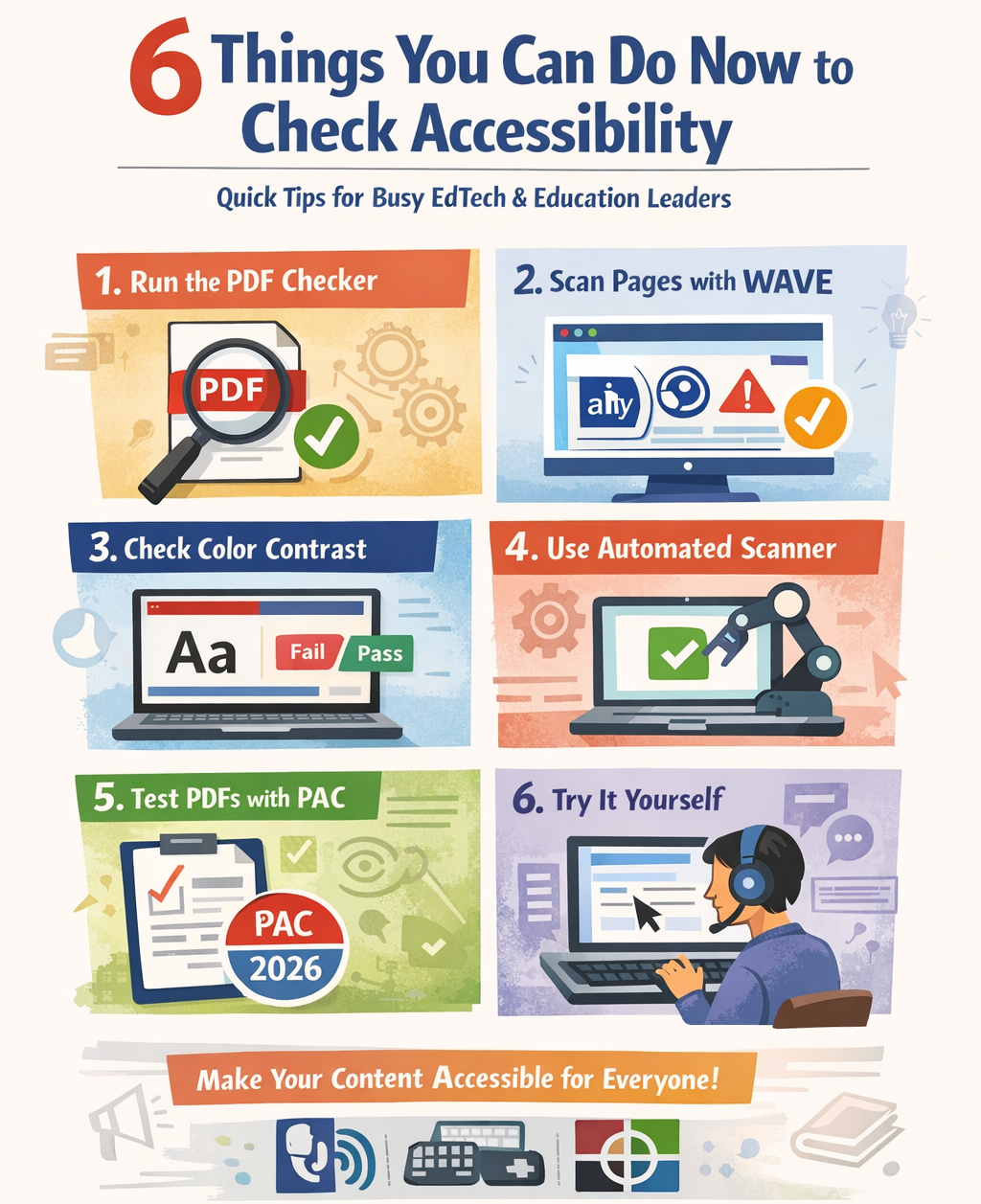
The good news? You don’t need to be an accessibility expert to make meaningful improvements. Here are six things you can do right now to quickly check, and significantly improve, the accessibility of the materials you’re already sharing.
1. Run the Built-In Accessibility Checker in Adobe
If you’re creating or distributing PDFs, this one is non-negotiable.
Adobe Acrobat Pro includes a built-in accessibility checker that scans for common issues like missing tags, incorrect reading order, missing document titles, and unlabeled form fields. It won’t fix everything automatically, but it will show you exactly where problems exist.
Why it matters: PDFs are one of the most common (and most inaccessible) file types used in education. A quick check here can prevent barriers for screen-reader users before a document ever goes out the door.
Quick win: Even reviewing the checker’s error list without fixing everything immediately raises awareness and improves future document creation.
2. Check Any Web Page with WAVE
The WAVE Web Accessibility Evaluation Tool from WebAIM is one of the fastest ways to understand how accessible a web page really is.
Paste in a URL or use the browser extension, and WAVE visually overlays accessibility issues, missing alt text, low contrast, heading structure problems, and more, directly on the page.
Why it matters: WAVE doesn’t just give you a score; it shows you where users may struggle. That context is powerful for designers, content creators, and leaders alike.
Quick win: Run WAVE on your homepage or most-visited page. Fixing even one or two flagged issues can dramatically improve usability.
3. Check Color Contrast (Your Eyes Will Lie to You)
Color contrast issues are everywhere—especially in slide decks, infographics, and modern website designs.
The Color Contrast Analyser lets you test foreground and background color combinations to see if they meet WCAG contrast standards.
Why it matters: Low contrast doesn’t just affect users with visual impairments, it impacts anyone reading content on a projector, mobile device, or in bright light.
Quick win: Test the text color and background on your most commonly used slide template. Fixing that one template helps every future presentation.
4. Use an Automated Website Scanner
Tools like Lighthouse (from Google) can quickly scan pages for accessibility violations.
Why it matters: Automated tools catch patterns humans often miss, especially across larger sites or repeated components like navigation menus.
Important note: Automated tools typically catch only about 30–40% of accessibility issues. They’re a starting point, not the finish line.
5. Test PDFs with PAC (PDF Accessibility Checker)
If you want a second opinion beyond Adobe, PAC 2026 provides a free, rigorous, standards-based PDF accessibility check.
Why it matters: PAC is especially helpful for high-stakes documents like reports, policies, or legally required communications.
Quick win: Use PAC on one “important” PDF you share publicly and compare the results to Adobe’s checker—you’ll learn a lot fast.
6. Do One Manual Reality Check
No tool replaces human experience.
Try this:
- Navigate your website using only a keyboard
- Turn on a screen reader for five minutes
- Increase your browser zoom to 200%
- Remove images and see if content still makes sense
Why it matters: Accessibility isn’t about compliance—it’s about usability. These quick tests build empathy and reveal issues no checker can flag.
Final Thought: Progress Beats Perfection
Accessibility isn’t an all-or-nothing endeavor. Every document checked, every contrast fixed, every heading structured correctly makes learning more inclusive.
If you’re waiting until you “do it perfectly,” you’ll never start. Instead, start with one tool, one file, one page, and do it today.
Because accessibility delayed is accessibility denied, and the tools to do better are already at your fingertips.
|