|
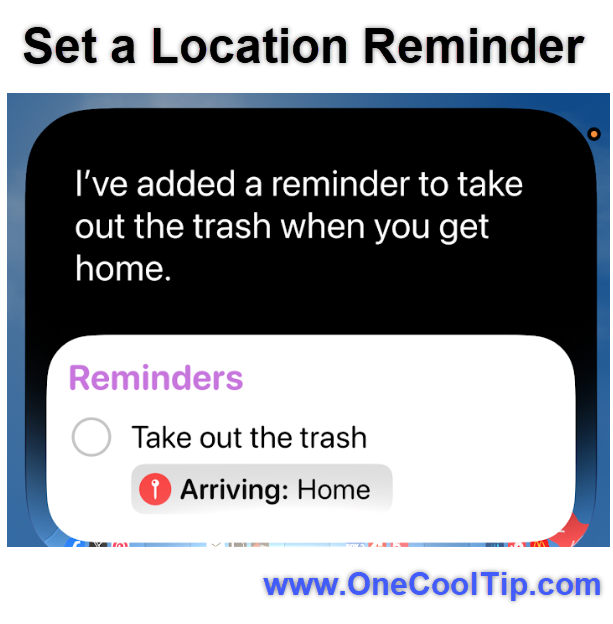
Siri creates a reminder that appears when your iPhone determines that you have arrived home. You can substitute another recognized location, such as work or school.
Location Services must be enabled, and your home or work address should be saved in your personal contact card.
Another useful example is: “Remind me when I leave work to stop at the grocery store.”
2. Schedule a Reminder
Say: “Remind me tomorrow at 9 AM to call the dentist.”
Siri creates a reminder with the specified date and time. You can also create a recurring reminder by saying something like: “Remind me every Friday at 4 PM to submit my timesheet.”
This is helpful when a task crosses your mind while you are away from your desk or cannot type it into the Reminders app.
After Siri creates the reminder, check the date and time displayed on the screen.
Words such as “next Friday” can sometimes be interpreted differently than you intended.
3. Send a Message
Say: “Send a message to my wife saying I’ll be home at six.”
Siri prepares the message and can read it back before sending it. You can also identify a person by name: “Text Alex that I’m running 10 minutes late.”
Apple provides an option that allows Siri to send dictated messages automatically without asking for confirmation.
Although this saves another step, leaving confirmation enabled gives you an opportunity to catch an incorrect name or misheard word.
Review the setting under:
- Settings > Apple Intelligence & Siri > Messaging with Siri
- Menu wording may vary slightly by device or configuration.
4. Make a Hands-Free Call
Say: “Call John on speaker.”
Siri places the call and turns on the speaker. If the contact has several numbers, specify which number you want Siri to use: “Call John’s mobile number on speaker.”
This is convenient while cooking, getting ready, or working with your hands.
When driving, use Siri through CarPlay or your vehicle’s supported hands-free system to minimize distractions.
5. Share What Is on Your Screen
Say: “Share this with John.”
When supported, Siri can place the onscreen item into a new message.
Photos, webpages, Maps locations, Apple Music content, and podcast episodes are among the items you can share.
For example, open a restaurant in Maps and say: “Share this with John.”
Siri creates a message containing the location without requiring you to find and press the Share button.
The command depends on the app and content currently displayed.
If Siri cannot share an item directly, use the app’s Share button instead.
6. Start Navigation
Say: “Give me driving directions home.”
Siri opens Apple Maps and starts preparing a route.
You can specify your preferred form of transportation:
- “Give me walking directions home.”
- “Give me cycling directions to the park.”
- “Give me transit directions to the airport.”
- “Find the nearest gas station.”
Once navigation begins, you can ask Siri to share your estimated arrival time: “Share my ETA.”
Siri needs access to Location Services.
Your home, work, or school address must also be stored correctly before Siri can recognize it by name.
7. Create a Named Timer
Say: “Set a pasta timer for 10 minutes.”
Naming a timer makes it easier to keep track of several activities. You might create separate timers for cooking, laundry, medication, or a work break.
You can then ask: “How much time is left on my pasta timer?”
Other useful timer commands include:
- “Pause my pasta timer.”
- “Resume my pasta timer.”
- “Cancel my laundry timer.”
- “Show my timers.”
Named timers are particularly helpful when you are preparing several dishes or managing multiple household tasks.
8. Check or Update Your Calendar
Say: “What’s on my calendar tomorrow?”
Siri displays or reads your scheduled events. You can also create an appointment by saying: “Add lunch with John tomorrow at noon.”
Include as much information as possible when creating an important event: “Schedule a dentist appointment on Thursday at 10 AM at Main Street Dental.”
On supported Apple Intelligence devices, Siri can maintain context across some consecutive requests. For example, you might ask when a team is playing and then follow with: “Add that to my calendar.”
Always review the date, time, and location before relying on a newly created event.
9. Play Music or Podcasts
Say: “Play my Favorites Mix.”
Give Siri commands that can play a particular song, album, artist, genre, mood, or playlist.
You can also control playback with commands such as:
- “Pause the music.”
- “Skip this song.”
- “Play something relaxing.”
- “Turn up the volume.”
- “What song is this?”
Access to the complete Apple Music catalog requires an individual, family, or student Apple Music subscription.
Commands involving music you already own or other supported audio services may behave differently.
For podcasts, try:
- “Play the latest episode of my favorite technology podcast.”
- For more reliable results, include the complete name of the podcast:
- “Play the latest episode of Mac Power Users.”
10. Ask How to Use Your iPhone
Say: “How do I scan a document on my iPhone?”
On a compatible device with Apple Intelligence enabled, Siri can answer questions about using Apple products.
This can be faster than searching Settings or browsing an online support page.
Other questions to try include:
- “How do I take a screenshot?”
- “How do I make the text larger?”
- “How do I connect my AirPods?”
- “How do I schedule a text message?”
- “How do I turn on Low Power Mode?”
Apple product knowledge is an Apple Intelligence capability.
It may not be available on every iPhone that can run iOS 26.
Pros and Cons
Pros:
-
Fast task entry: Capture reminders and appointments as soon as you think of them.
-
Hands-free access: Make calls, start timers, and request directions when your hands are occupied.
-
Natural commands: Most requests use everyday language instead of rigid command phrases.
-
Cross-app usefulness: Siri works with Messages, Calendar, Reminders, Maps, Music, Home, and compatible apps.
-
Typed requests: Supported devices let you use Siri quietly without speaking.
Cons:
-
Occasional misunderstandings: Names, addresses, and unusual words may be interpreted incorrectly.
-
Internet dependency: Siri requires an internet connection.
-
Feature differences: Apple Intelligence capabilities depend on the iPhone model, language, and region.
-
Confirmation still matters: Messages, reminders, routes, and appointments should be reviewed when accuracy is important.
Feature Access
Standard Siri commands are available on iPhones that support iOS 26, although individual actions depend on the installed apps, selected language, region, internet connection, permissions, and account settings.
Apple Intelligence features require a compatible iPhone and supported language. Apple advises users to check its feature-availability page because some capabilities are not available in every language or region.
The core commands in this article do not require a paid subscription. However, requesting songs from the complete Apple Music catalog generally requires an Apple Music subscription.
Organizations can restrict Siri, Apple Intelligence, and third-party intelligence extensions through device-management policies.
Score
Criterion | Score (0–10) | Justification
Value | 9
Siri eliminates several steps from common tasks and makes it easier to capture information before it is forgotten.
Usability | 8
Most commands use ordinary language, but names, dates, and locations occasionally require correction.
Wow Factor | 7
Voice commands are familiar, but screen sharing, typed requests, contextual follow-ups, and Apple product guidance remain surprisingly useful.
Total: 24/30 | 👍 18–24 Good
Siri earns a strong Good rating because it saves time across many everyday tasks without requiring a separate app or subscription.
Compared with general-purpose assistants, Siri’s chief advantage is its integration with iPhone functions such as calling, messaging, timers, reminders, Calendar, Maps, and Apple Home accessories.
Key Takeaways
Siri is most valuable when it removes small points of friction from tasks you already perform every day.
Start with reminders, messages, timers, directions, and calendar requests, then add typed requests and follow-up commands if your iPhone supports Apple Intelligence.
Cool Tip Snapshot
-
Feature Name: Siri Commands
-
Platform(s): iPhone and iPad
-
Quick Benefit: Complete everyday tasks by speaking or typing
-
Best For: Home users, business users, families, travelers, and older adults
-
Access Type: Free
-
Difficulty: Easy
Try It Yourself
Choose one command from this article and try it today.
Tell us which Siri command saves you the most time, subscribe to the One Cool Tip newsletter, and share this Cool Tip with your family, friends, and coworkers.
READ MORE
Read the Full Cool Tip.
|