|
The Most Useful Windows 11 Keyboard Shortcuts You'll Actually Use
A handful of Windows 11 keyboard shortcuts can save dozens of clicks every day. Whether you're working, studying, creating content, or simply browsing the web, these shortcuts can help you move through Windows faster and get more done with less effort.
If you spend several hours a day on a Windows PC, small delays add up quickly.
Opening File Explorer, switching applications, hunting for settings, taking screenshots, and organizing windows may only take a few seconds each time, but repeated hundreds of times a week, those extra clicks can become a real productivity drain.
That's where keyboard shortcuts shine.
Windows 11 includes dozens of built-in shortcuts that make it easier to multitask, manage windows, capture screenshots, launch tools, and move around the operating system without touching a mouse.
While many users know the basics like Copy and Paste, some of Windows 11's most useful shortcuts remain surprisingly overlooked.
The best part is that you don't need to memorize dozens of commands. Learning just a handful can noticeably speed up your daily workflow.
Here's a Cool Tip: Start with five shortcuts you'll use every day and build from there.
Feature Explanation
Keyboard shortcuts are combinations of keys that perform commands instantly.
Instead of opening menus and clicking through options, you can launch apps, move between windows, capture screenshots, and access settings with a quick key press.
Windows has supported keyboard shortcuts for decades, but they're more useful than ever in Windows 11 thanks to features such as Snap Layouts, Virtual Desktops, Quick Settings, Clipboard History, and enhanced multitasking tools.
The real benefit isn't saving a second here or there.
It's maintaining focus. Fewer interruptions mean smoother workflows whether you're writing reports, attending meetings, studying for exams, editing videos, or managing family finances.
What You'll Gain
- Save time by reducing repetitive mouse clicks.
- Switch between applications more efficiently.
- Organize your desktop with powerful window-management tools.
- Access Windows features instantly from anywhere.
Step-by-Step Instructions
Here's how to do it.
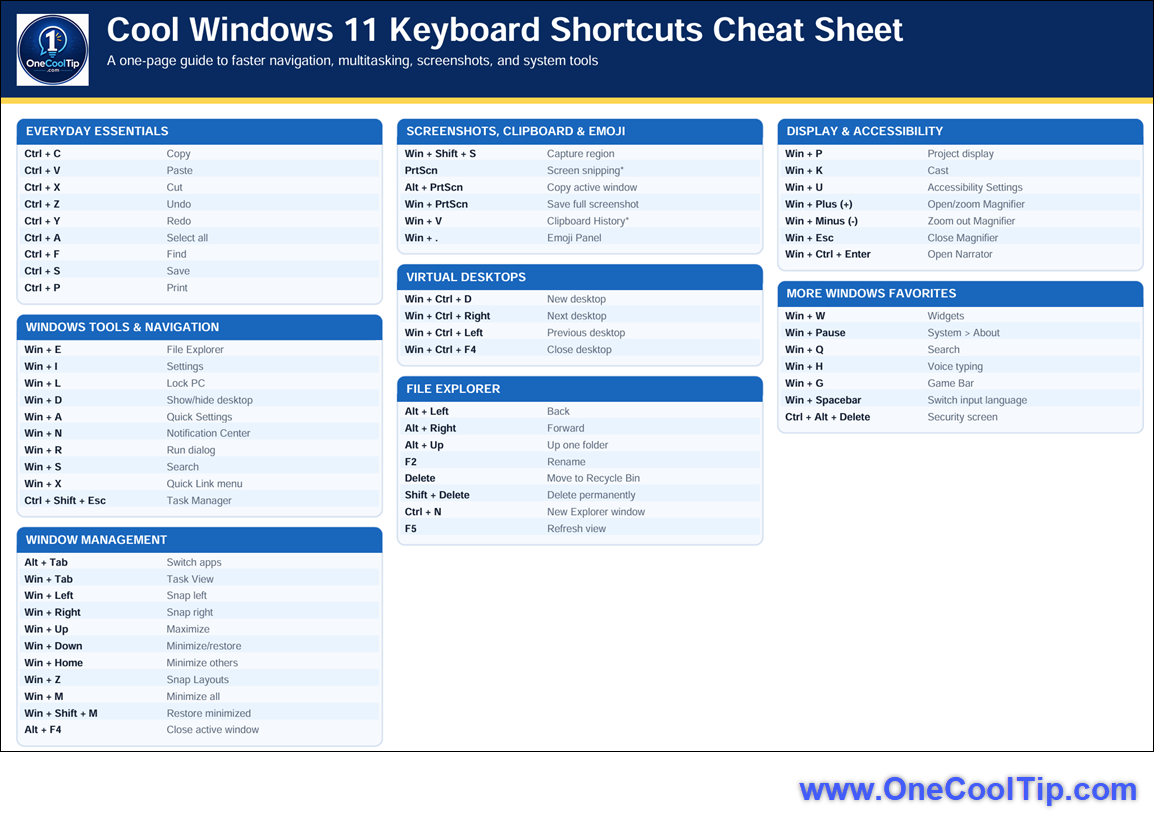
Essential Daily Shortcuts
-
Ctrl + C: Copy selected content
-
Ctrl + V: Paste copied content
-
Ctrl + X: Cut selected content
-
Ctrl + Z: Undo your last action
-
Ctrl + Y: Redo an action
-
Ctrl + A: Select all content
-
Ctrl + F: Find text or content
Open Common Windows Tools
-
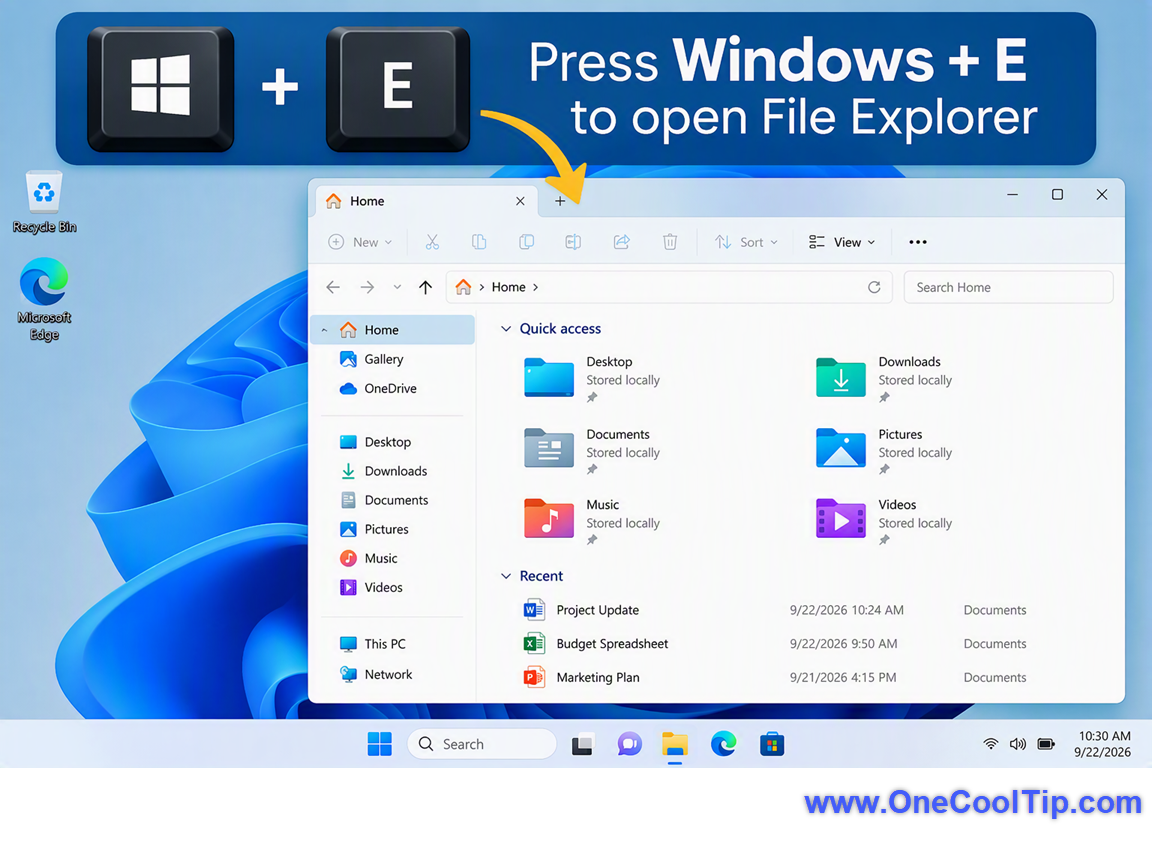
Press Windows + E to open File Explorer.
-
Press Windows + I to open Settings.
-
Press Windows + L to lock your PC instantly.
-
Press Ctrl + Shift + Esc to open Task Manager directly.
|