One Cool Tip Newsletter

March 12, 2026

Your daily dose of tech-savvy brilliance!

😀Greetings! Happy Thursday, Cool Tipper!


Get ready to streamline your digital life with simple, actionable tips delivered straight to your inbox.


Cool Tip Theme: AirDrop Internet Handoff and AirDrop Codes


New here? Subscribe to the One Cool Tip Newsletter for daily updates. It's FREE!

3️⃣

If you enjoy the One Cool Tip newsletter, please forward this newsletter to THREE friends or colleagues or share it on social media using the links below.


Leave a Tip!


Share this One Cool Tip Newsletter!

X Share This Email
LinkedIn Share This Email
Pinterest Share This Email

🕵️ FBI Alert: Criminals Are Hijacking Your Home Internet Without You Knowing


The FBI warns that cybercriminals are secretly using everyday devices like smart TVs, streaming boxes, and free VPN apps to turn your home internet into a “residential proxy.” That means your IP address could be used to send spam, steal data, or access illegal websites without your knowledge.


What’s a Residential Proxy?


It’s a way to disguise internet traffic so it looks like it’s coming from a regular home. Criminals use compromised devices to route their activity through your IP address, making you appear responsible.


How Your Devices Get Hijacked


  • Free VPNs with hidden terms.
  • Streaming boxes with shady apps.
  • Pirated content and cracked games.
  • “Passive income” bandwidth-sharing apps.
  • Compromised smart gadgets (TVs, projectors, even car systems).


What Criminals Do With Your IP


  • Send phishing emails and malware.
  • Create fake accounts and bypass purchase limits.
  • Steal data and access bank accounts.
  • Host illegal marketplaces.


What You Can Do


  • Avoid sketchy streaming devices and free VPNs.
  • Don’t download pirated content.
  • Keep software and firmware updated.
  • Monitor your home network for strange traffic.
  • Use antivirus tools and reset your device if infected.


If You’re A Victim


  • File a report at www.ic3.gov.
  • Include date, time, device type, and suspicious activity.
  • Change your passwords and enable login alerts.


And in Other News...


  • 🍎 Apple Issues Critical Updates for Older Devices


Apple has released important updates for older iPhones, iPads, Macs, and Apple Watch models to ensure they keep working with key Apple services. These updates refresh activation and security certificates so features like iMessage, FaceTime, and device activation continue to function through January 2027 and beyond.


If you or your team still rely on older hardware, this update is essential.


What’s happening


Apple says older devices need updated certificates to stay compatible with Apple’s servers. Without this update:


  • iMessage may stop sending or receiving.
  • FaceTime calls may fail.
  • Device activation may not work after a reset.
  • Some apps may stop verifying properly.


This is a rare long‑term support update for aging devices.


Devices that need the update


Apple lists many older models, including:


  • iPhone 8, iPhone 8 Plus, iPhone X
  • iPad 5th gen, early iPad Pro models
  • Macs running macOS Big Sur or Catalina
  • Apple Watch Series 1 through Series 5 and SE


If your device still receives occasional “legacy” updates, install this one.


How to update


  1. iPhone/iPad: Settings → General → Software Update
  2. Mac: System Preferences → Software Update
  3. Apple Watch: Watch app → General → Software Update
  4. Make sure the device is charged or plugged in.


What to do now


  • Update any older Apple devices you still use.
  • Remind family, coworkers, or clients who rely on older hardware.
  • If you manage devices, schedule updates this week.


Cool Deals of the Day

Help support One Cool Tip. Use this Amazon link when you shop online.


Check out these Cool Deals:


  • 📱 Apple AirTag, 4 Pack (1st Gen): Great for tracking gear bags and devices you frequently share between teams. Save 35% Now $64. Check it out on Amazon!


  • 📱 Apple 20W USB-C Power Adapter: Keeps your iPhone powered during long AirDrop sessions and travel days. Save 21% Now $14.99 Check it out on Amazon!


*Prices accurate when originally published.

One Cool Tip may earn a commission from qualifying purchases.

Fuel Your Adventure

Try Big Mike's Jerky!


bigmikesjerky.com


Now on TikTok!


Today's Cool Tip

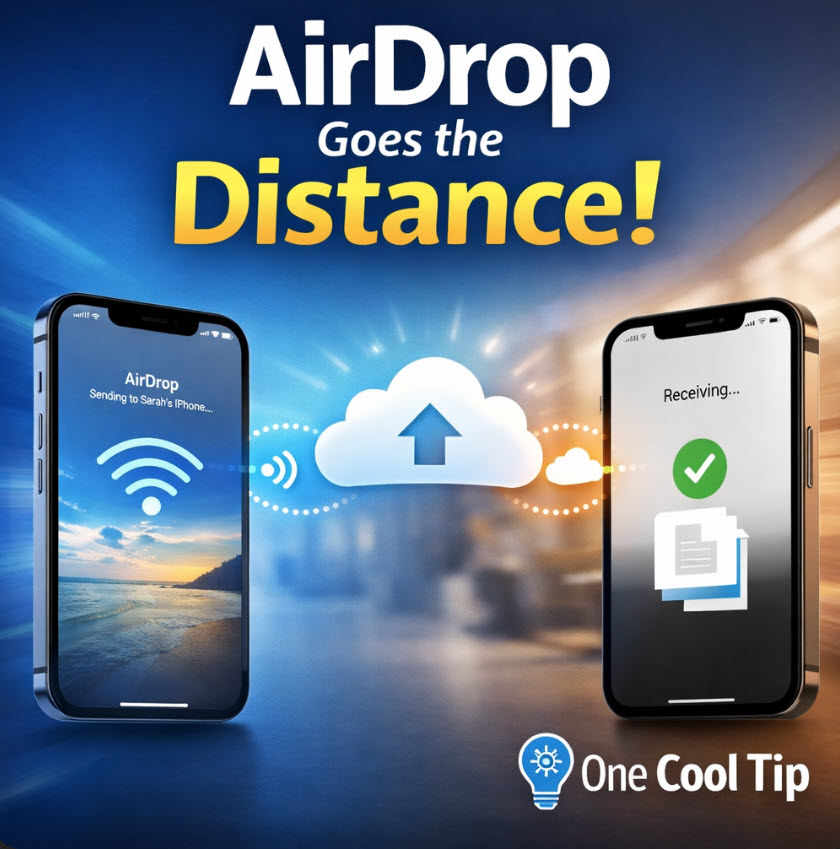
AirDrop Goes the Distance in iOS 26 with Internet Handoff and New AirDrop Codes


AirDrop in iOS 26 keeps transfers moving even after you leave Bluetooth or Wi-Fi range by securely switching to the internet. A new AirDrop Code also makes fast, private sharing easy.


You start sending a video to a colleague across the office, then head to a meeting and walk out of range.


Normally, that transfer would fail. 


Here's a Cool Tip:  Use the Improved iOS 26 AirDrop.


Apple quietly removed one of AirDrop’s biggest friction points and added a clever new way to connect in seconds.


Feature Explanation


What it is


AirDrop now supports an internet fallback that continues transfers when devices move out of direct wireless range. 


iOS 26 also introduces AirDrop Codes, short visual codes that let two devices connect for sharing without hunting through device lists.


How it works


  • Internet fallback: Devices begin with the usual peer-to-peer link over Bluetooth and Wi-Fi. If that connection drops due to distance, the transfer continues securely over the internet using your Apple account connection.
  • AirDrop Codes: Each device can generate a code. Another user enters it to establish a direct sharing session instantly.


Why it matters


  • Fewer failed transfers in real movement scenarios.
  • Faster pairing in crowded environments.
  • Less device list confusion and better privacy.


What You’ll Gain


  • Reliable transfers: Files keep moving even if you leave the room.
  • Faster connections: No scrolling through nearby devices.
  • Cleaner workflow: Share and go without babysitting the process.
  • Better privacy: Direct code-based pairing limits exposure.


Step-by-Step Instructions


Here's how to do it.


iOS


Continue Transfers Over the Internet


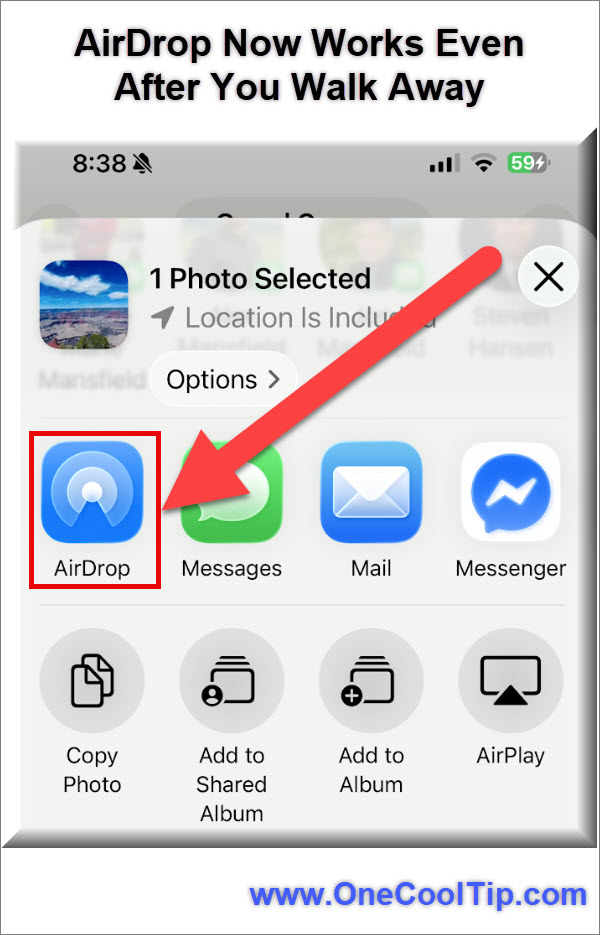
  1. Open the item you want to share. 
  2. Tap Share. 
  3. Tap AirDrop. 
  4. Select the recipient.
  5. Start the transfer while near each other.
  6. Walk away if needed. The transfer continues automatically over the internet when local wireless drops.


Example: Start sending a keynote video to a coworker, then head to another floor. The file finishes uploading without restarting.


fig. 1 - AirDrop Now Works Even When You Walk Away

Use an AirDrop Code (iOS 26.2 or later)


If you are sharing with someone who isn't in your contact list, Apple now requires a secure "AirDrop Code" to establish the connection. This prevents random files from appearing on your device in public places.


  1. Open the app containing the file you want to share and tap the Share button. 
  2. Tap the AirDrop icon in the share sheet.
  3. Tap the name of the person or device you wish to share with.
  4. Ask the recipient to look at their device screen. A unique, temporary AirDrop code will be displayed there.
  5. Type the code provided by the recipient into the prompt on your own device to authorize the transfer.


Pros and Cons


Pros


  • Mobility friendly: Ideal for campuses, hospitals, and warehouses where people move constantly.
  • Time savings: No need to restart large transfers.
  • Cleaner pairing: Codes reduce misdirected sends in dense areas.
  • Secure by design: Encrypted transfers tied to Apple identity.


Cons


  • Apple only: No cross-platform support.
  • Data usage: Internet fallback may consume mobile data.
  • Account dependent: Requires Apple account connectivity.


Feature Access


  • Platforms: iPhone running iOS 26 or later.
  • Devices: Compatible iPhone models that support iOS 26.
  • Availability: Currently rolling out with iOS 26 releases.
  • Cost: Free, built into the OS.


Score

Criterion | Score (0–10) | Justification
Value | 9
Eliminates failed transfers and saves time in real movement scenarios.
Usability | 9
Works automatically with intuitive code pairing. Minimal learning curve.
Wow Factor | 8
Seamless handoff feels modern, though invisible improvements reduce flashiness.
Total: 26/30 | 🌟 Excellent
A major quality of life upgrade that makes AirDrop dependable in motion, ahead of most proximity sharing tools.


Key Takeaways


AirDrop now matches real-world movement by finishing transfers after you walk away. 


AirDrop Codes remove pairing friction and reduce mistakes. Sharing feels faster, simpler, and more reliable.


Cool Tip Snapshot


  • Feature Name: AirDrop Internet Handoff and AirDrop Codes
  • Platform(s): iOS
  • Quick Benefit: Finish transfers anywhere and connect instantly
  • Access Type: Free


Try It Yourself


Send a large file with AirDrop, walk out of range, and watch it finish. 


If this saved you time, share this tip with your team, family, and friends!


READ MORE


Read the Cool Tip on OneCoolTip.com.

Check out these Cool Tips & Tricks.


  • Quick Share: Use AirDrop from the Share Sheet for fastest access. Open any file, tap Share, then AirDrop.


  • Contacts Only: Limit visibility to people you know. Settings → General → AirDrop → Contacts Only.


  • Everyone 10 Min: Temporarily open sharing for events. Choose Everyone for 10 Minutes in AirDrop settings.


  • Large Files: Start big transfers on strong WiFi. Connect to WiFi before sending large videos.


  • Stay Signed In: Internet fallback requires Apple ID login. Check Settings → Apple ID banner.


  • Name Clarity: Set recognizable device names. Settings → General → About → Name.


  • Privacy First: Turn Receiving Off in public spaces. Settings → General → AirDrop → Receiving Off.


  • Battery Smart: Keep Low Power Mode off during big transfers. Settings → Battery → Low Power Mode.

ICYMI - In Case You Missed It ...

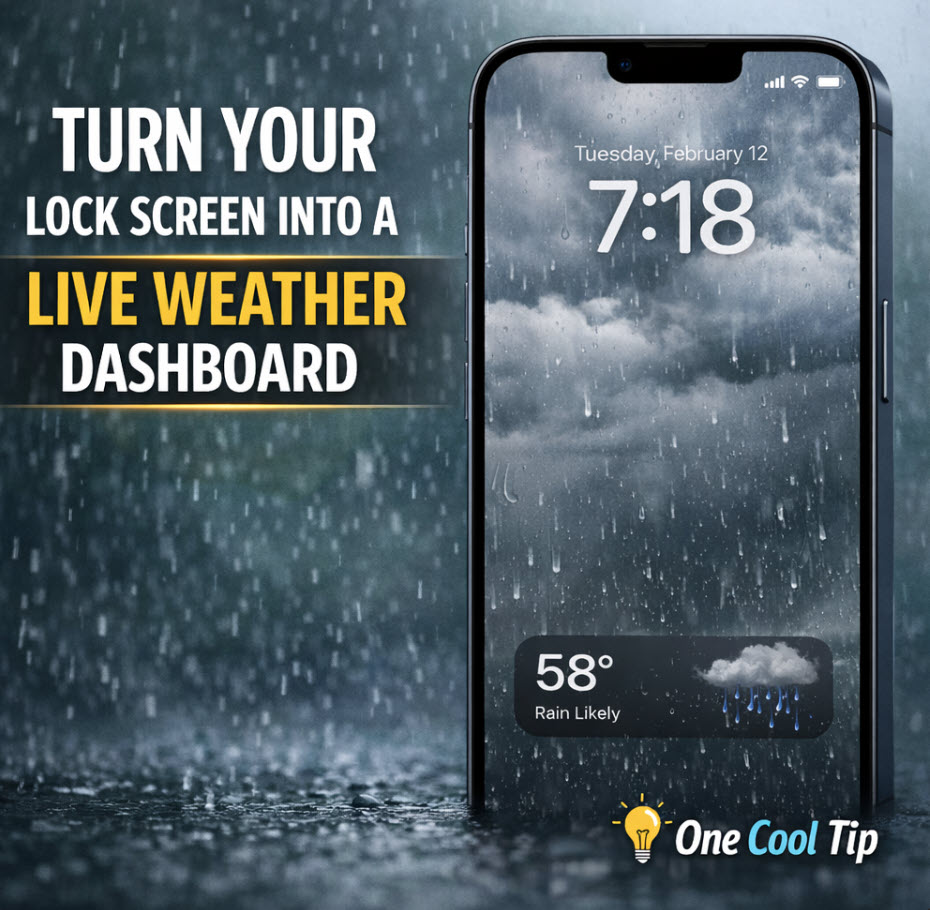
Turn Your Lock Screen Into a Live Weather Dashboard


See current conditions the moment you pick up your iPhone. iOS 26.3 makes weather more visible, faster to access, and easier to customize. iOS 26.3 adds a dedicated Weather category to the Lock Screen wallpaper picker with new preset layouts. Here’s how to turn your iPhone into a real-time weather dashboard in under a minute.


Read the Full Cool Tip.

Read the Newsletter Version.

Looking for your next adventure?


Call Denise at Travel For You.

314.660.3039


Sign Up for the Monthly Newsletter


http://www.travelforyouvacations.com/


https://www.facebook.com/TRAVEL.FOR.U/


See You Tomorrow

Tomorrow's Cool Tip is waiting to amaze you.


Until then, go forth and conquer the tech world with your newfound knowledge!


Be sure to visit www.OneCoolTip.com for Cool Tech Tips for a Cooler Life!


And if you Like One Cool Tip, please support with TipJar!


Enjoy!


Rodger

Chief Cool Tipper

onecooltip.com@gmail.com


What Do You Think?

What do you think of today's OneCoolTip newsletter?
Positive        Neutral        Negative
X Share This Email
LinkedIn Share This Email

Connect with One Cool Tip!!

Facebook  X  Instagram  Web  Pinterest  YouTube  LinkedIn
 

As an Amazon Associate, One Cool Tip may earn a small commission from qualifying purchases.


Our media content is intended solely for informational purposes only. Please do not construe anything here as legal, tax, investment, financial, marital or other advice.


Copyright © 2026 | www.OneCoolTip.com | All Rights Reserved