Microsoft Windows
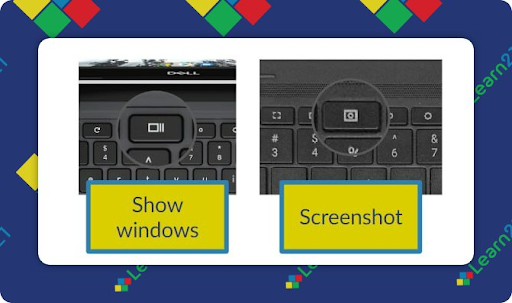
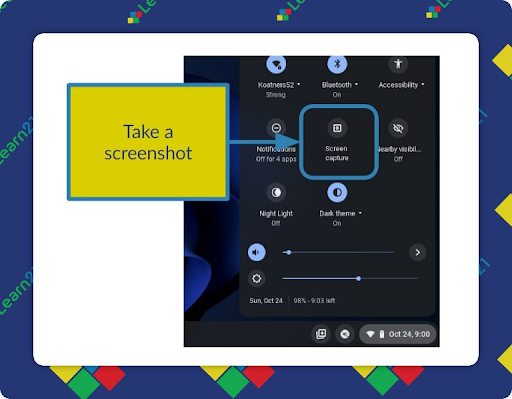
- {PrtSc} or {Prtcn} - Capture entire screen
- {Alt}{PrtSc} - Capture specific window
- {Shift}{Windows}{S} - Select area to capture
macOS
- {Control}{Command}{Shift}{3} - Capture entire screen
- {Control}{Command}{Shift}{4} - Select area to capture
(If you drop the {Control} key from the shortcut your screenshot will be saved to your desktop and not copied to the clipboard.)
Other tools
There are more things the built in tools can do along with several apps that add features. Since I take a screenshot of my annotated Slides graphic, these tools make things such as sharing to different services easier.
-
Greenshot - (Windows/macOS($)) - My go to tool, supported on Windows and Mac. After taking a screenshot you can customize what you want to do with that screenshot, including add annotations.
-
Flameshot - (Windows/macOS/Linux) - Powerful free, open source software with a ton of customizability.
Modifier Keys
One tip that we probably should spend more time teaching is the difference between modifier keys and typing keys. It’s just something we assume people learn, which they do at the expense of learning what each does.
There is more to using a keyboard than just pressing keys to get what you want. The action of typing consists of two steps, key down and key up. When you press a key that is key down, and when you release it, that is a key up. Why do we need to learn this distinction? Because keys act differently depending on their use in key down and key up.
Typing keys are those that enact an action on the key up step. Pressing the “A” key and letting it up inputs that letter. On the key down nothing happens, but if it’s held down, the key will start repeating.
Modifier keys are tricky and confusing. These keys include the {Shift}, {Control}, {Alt/Option}, and the {Windows/Command} keys. With a few minor exceptions, these keys don’t do anything on the key down, held down, or key up step. For someone learning how to type this can get pretty confusing.
I remember the first time I was typing on a computer. It was the late 70s and I was at the county fair where Radio Shack had a booth with a computer we could type on. As I typed on it, I couldn’t figure out how to type capital letters. But after clumsily playing around with it, I figured out that holding down the shift key let me create a capital letter. For those that use typewriters, this made sense, but I was ten!
Before Chromebooks, I was baffled at the number of young students that constantly used Caps Lock to type capital letters. I finally figured out that no one had ever shown them how the shift key worked. When you press it, there is no feedback anywhere that something is happening. When you press the {Caps Lock}, a light on the keyboard comes on. They quickly found out that they could press the {Caps Lock}, then type the letter they wanted to capitalize, and then press {Caps Lock} to turn it off.
For keyboard shortcuts we rely on the modifier keys to change how the typed key works. Nothing happens when you hold down these keys, so in the following examples, feel free to hold down {Shift}, {Control}, {Alt/Option}, and the {Windows/Command} for as long as you want because the computer won’t do anything until you hit the final typed key.
|