2026–2027 • ELEMENTARY • EDITION 11

Ready, Set, Write! Build Digital Writing Confidence

Laptop showing typing practice, surrounded by Lumio, Canva, and Seesaw logos.

On TELPAS, writing isn't limited to ELA. Students may be asked to explain concepts from math, science, and social studies, making writing practice across content areas especially important for emergent bilingual (EB) students.


Incorporating regular, low-stakes digital writing helps students build academic vocabulary, writing stamina, and confidence with typing responses on online assessments. Plus, collecting responses digitally makes it easier for teachers to quickly review student work, spot learning trends, and identify areas needing additional support.

Four Easy Ways to Incorporate Digital Writing

Laptop displaying a digital writing document, with a lined paper and pencil.

Cross-Curricular Quick Writes

Use warm-ups for typed reflections or three-sentence summaries in science and social studies.

Picture, science chart, and pencil on lined paper representing writing about visuals.

Write About Visuals

Use Canvas, Canva, or Lumio to have students describe maps, graphs, or primary sources.

Laptop displaying a multiple-choice question with an open door and arrow.

Digital Exit Tickets

Assign short constructed responses (SCRs) and extended constructed responses (ECRs) to build writing stamina across subjects.

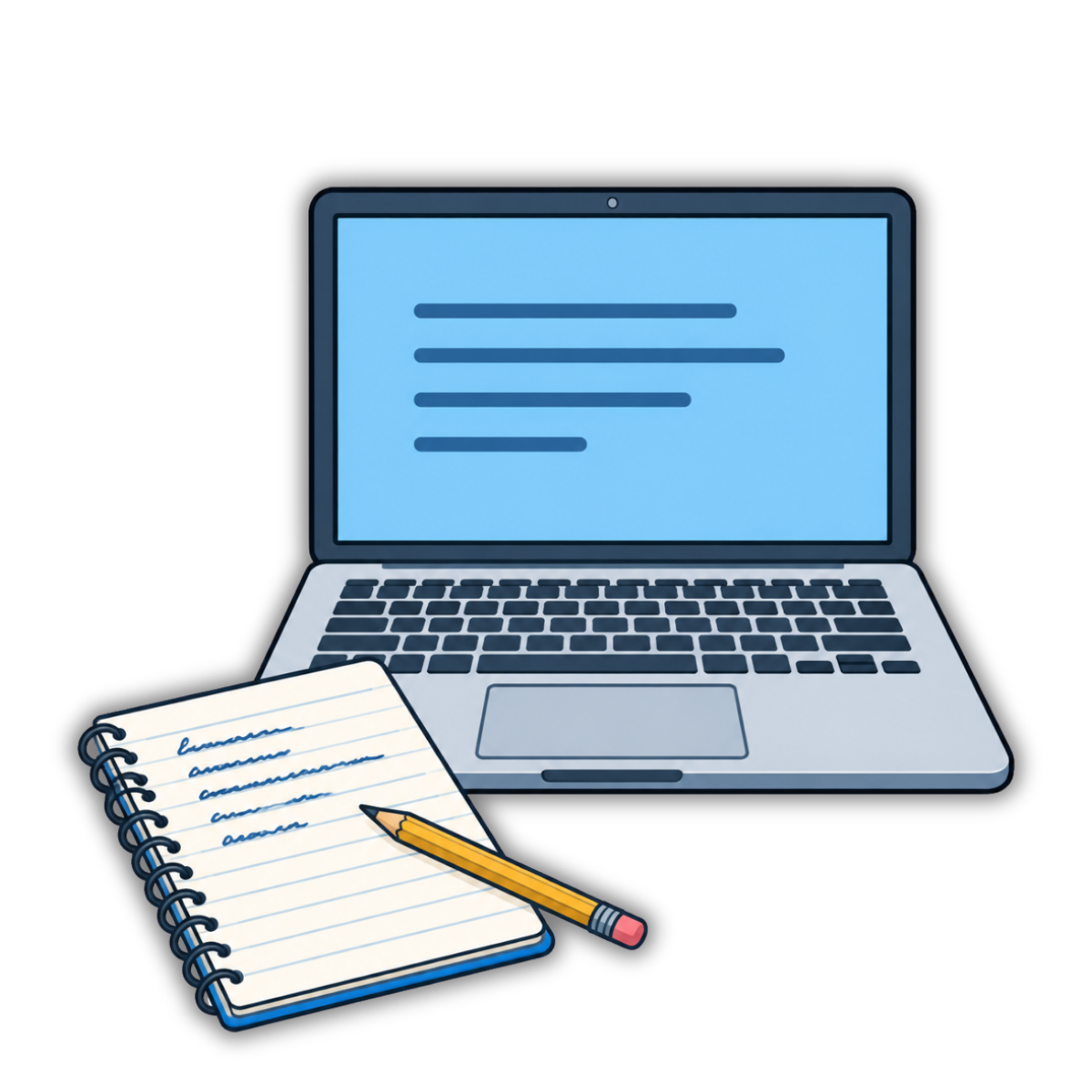
Laptop with a digital document beside a spiral notebook and pencil.

Digital Journals

Have students capture their thinking, reflect on learning, and track their progress over time.

Ready-to-Use Digital Writing Resources

Blue icon of stacked documents with a ribbon labeled “TEMPLATE.”

Save planning time with ready-to-use templates for quick writes, student responses, and digital journals. Customize them for your lesson and give students more opportunities to practice writing across subjects!

📝 Writing & Response Templates

Activities for writing, speaking, and explaining thinking.

Lumio:

Speaking & Writing

Typed responses & explanations


Seesaw:

Type, Draw & Explain

Typing, drawing & recording


Canva:

Write, Record & Respond

Written & recorded responses

📓 Digital Journal
Templates

Reusable notebooks for ongoing writing and reflection.

Canva:

Playful Composition Notebook

Paper Size


Classic Composition Notebook

Presentation Size


Google Slides:

Lined Notebook Pages

Lined writing space


Simple Writing Notebook

Two open response boxes


Don't Just Snip It, Film It!

Did you know the Windows Snipping Tool can record your screen, too? It's an easy way to create quick tutorials for students, explain directions for a substitute, or walk families through an online process. You can even turn on your microphone to narrate as you record!

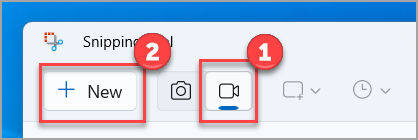
Snipping Tool toolbar highlighting the video recording icon (1) and New button (2).

How to Record Your Screen:


  1. Open Snipping Tool from the Windows Start menu.
  2. Select the video camera icon, then click New.
  3. Select the area of your screen you want to record.
  4. Turn on your microphone if you'd like to include narration, then click Start.
  5. When you're finished, click Stop and save your recording.


Quick Tip: Press Windows + Shift + R to open the screen recording tool directly on supported Windows devices.

 
Festive cookie-style logo for 12 Days of Innovation 2026: A Dozen Ways to Bake in Meaningful Learning.

Get ready for 12 Days of Innovation 2026: A Dozen Ways to Bake in Meaningful Learning! Beginning December 2, we're serving up 12 bite-sized, self-paced learning opportunities!


Curious what's on the menu? Take a peek at this year's schedule!


Earn up to 6 hours of Flex/CPE credit by completing the daily learning and reflections by January 19, 2027.


Ready for a fresh batch of inspiration? Register today!

 
Newsletter emerging from an envelope, representing past Digital Learning Update editions.

Looking for something we shared?

Browse Previous Digital Learning Updates

Digital Learning Quick Links

How Can We Support Your Campus?

Connect with your Digital Learning Specialist for planning, resources, technology integration, instructional support, and more!

 
Birdville Digital Learning Logo

Follow Digital Learning for more tips, resources, and ideas.

Instagram    Facebook    X