|
One Cool Tip Newsletter
July 13, 2026
| Your daily dose of tech-savvy brilliance! | | |
😀Greetings!, Happy Monday, Cool Tipper!
Get ready to streamline your digital life with simple, actionable tips delivered straight to your inbox.
Today's Cool Tip Theme: Excel Focus Cell
IN THIS ISSUE
- ⚠️ Military Move Scam Alert.
- 🤖 Excel June Updates.
- 📸 AI Prompt of the Day.
- 🎯 Featured Cool Tip: Excel Focus Cell.
- 👀 Collaboration Excel Hack.
- 🤔 Understand Excel Formulas.
- 📅 Effortless Excel Date Entry.
New here? Subscribe to the One Cool Tip Newsletter for daily updates. It's FREE!
-
😂 Laugh with Us! Enjoy our Tech Joke of the Day, Haiku and Cool Tip Comics.
-
🌐 Stay Informed! Check out ICYMI, and our One Cool Tip Video.
| | |
3️⃣
If you enjoy the One Cool Tip newsletter, please forward this newsletter to THREE friends or colleagues or share it on social media using the links below.
Leave a $$$ Tip!
Share this One Cool Tip Newsletter!
| | |
Today's Tech Trivia
Which platform received the first version of Microsoft Excel?
A) Windows
B) MS-DOS
C) Macintosh
D) IBM OS/2
Answer at the end of this newsletter.
| | |
⚠️Watch for Fake Rental Listings During Military Moves⚠️
Military relocations can create the perfect opportunity for rental scammers.
The FTC warns that fraudsters often post fake housing listings, sometimes using stolen photos, unusually low rent prices, and excuses for why you cannot tour the property before paying.
They may also insist on payment through gift cards, cryptocurrency, cash, or wire transfers, which are difficult to recover once sent.
Before signing a lease or sending money, search the property address online and look for conflicting listings or landlord information.
If you cannot visit in person, ask someone you trust to check the property or seek assistance from your new base’s housing office.
Suspected rental scams should be reported to the FTC and your state attorney general.
And in Other News...
Excel Gets Smarter With New AI Features
Microsoft's June 2026 Excel update introduces several enhancements designed to make spreadsheet work easier and more efficient.
New Copilot personalization options let users tailor AI assistance to their preferences, while expanded support for more than 30 additional file types allows Copilot to analyze a wider range of content.
Excel also adds navigable links in Copilot Chat, making it easier to jump directly to suggested changes, and improves troubleshooting by simplifying certain PivotTable error messages.
| | |
Try this Cool AI prompt. Copy and paste to ChatGPT, Gemini, Claude or Copilot.
- Create a miniature version of me working inside my keyboard. Tiny tools, realistic scale, shallow depth of field, macro photography.
- Upload an image of yourself.
| | |
Stop Losing Your Place in Large Excel Spreadsheets
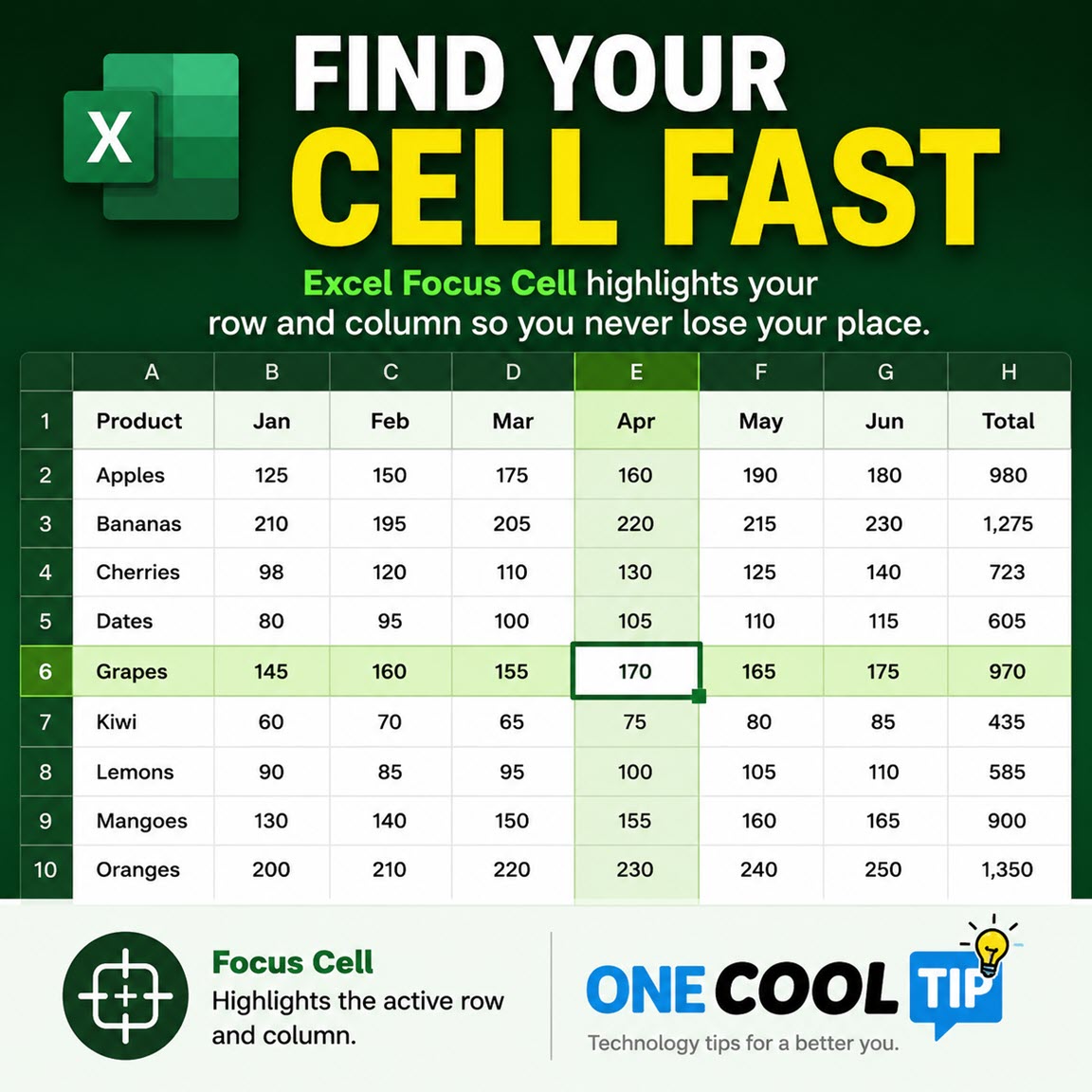
Microsoft Excel's Focus Cell feature highlights your active row and column, making large spreadsheets easier to read and navigate. If you regularly enter data, review reports, or analyze tables, this simple tool can help reduce mistakes and improve accuracy.
If you've ever worked in a spreadsheet with hundreds or thousands of rows, you've probably lost track of where you are.
One misplaced click can leave you reading the wrong row, updating the wrong record, or comparing the wrong numbers.
Here's a Cool Tip: Turn on Focus Cell Before Working with Large Spreadsheets.
Instead of forcing your eyes to trace across a busy worksheet, Excel highlights both the active row and the active column, making your current position much easier to follow.
It is a small addition, but for anyone who spends time in large spreadsheets, it can make everyday work noticeably easier.
Feature Explanation
Focus Cell is a worksheet navigation feature in Microsoft Excel that highlights the row and column intersecting at the selected cell.
As you move around a worksheet, the highlighted guides move with you, making it easier to keep track of your location.
Microsoft introduced Focus Cell for Microsoft 365 desktop versions of Excel, although availability may depend on your platform, version, update channel, and account type.
Why it matters:
- Makes large worksheets easier to read.
- Helps prevent data-entry mistakes.
- Improves row-by-row and column-by-column comparisons.
- Reduces visual strain when reviewing complex reports.
- Helps occasional Excel users stay oriented in large datasets.
Many spreadsheet users rely on manually selecting an entire row or column to find their place.
Focus Cell automates that process and keeps the visual guide moving as you work.
What You'll Gain
- Find data faster in large worksheets.
- Reduce mistakes during data entry and review.
- Compare information across rows more easily.
- Stay focused when working with complex spreadsheets.
Step-by-Step Instructions
Here's how to do it.
Windows (Microsoft Excel for Microsoft 365 Desktop)
-
Open Excel and load a workbook.
-
Select the View tab on the Ribbon.
-
In the Show group, click Focus Cell.
-
Click any cell in the worksheet.
-
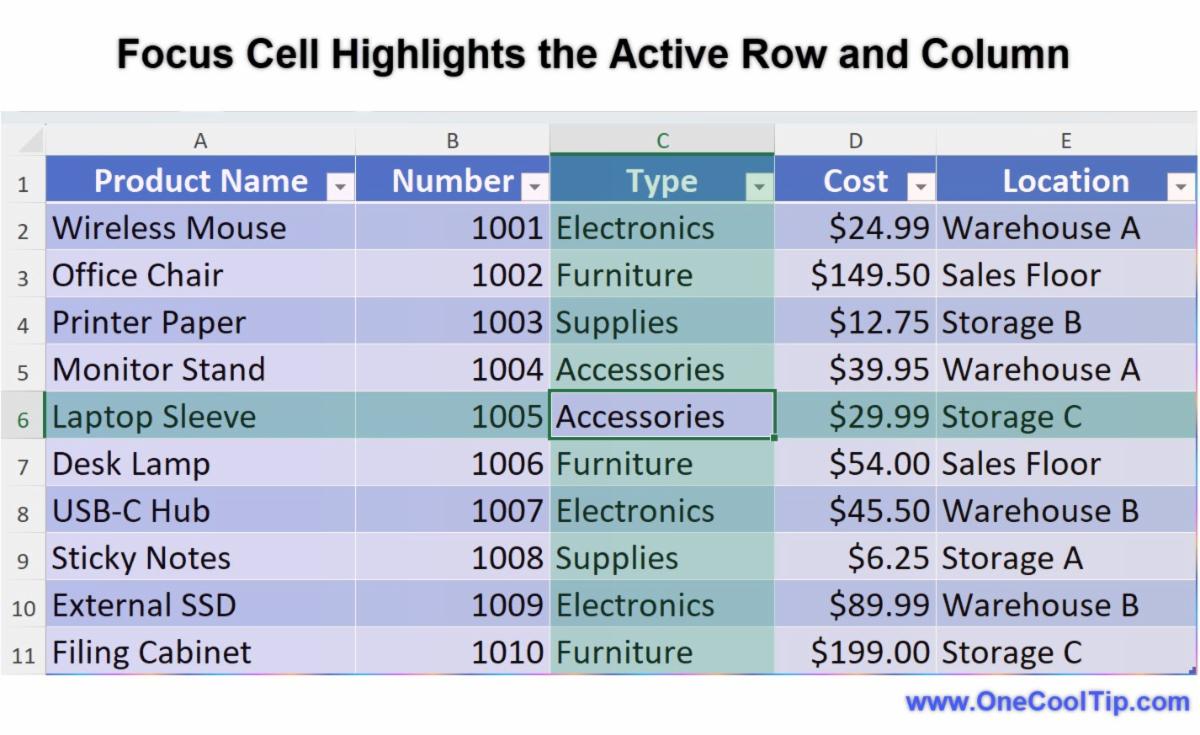
The selected cell remains active while Excel highlights its row and column with a colored guide.
-
Move around the worksheet to see the highlight automatically follow your selection.
| | fig. 1 - Focus Cell Example | |
Change the Highlight Color
-
Select the View tab on the Ribbon.
-
Click the Focus Cell drop-down arrow.
-
Choose Focus Cell Color.
-
Select one of the available colors.
Pros and Cons
Pros:
- Makes large spreadsheets significantly easier to read.
- Helps reduce data-entry mistakes.
- Helpful for students, researchers, and analysts working with large datasets.
- Quick to enable and easy to understand.
- Customizable highlight colors improve visibility.
Cons:
- Availability may vary by Microsoft 365 version and update channel.
- Customization is currently limited to a small selection of highlight colors.
- Not verified for all Excel platforms.
- Some users may find the visual highlighting distracting.
Feature Access
-
Who gets it: Microsoft 365 Excel users on supported desktop versions.
-
Platforms: Verified for Windows desktop. Reports indicate support on recent Excel for Mac releases, although availability may vary.
-
Supported Versions: Availability depends on version, build, and update channel.
-
Subscription Requirement: Microsoft 365 subscription required.
-
Rollout Status: Availability may vary by account, region, device, organization, or app version.
-
Business and Enterprise Accounts: Organization-managed update policies may affect access.
-
Admin Controls: IT administrators may control update timing and feature availability.
Score
Criterion | Score (0–10) | Justification
Value | 8
Focus Cell addresses a common spreadsheet problem and can help reduce navigation and data-entry errors.
Usability | 9
The feature is easy to find, easy to enable, and requires virtually no learning curve.
Wow Factor | 5
Useful and thoughtful, but ultimately an incremental productivity improvement rather than a major innovation.
Total: 22/30 | 👍 Good
Focus Cell is a simple Excel feature that can make large spreadsheets easier to manage and less error-prone.
Comparison: It offers functionality similar to row-and-column guides found in specialized data-analysis tools, but directly within Excel.
Key Takeaways
Focus Cell makes navigating large spreadsheets easier by highlighting both the active row and active column.
It helps reduce common reading and data-entry mistakes while requiring virtually no training. If you regularly work with large datasets, it's worth enabling.
Cool Tip Snapshot
-
Feature Name: Focus Cell.
-
Platform(s): Microsoft Excel for Microsoft 365 Desktop.
-
Quick Benefit: Highlights the active row and column for easier navigation.
-
Best For: Data entry, reporting, analysis, and auditing.
-
Access Type: Subscription.
-
Difficulty: Easy.
Try It Yourself
Open a large Excel spreadsheet today, turn on Focus Cell, and see how much easier it is to follow rows and columns while you work.
Share your experience in the comments, and share this article with your family, friends, coworkers, and fellow Excel users.
READ MORE
Read the Cool Tip on One Cool Tip.com.
| | Help support One Cool Tip. Use this Amazon link when you shop online. | |
🔢 Wireless Numeric Keypad: A separate number pad is handy for laptop users who enter budgets, invoices, mileage logs, or inventory counts.
Now $19.99. 4.3 Stars. Check it out on Amazon!
⌨️ Logitech MX Keys S Wireless Keyboard: A full-size keyboard with a comfortable layout can make Excel shortcuts easier to use all day.
Save 10% Now $89.99. 4.5 Stars. Check it out on Amazon!
🖥️ Portable 15.6-inch USB-C Monitor: A second screen gives wide spreadsheets more breathing room and reduces constant scrolling.
Now $69.99. 4.4 Stars. Check it out on Amazon!
Prices accurate at time of publication
One Cool Tip may earn a commission from qualifying purchases.
| | |
🆒Tell Me More
- 🔎 Focus Cell applies visual highlights to the row and column of the active cell, and it also increases the active cell’s border thickness.
- 🎨 The Focus Cell drop-down lets users adjust the Focus Cell color when the feature is available.
- 🔍 Focus Cell activates by default for Find and Replace commands in the updated Find and Replace experience.
- 🧩 If a reader does not see Focus Cell, update channel or version availability may be the reason.
⏩Quick Tips
-
🔎 Use Find: Pair Focus Cell with Find and Replace when searching for values. Press Ctrl + F, search for your term, and use the highlight to locate the matching cell more easily.
-
🧭 Use Arrow Keys: Move through the worksheet with the keyboard instead of the mouse. The visual guide follows the active cell as you move.
-
📌 Check Your Version: If Focus Cell is missing, update Excel or ask your organization’s IT team whether your Microsoft 365 update channel supports the feature.
| | ✅ More Must-Read Tech Tips | | |
👀 How Do I Share Links to Sheet Views?
A new feature in Excel for the web makes collaboration easier. Now you can share direct links to Sheet Views, allowing colleagues to see exactly the data you need them to focus on, without altering the original file.
Ever had a messy Excel workbook where different team members apply conflicting filters?
Instead of frustrating back-and-forths or duplicate spreadsheets, Microsoft has introduced Sheet View sharing, a simple way to preserve custom views while keeping the original data intact.
On Web
-
Open Excel for the web, excel.cloud.microsoft.
-
Load your workbook.
-
Click on the View tab and create a Sheet View (or use an existing one).
-
Right-click any cell or the sheet tab.
-
Select Copy Link to Sheet View.
-
Paste and share the link via email, Teams, or a document.
Give Sheet View sharing a try today.
Discover more HERE.
| | |
🤔 Have You Ever Wondered How to Understand a Formula?
Excel formulas are powerful but they’re not always readable.
Even seasoned users pause at logic like IF(AND(A1>100,B1<50),TRUE,FALSE).
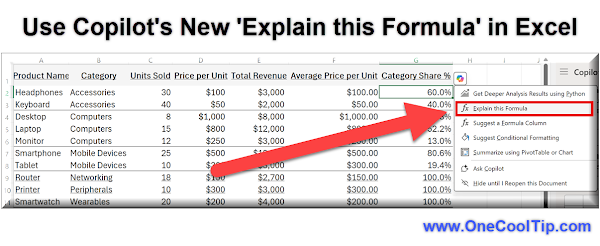
With Microsoft 365 Copilot’s “Explain this formula” feature, you don’t have to play guessing games.
It gives you clear, plain-English explanations for even the most convoluted formulas.
Here's how to do it.
On Microsoft Excel Web/Desktop (Copilot Pro)
-
Open a spreadsheet with formulas.
-
Select a cell containing a formula.
-
Hover over the Copilot icon beside the cell.
-
Click “Explain this formula.”
- Review the explanation pane that appears.
Fire up Excel, click on a cell with a formula, and let Copilot break it down.
Find out more HERE.
| | |
🙋♂️ Here's How to Effortless Enter Dates in Excel for the Web.
Have you ever accidentally mistyped a date in Excel, leading to frustrating errors in calculations or scheduling?
Previously, users relied on VBA scripts or external add-ins to integrate a date picker.
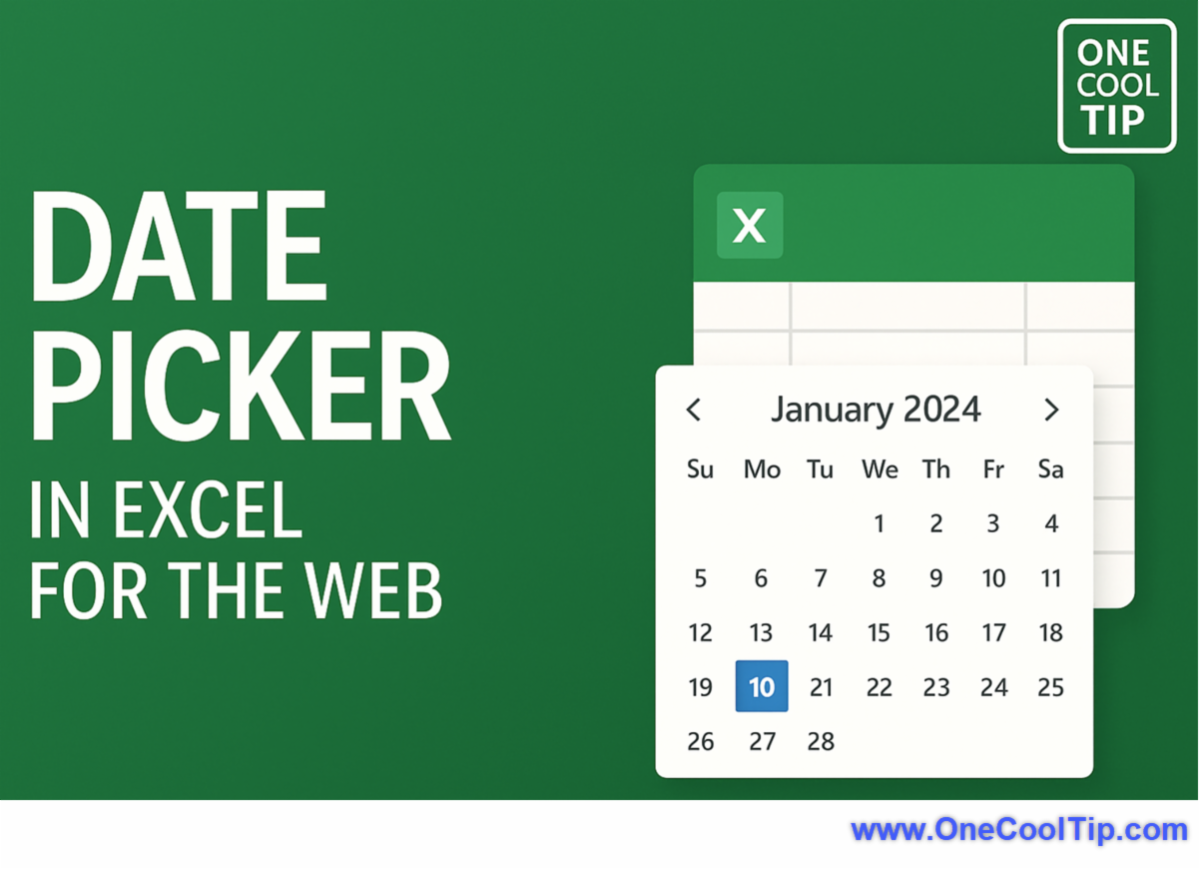
But Microsoft has now embedded this function directly into Excel for the Web, saving time and boosting accuracy for business users, educators, and productivity enthusiasts.
Here's how to do it.
Microsoft Excel (Web)
-
Go to Excel for the Web, onedrive.live.com and select Excel.
-
Select the desired cell, then go to Home > Number Format > Date.
-
Double-click the formatted date cell.
- Click the date you want, and Excel automatically inserts it.
Want to boost your Excel efficiency today?
Try the Date Picker now!
Learn more HERE.
| | |
❓Did you share this newsletter with three friends yet?
😎 Cool Facts
1985: 📅 Excel for Macintosh shipped on September 30, 1985, marking the first public release of Microsoft Excel. Source.
2410+: 💻 Focus Cell is generally available on desktop versions of Excel for Windows, Version 2410 or later. Source.
16.91+: 🍎 For Mac users, Version 16.91 or later. Source.
⌨️Today's Cool Shortcuts
🪟 Alt + W + E + F: Toggle Focus Cell on or off when available.
🪟 Ctrl + F: Open Find to search for text, numbers, or formulas in a worksheet.
🪟 Ctrl + Arrow Key: Jump to the edge of a data region.
🪟 Shift + Space: Select the entire active row.
🪟 Ctrl + Space: Select the entire active column.
😜 Tech Joke of the Day 😅
What is a spreadsheet's favorite type of music?
Heavy cell.
🔎 Do you have a Cool Tip or tech question? Email us at onecooltip.com@gmail.com.
| | |
Endless rows of text
A bright green line marks the spot
Lost data is found
| |
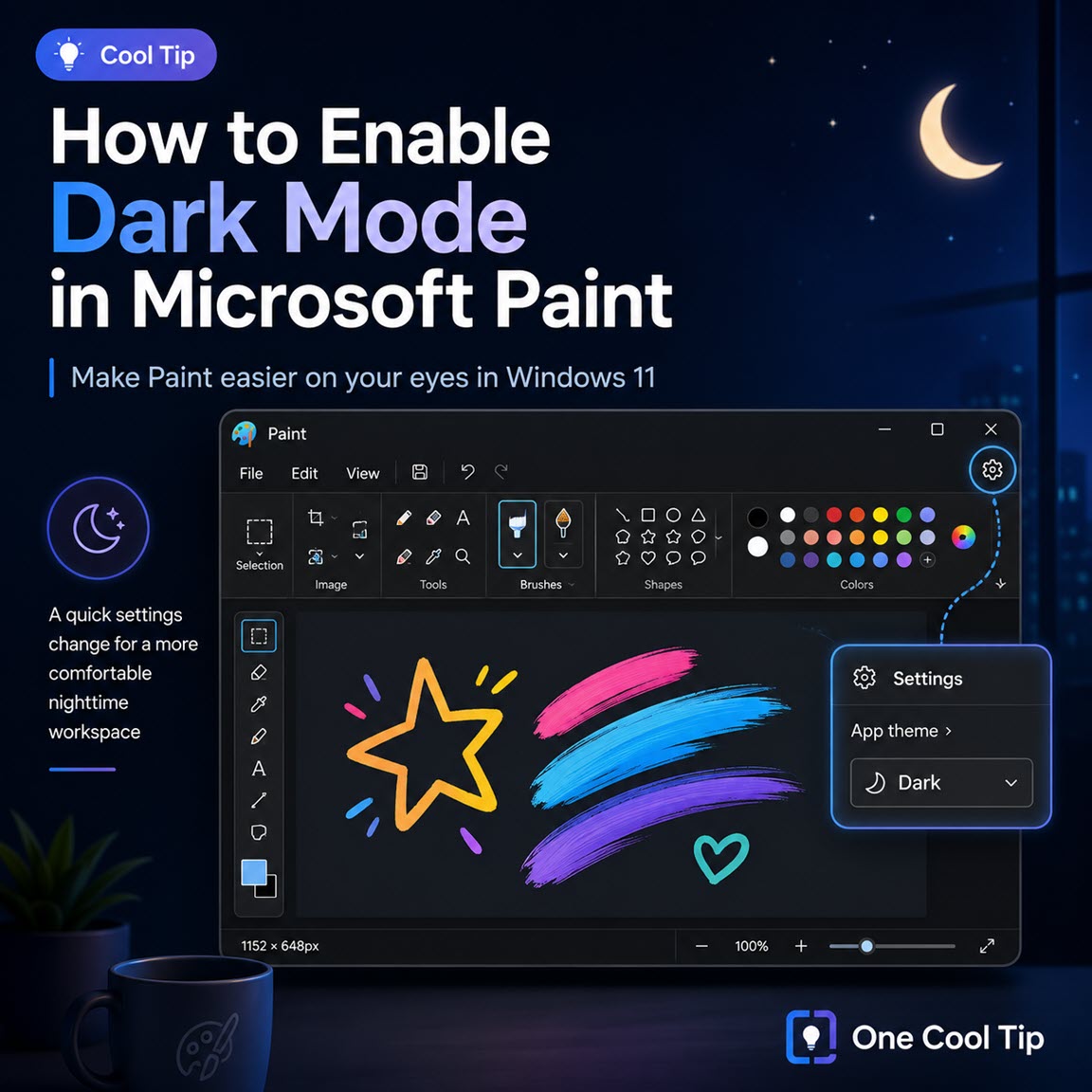
| 🤔 How do you keep your place in large Excel worksheets? | | | | Did You See These Cool Tips This Week? | | | | How to Enable Dark Mode in Microsoft Paint | |
Make Microsoft Paint easier on your eyes with Dark Mode! In just a few clicks, you can switch Paint’s bright interface to a sleek dark theme that's perfect for working at night and reducing eye strain. Learn how to enable this hidden productivity boost in Windows 11.
Read the Newsletter Version.
| | | | Master Your Investments With the New Google Finance App and AI Tools | |
Google Finance is rolling out powerful portfolio tracking tools and a brand new Android app. Discover how custom AI briefings and smart insights can help you make better financial decisions.
Read the Newsletter Version.
| |
ICYMI - In Case You Missed It ...
| | | | Take Control of Your YouTube Experience with Custom AI Feeds | |
YouTube now allows you to move beyond the standard algorithm by designing your own video discovery space with simple text prompts. This feature turns your Home page into a curated dashboard built specifically for your current mood or professional needs.
Read the Newsletter Version.
| | Finally, a lighthouse for everyone who has ever been shipwrecked in Column Z. | | |
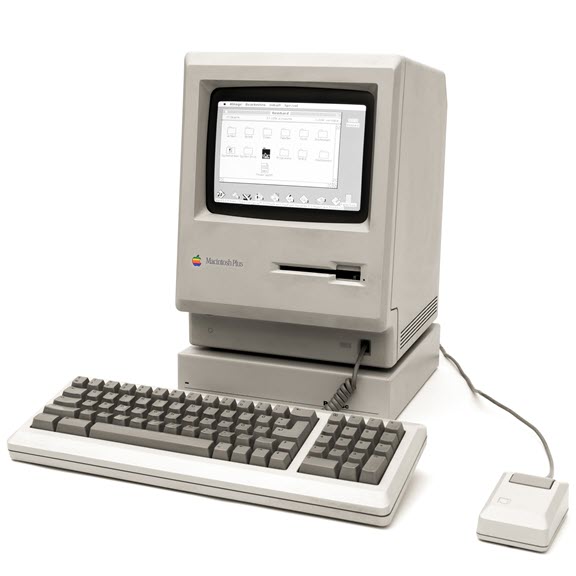
Trivia Answer: C) Macintosh
The first version of Microsoft Excel was released for the Apple Macintosh on September 30, 1985, more than two years before it became available for Windows.
While Excel 1.0 debuted on the Mac, its predecessor, Multiplan, was originally developed for the CP/M platform.
----------
Tomorrow's Cool Tip is waiting to amaze you.
Until then, go forth and conquer the tech world with your newfound knowledge!
Be sure to visit www.OneCoolTip.com for Cool Tech Tips for a Cooler Life!
And if you Like One Cool Tip, please support with TipJar!
Enjoy!
Rodger
Chief Cool Tipper
onecooltip.com@gmail.com
| |
| What do you think of today's OneCoolTip newsletter? | | | |
Please Share the One Cool Tip Newsletter!
You asked for it. You got it. There is now a One Cool Tip Newsletter archive. Did you delete a newsletter and want to read it again? Check it out HERE.
Want to help One Cool Tip grow? Please forward this email using the link above. And if you see an OCT social media post, please LIKE, COMMENT and SHARE!
Have you subscribed to the One Cool Tip YouTube channel? Subscribe HERE.
| | Connect with One Cool Tip!! | | |
|
As an Amazon Associate, One Cool Tip may earn a small commission from qualifying purchases.
Our media content is intended solely for informational purposes only. Please do not construe anything here as legal, tax, investment, financial, marital or other advice.
Copyright © 2026 | www.OneCoolTip.com | All Rights Reserved
|
| | | |