|
Improve Study Habits with Google Chrome AI Features
Google Chrome recently introduced powerful new features to organize coursework, test knowledge with AI, and sync progress across devices. These updates help students and professionals focus better and retain information longer.
Managing multiple classes, research papers, and study guides usually results in a messy browser with dozens of open tabs.
It is easy to lose focus or forget exactly where you left off when switching between your laptop and your phone.
Here is a Cool Tip: Use Chrome's new AI tools and tab management features to organize your research and test your knowledge.
Google Chrome recently updated its feature set for the 2026 academic year, adding specific tools designed to reduce digital clutter and improve information retention for heavy readers.
Feature Explanation
Chrome offers a comprehensive suite of study-focused enhancements that transform how you interact with dense information.
Instead of drowning in open pages, you can now organize your research using categorized tab groups and a new native split view that lets you view two pages side by side in the same window.
When you need to read complex materials, the new Immersive Reading mode removes visual noise, sidebars, and ads, allowing you to adjust fonts and spacing for optimal focus.
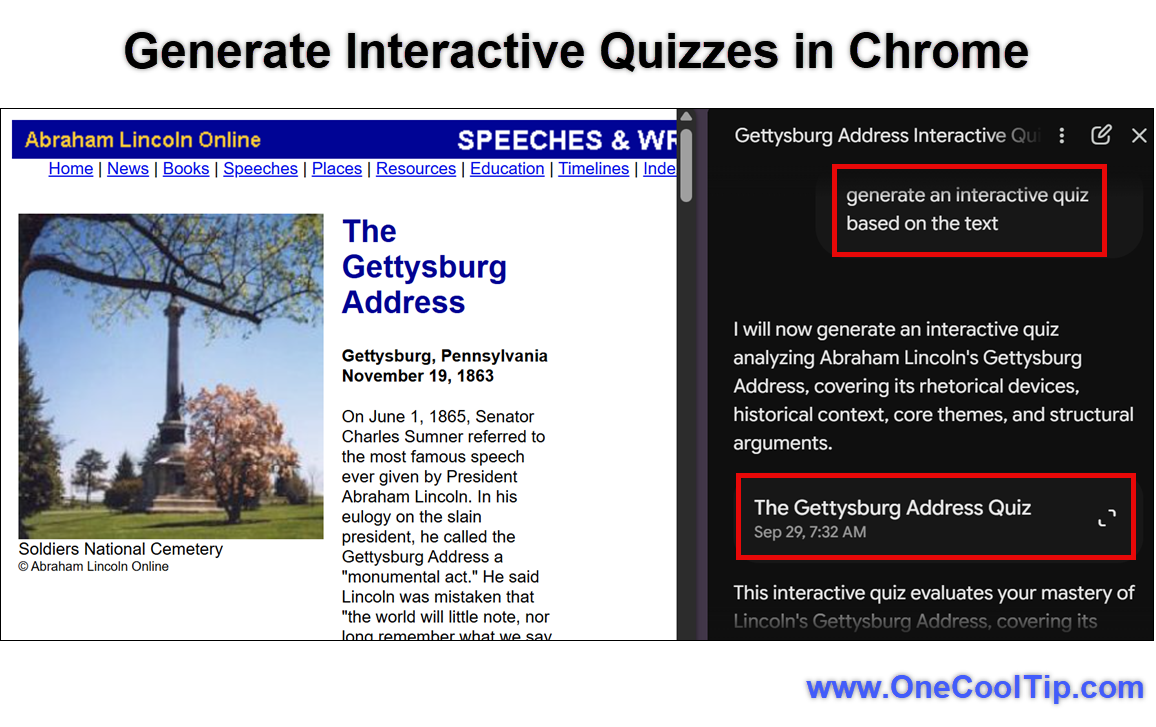
For comprehension and retention, Chrome integrates Gemini AI directly into your browsing experience to generate interactive practice quizzes from your open tabs.
Whether you are reviewing a text-heavy Google Doc of your physics notes or watching an educational lecture video on a third-party site, Gemini highlights core concepts and checks your understanding in real time.
Additionally, Chrome addresses the frustration of moving between hardware.
It now saves your exact scroll position and partially filled web forms when sending tabs between a laptop and a phone.
These tools solve the common problem of digital overwhelm and benefit students, researchers, and professionals who consume large amounts of data.
The interactive quiz feature is currently rolling out on desktop in the U.S. and India, while the tab management and reading tools are available globally.
What You Will Gain
-
Save time by organizing coursework into dedicated, color-coded tab groups.
-
Reduce confusion when switching between laptop and mobile devices by preserving your exact place.
-
Improve comprehension by generating active practice quizzes from your study notes.
-
Make daily work easier by removing visual distractions with Immersive Reading mode.
Step-by-Step Instructions
Here's how to do it.
Web/Desktop (Windows, macOS, ChromeOS):
-
Open Google Chrome and go to a web page, Google Doc, or educational video related to your coursework.
-
To organize your research, right-click a tab, select Add tab to group, and choose New group to assign a name and color.
-
To view two pages side by side, right-click a tab and select Add tab to new split view, then click the second tab you want to view beside it.
-
To remove visual distractions, right-click anywhere on a webpage and select Open in reading mode to launch the clean side panel.
-
To test your knowledge, click the Gemini icon in the Chrome address bar or side panel while viewing a study document, and ask it to generate an interactive quiz based on the text.
-
To summarize a lecture, play an educational video in your browser, open the Gemini side panel, and prompt it to identify the key takeaways.
-
To send your work to a mobile device, right-click a tab, select Send to your devices, and choose your smartphone to save your exact scroll position.
|