|
TECH TIP: PRINT FROM YOUR SMARTPHONE
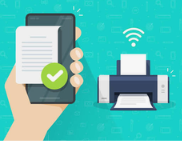
You can print from your smartphone by connecting both your phone and a wireless printer to the same Wi-Fi network or using a direct wireless protocol.
How to Print from an iPhone (iOS)
1. Connect to Wi-Fi: Ensure your iPhone and the printer are on the same Wi-Fi network.
2. Open the File: Open the photo, PDF, email, or webpage you want to print.
3. Tap Share: Tap the Share icon (square with an upward arrow).
4. Select Print: Scroll down and tap Print (using built-in Apple AirPrint).
5. Choose Printer: Tap Select Printer, pick your wireless printer, adjust your copies or page range, and tap Print.
How to Print from an Android Phone
1. Connect to Wi-Fi: Ensure your phone and printer share the same Wi-Fi network.
2. Open the File: Open your document, image, or webpage.
3. Open the Menu: Tap the three-dot menu (⋮) or the Share icon in the app.
4. Tap Print: Select Print from the menu options. (If you do not see a print option, go to Settings > Connected devices > Connection preferences > Printing to enable your phone's Default Print Service or manufacturer plugin).
5. Select Printer: Tap the printer drop down at the top, select your wireless printer (or tap All printers to search), adjust your settings, and tap the Print icon
Alternative Methods
• Manufacturer Apps: Install dedicated apps like HP Smart, Canon PRINT, Epson Smart Panel, or Brother Mobile Connect for expanded features like scanning, ink-level monitoring, and remote printing.
• Wi-Fi Direct / Bluetooth: If your printer lacks a home network or router, you can connect directly using the printer’s built-in Wi-Fi hotspot, Wi-Fi Direct, or Bluetooth pairing in your phone's settings. Note: many modern wireless printers support direct mobile printing without needing a computer.
|