|
One Cool Tip Newsletter
October 28, 2026
| Your daily dose of tech-savvy brilliance! | |
😀 Greetings! Happy Windows Wednesday, Cool Tipper!
Get ready to streamline your digital life with simple, actionable tips delivered straight to your inbox.
Cool Tip Theme: Windows 11 Emoji 17.0 Support
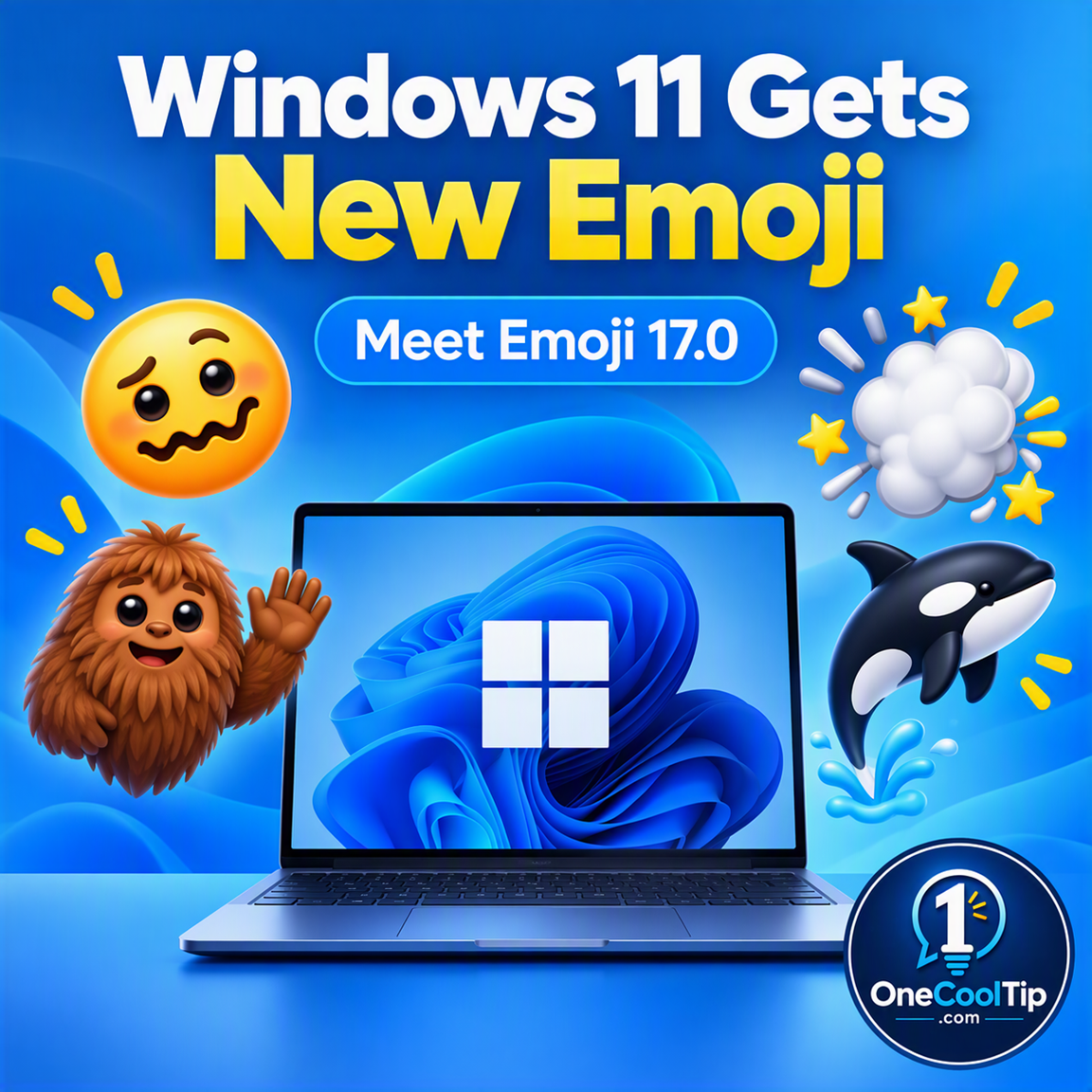
Windows 11 adds support for Emoji 17.0 with new characters and refreshed designs. Learn what’s new and how to open the emoji picker quickly.
New here? Subscribe to the One Cool Tip Newsletter for daily updates. It's FREE!
| |
3️⃣
If you enjoy the One Cool Tip Newsletter, please forward this newsletter to THREE friends or colleagues or share it on social media using the links below.
Leave a $$$ Tip!
Share this One Cool Tip Newsletter!
| | |
🚨 That Windows Update Website Could Be a Malware Trap 🚨
Cybercriminals are creating convincing fake Microsoft and Windows Update websites that can trick users into downloading malware instead of legitimate software.
Scammers create lookalike pages using familiar Microsoft branding, realistic update descriptions, and believable KB numbers to make malicious downloads appear authentic.
Once installed, the malware may steal passwords, payment information, and access to online accounts.
Counterfeit software-download sites can impersonate trusted vendors and install malware that establishes persistent access to a computer.
The safest habit is to get routine Windows updates through Settings > Windows Update instead of downloading an update offered by an unfamiliar website.
The Cool Tip:
If a website suddenly tells you that Windows needs an urgent update, close the page and check Windows Update yourself.
And in Other News...
- AI Agents Can Work for You, but Should You Trust Them?
AI agents are moving beyond answering questions and can increasingly access data, use tools, and take actions to accomplish tasks.
Microsoft warns that these agents can sometimes behave unpredictably, especially when they have broad permissions to important systems and information.
The company calls these systems “agentic insiders” and argues that they need continuous monitoring rather than automatic trust.
Microsoft says security should include carefully managed identities, permissions, data access, and controls that can respond when an agent’s behavior becomes risky.
For everyday AI users, the broader lesson is simple: pay attention to what information and permissions you give an AI agent before letting it act on your behalf.
The Cool Tip:
Treat an AI agent like any other app with access to your digital life and give it only the permissions it truly needs.
| |
| 🤔 How often do you use emoji on your Windows PC? | | | |
-
Have you tried the Upside app? Everyday cash back on gas, groceries and dining.
Help support One Cool Tip. Use this Amazon link when you shop online.
Check out these Cool Deals:
| | |
🖱️ Logitech Pebble Mouse 2 M350s: A compact wireless mouse makes a handy companion for a Windows laptop or desktop.
Save 8%. Now $22.95. 4.5 Stars. Check it out on Amazon!
🔌 StarTech USB-C Multiport Adapter: A convenient accessory for adding connectivity to compatible Windows laptops.
Overall Pick! Now $36.99. 4.2 Stars. Check it out on Amazon!
📷 Logitech C920s Pro HD Webcam: A popular webcam option for video calls and a Windows communications setup.
Overall Pick! Now $69.89. 4.6 Stars. Check it out on Amazon!
💻 Lifelong Laptop Stand: An adjustable stand can make a frequently used laptop setup more comfortable.
Save 30%. Now $25.90. 4.6 Stars. Check it out on Amazon!
*Prices accurate when originally published.
One Cool Tip may earn a commission from qualifying purchases.
| | Windows 11 Has New Emoji. Here’s How to Find Them | | |
Windows 11 is adding Emoji 17.0 support, bringing new choices to messages, documents, emails, and social posts.
Better yet, Microsoft hasn’t changed the familiar shortcut you use to find them.
| | |
By Rodger Mansfield, Technology Editor
October 28, 2026
Subscribe
Ever have a reaction that deserves something more expressive than a thumbs-up?
Windows 11 has some fresh choices.
Microsoft’s September 2026 preview update adds support for Emoji 17.0, with Microsoft highlighting distorted face, fight cloud, and hairy creature among the additions.
The company also refreshed the appearance of several familiar choices, including saluting face, face with peeking eye, goose, lotus, and kissing cat.
The nice part is that Microsoft didn’t hide them behind a new app or complicated setting.
You still open the built-in emoji panel with a familiar keyboard shortcut.
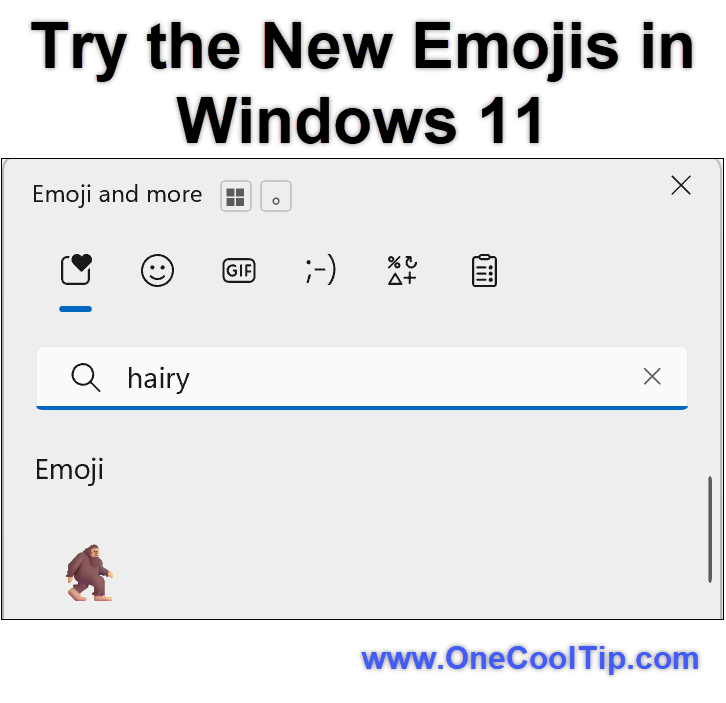
Here’s a Cool Tip: Press Windows + . to discover your new emoji.
Feature Explanation
Emoji 17.0 is the newer emoji version supported by this Windows 11 update.
Unicode’s official Emoji 17.0 chart includes additions such as distorted face, fight cloud, hairy creature, ballet dancer, orca, landslide, trombone, and treasure chest, along with new sequences and variations.
It’s a small Windows improvement, but a welcome one for anyone who regularly uses emoji in messages, email, documents, or social posts.
What You'll Gain
-
More expression: Choose from additional emoji for messages, documents, and social posts.
-
Faster access: Open the built-in Windows emoji picker instead of searching the web for an emoji to copy and paste.
-
Familiar controls: Keep using the same Windows + . shortcut.
-
Refreshed artwork: Several existing Windows emoji also receive updated designs.
Step-by-Step Instructions
Here's how to do it.
Windows
-
Click inside a text field where you want to insert an emoji.
-
Press Windows + . (period) on your keyboard.
-
The Windows emoji panel opens.
-
Find the emoji you want.
-
Select the emoji to insert it into your text.
| | fig. 1 - Try the New Emojis in Windows 11 | | |
Pros and Cons
Pros:
-
Easy to access: The familiar Windows + . keyboard shortcut opens the emoji picker.
-
More choices: Emoji 17.0 expands the available collection with additional characters.
-
No new app to learn: The additions appear through the existing Windows emoji experience.
-
Refreshed designs: Microsoft updated several existing emoji for greater visual consistency.
-
Useful almost anywhere you type: Emoji can add personality to messages, documents, email, and social posts.
Cons:
-
Gradual rollout: Features in this portion of KB5124010 reach devices over time, so your PC may not receive the additions immediately.
-
Minor upgrade: New emoji are enjoyable, but they do not fundamentally change how you use Windows.
-
Appearance may vary: The same Unicode emoji can look different depending on the operating system, app, or platform displaying it.
Troubleshooting and Limitations
Problem: The new emoji don’t appear.
-
Why it happens: Microsoft identifies Emoji 17.0 as part of a gradual rollout. Eligible devices may receive the changes at different times.
-
Fix or workaround: Check Windows Update and make sure your PC is running a supported Windows version. If your system is current and the new emoji still don’t appear, you may need to wait for the rollout to reach your device.
Problem: Windows + . doesn’t open the emoji panel.
-
Why it happens: The shortcut is designed to open the emoji picker while entering text.
-
Fix or workaround: Click inside a field where you can type, then press Windows + . again.
Problem: An emoji looks different on another device.
-
Why it happens: Unicode defines emoji characters and sequences, while vendors can present them with different artwork.
-
Fix or workaround: Avoid relying on the exact appearance of an emoji when communicating important information.
Feature Access
- Microsoft’s KB5124010 for Windows 11 versions 26H2, 25H2, and 24H2 lists Emoji 17.0 among the update’s gradual-rollout improvements.
- Gradual-rollout features reach devices over time rather than arriving on every PC simultaneously.
- Emoji 17.0 support is therefore rolling out to supported Windows 11 PCs and may not appear on every eligible device at the same time.
Score
Criterion | Score (0–10) | Justification
Value | 7
It expands everyday communication choices, but it doesn’t solve a major computing problem.
Usability | 9
The Windows + . shortcut makes emoji remarkably easy to reach once you know it.
Wow Factor | 6
New characters are fun, but this is an incremental Windows improvement rather than a major feature.
Total: 22/30 | 👍 Good
Emoji 17.0 is a small but enjoyable Windows 11 improvement that earns extra points for requiring almost no learning.
Compared with searching the web for an emoji to copy and paste, Windows’ built-in picker is a much more convenient option.
Key Takeaways
Emoji 17.0 gives Windows 11 users some fresh ways to communicate without requiring them to learn a new tool.
The shortcut worth remembering remains delightfully simple: Windows + .
If the newest emoji aren’t there yet, don’t assume something is broken.
Emoji 17.0 is part of a gradual rollout, so your PC may simply not have received it yet.
Cool Tip Snapshot
-
Feature Name: Emoji 17.0 Support
-
Platform(s): Windows 11
-
Quick Benefit: More emoji choices from the familiar Windows picker
-
Best For: Messaging, email, social posts, students, and creators
-
Access Type: Rolling Out
-
Difficulty: Easy
Learn More
Microsoft’s official September 2026 Windows update notes explain Emoji 17.0 support, refreshed emoji designs, applicable Windows versions, and rollout status.
Try It Yourself
Press Windows + . the next time you’re typing a message and see which new emoji have reached your PC.
Tell us your favorite in the comments, subscribe to the One Cool Tip newsletter, and share this Cool Tip with family, friends, and coworkers.
READ MORE
Read the Full Cool Tip!
| | |
Check Out These Cool Tips & Tricks
-
Quick Picker: Skip hunting through menus when you need an emoji. Click inside a text field and press Windows + . to open the Windows emoji panel.
-
Keep Typing: Finding the right emoji can be quicker than scrolling through choices. Open the emoji panel, then use its available search experience to locate what you need.
-
Try Symbols: The Windows expressive-input panel can be handy for more than smiling faces. Explore its other available categories when you need a special character or symbol.
-
Find GIFs: Sometimes an animated response says more than a static face. Explore the GIF choices available through Windows’ expressive-input experience.
-
Try Kaomoji: Give old-school text faces a try when regular emoji seem too predictable. Open the Windows panel and explore its kaomoji choices.
-
New Faces: Emoji 17.0 introduces distorted face and fight cloud. Look for them after Emoji 17.0 support reaches your PC.
-
Go Wild: Emoji 17.0 includes an orca and hairy creature. See whether they appear after the new set becomes available on your Windows installation.
-
Make Music: Emoji 17.0 includes a trombone. Try it the next time you share something musical. 🎵
-
Hidden Treasure: Emoji 17.0 includes a treasure chest. Look for it after Emoji 17.0 arrives on your PC.
-
Stay Current: New emoji depend on updated software support. Check Settings > Windows Update if you want to see whether updates are available for your PC.
| | ICYMI - In Case You Missed It ... | | | | |
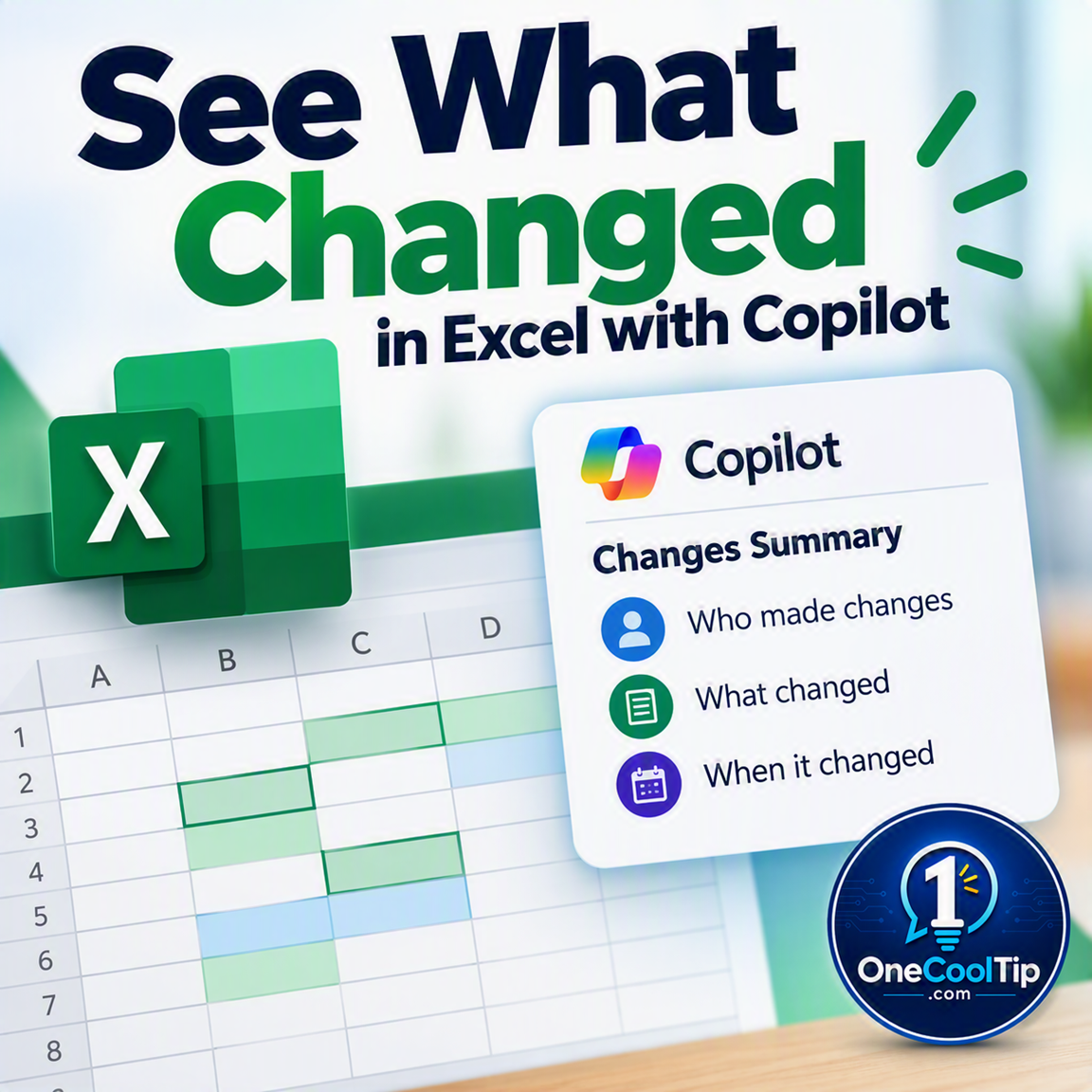
Stop Guessing What Changed in Excel
Shared spreadsheets can change quickly, especially when several people edit them throughout the day. Excel Copilot can help you understand what changed, who made the changes, and where to focus your attention without manually reviewing long change logs.
Read the Full Version.
Read the Newsletter Version.
| | |
Tomorrow's Cool Tip is waiting to amaze you.
Until then, go forth and conquer the tech world with your newfound knowledge!
Be sure to visit www.OneCoolTip.com for Cool Tech Tips for a Cooler Life!
And if you Like One Cool Tip, please support with TipJar!
Enjoy!
Rodger
Chief Cool Tipper
onecooltip.com@gmail.com
| |
| What do you think of today's One Cool Tip Newsletter?
| | | | Connect with One Cool Tip! | | |
|
As an Amazon Associate, One Cool Tip may earn a small commission from qualifying purchases.
Our media content is intended solely for informational purposes. Please do not construe anything here as legal, tax, investment, financial, marital or other advice.
Copyright © 2026 | www.OneCoolTip.com | All Rights Reserved
|
| | | |