FALL CLASS OVERVIEW 
REGISTER FOR HUNTINGTON LAB

FSL SeniorNet at Family Service League, Olsten Family Center

790 Park Avenue, Huntington, NY 11743 1-631-470-6757

Refer to the webpage for number of lessons and class dates.

Class start date shown.

  • Internet Security, on Sept 18
  • PC Computing Basics 1, starts Oct 1
  • PC Computing Basics 2, starts Nov 7
  • Windows 11: An Introduction, starts Sept 30
  • Windows 11: Advanced, starts Sept 30
  • Mac Computer Advanced, starts Oct 17
  • iPhone: Getting Started, starts Oct 16
  • iPhone: What's Next, starts Nov 6
  • Android Phone, starts Nov 18
  • iPad: Getting Started, starts Nov 12
  • iPad: What's Next, starts Dec 3
  • Apple's iCloud: An Introduction, starts Dec 4
  • Mac Photos: Organizing Your Pictures, starts Nov 7
  • Photoshop Elements: Photo Editing & Project Creating, starts Nov 13
  • Google Docs & Sheets for Word & Excel Users, starts Dec 12
  • Available for Solve Your Technical Problem
REGISTER FOR BAY SHORE ANNEX

FSL SeniorNet at Family Service League, South Shore Iovino Family Center

1444 Fifth Avenue, Bay Shore, NY 11706 1-631-647-3100

Refer to the webpage for number of lessons and class dates.

Class start date shown.

  • Exploring Files and Folders with Windows 11, starts Oct 8
  • PC Computing Basics 1, starts Nov 5
  • Android Phone: Getting Started, starts Dec 3
  • Available for Solve Your Technical Problem
REGISTER FOR BLUE POINT COTTAGE

Town of Brookhaven, FSL SeniorNet @ Henrietta Acampora Cottage

39 Montauk Highway, Blue Point, NY 11715 1-631-470-6922

Refer to the webpage for number of lessons and class dates.

Class start date shown.

  • iPhone: Getting Started, starts Oct 17
  • PC Computing Basics 1, starts Oct 17
  • iPhone: What's Next, starts Nov 14
  • Android Phone: Getting Started, starts Dec 5
  • Available for Solve Your Technical Problem
FREE WEBINARS & SEMINARS

Webinars are held over Zoom,

Seminars are at local libraries.

  • iPhone: The Camera on Sept 16
  • Introduction to the Cloud on Oct 9
  • Buying a New TV on Nov 14
  • Google: More Than a Search Engine on Dec 12
TECH TIP: iOS 18 FOR iPHONE & iPAD

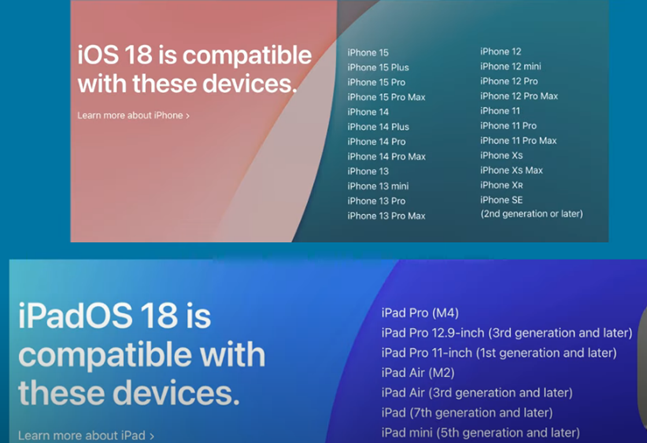
How to get your iPhone or iPad ready for iOS 18 / iPad OS 18


1.    Check your iPhone or iPad Model for compatibility with the iOS 18 update:

a. Go to Settings > General > About > Model.

b. See the list above for Devices that will work with iOS 18.

2.    Check your Devices' unused storage / free space. You need about 10 Gigabytes to install the update.

a.     Go to Settings > General > Phone Storage

b.    At the top of the page you'll see "x GB of y GB used". Subtract x from y to determine how much unused memory the phone has.

c. If your iPhone has less than 10 GB of unused memory then to install the iOS update you will need to free up space in its memory. To free up memory:

3.    To Free Up space:

a.    Apps: Offload unused apps – puts unused apps in your cloud and you can reinstall at any time via the App Store.

b.    Photos / Videos – delete old photos or duplicates. Duplicates will be in a separate Duplicates Folder, if you have any.

c.    Delete them from the Deleted Album too.

d.    Clean up your Messages by deleting them.

4.    Back Up your iPhone / iPad

a.    Go to Settings > iCloud > iCloud Back Up.

b.    Toggle On "Back Up this iPhone / iPad"

c.    Toggle On "Back Up Over Cellular" if you have an unlimited data plan.

d.    Tap "Back Up Now" (Be sure your device is charged to at least 50% and connected to Power and WiFi - look for the WiFi symbol in the upper right corner.)

5.     Be sure to have your Passcode and Apple Password handy to get into your device after the update.

6.     You will get a notification on your Settings App overlaid with a RED “1” to inform you that you are eligible for iOS 18 or any eligible iOS update.

a.     Then go to Settings > General > Software Updates and follow the screen prompts.

b. You may have automatic updates toggled on (Settings > General > Software Update > Automatic Update*) – Turn on iOS Updates to Automatically Download and Automatically Install. When an update is available, the Device downloads and installs the update overnight while charging and connected to Wi-Fi. You’re notified before an update is installed.


The update will be released on Sept 16.


You will need your Passcode to use your Device after the update.


For those unwilling to take the plunge into iOS 18 immediately (with all its new features and a hefty list of security updates) Apple is releasing iOS 17.7 alongside iOS 18.

  • iOS 17.7 contains security patches and bug fixes.
  • If you do not have Automatic Update Enabled - *and now may be a good time to disable it - When you go to Settings > General > Software Updates you will have two choices so you can select iOS 17.7 until you are confident in upgrading to iOS 18.
  • Waiting a few weeks for Apple to get the bugs out of iOS 18 is a conservative approach.

*Re-enable Automatic Updates after you finish installing iOS 18, so the future interim updates install automatically and you don't have to be bothered.


SeniorNet is teaching iOS 18 in all our Fall iPhone and iPad classes.

Let us know if you need help.

SOLVE YOUR TECHNICAL PROBLEM
IMPORTANT STUFF TO KNOW!

ALL CLASSES:

Registration is open until 10 AM sharp one day before the start of a class.

To participate in our classes, register and pay online with a credit or debit card. If you prefer to pay by check or cash, contact the office at 631-470-6757, or register in person at Open House/ Registration Day in Huntington, Bay Shore, & Blue Point. Reminder emails are sent by fslseniornet@fsl-li.org ftwo days before the first class in a series.


ONLINE CLASSES:

To participate in our online courses, you need to download Zoom on your computing device*. The Zoom link will be included in the confirmation sent by ezregister.com. The teacher will also send the Zoom link and manual before the class.


WEBINARS ARE ONLINE:

Registration is open until one hour prior to the webinar's start time.

The Zoom link will be included in the confirmation sent by ezregister.com. Reminder emails are sent by fslseniornet@fsl-li.org five days before the webinar. Additionally, the teacher will also send the Zoom link and handout the day before the webinar. 


SEMINARS ARE IN-PERSON & LIBRARY HOSTED:

Registration is managed by our host library. Their registration link will be provided on their website, our email blasts, and our webpage.


SOLD OUT:

Please call 631-470-6757 or send an email to fslseniornet@fsl-li.org

to receive an email with information as to when the course (webinar, seminar, class or workshop) is offered again. Please include the name of the course you are interested in.


COMPUTING DEVICES:

Computing devices include Windows and Mac Desktops & Laptops,

iPads, and Android Tablets. It is NOT recommended to Zoom using your smartphone due to the smaller screen size.


ZOOM HELP IS AVAILABLE:

 If you need instructions on downloading and using Zoom, click here:

HOW TO JOIN A ZOOM CHAT. 


REGISTRATION PROCESS
SeniorNet Community Programs
COMPUTER DONATION / REFURBISHMENT PROGRAM
TECH CONNECT LIBRARY
FSL SENIORNET WEBSITE
FAMILY SERVICE LEAGUE WEBSITE