Bytes and Insights Logo

Learn21's Weekly EdTech Update

February 13, 2025

Equity vs. Equality: Addressing the Technology Gap in Schools

by Carly Ghantous

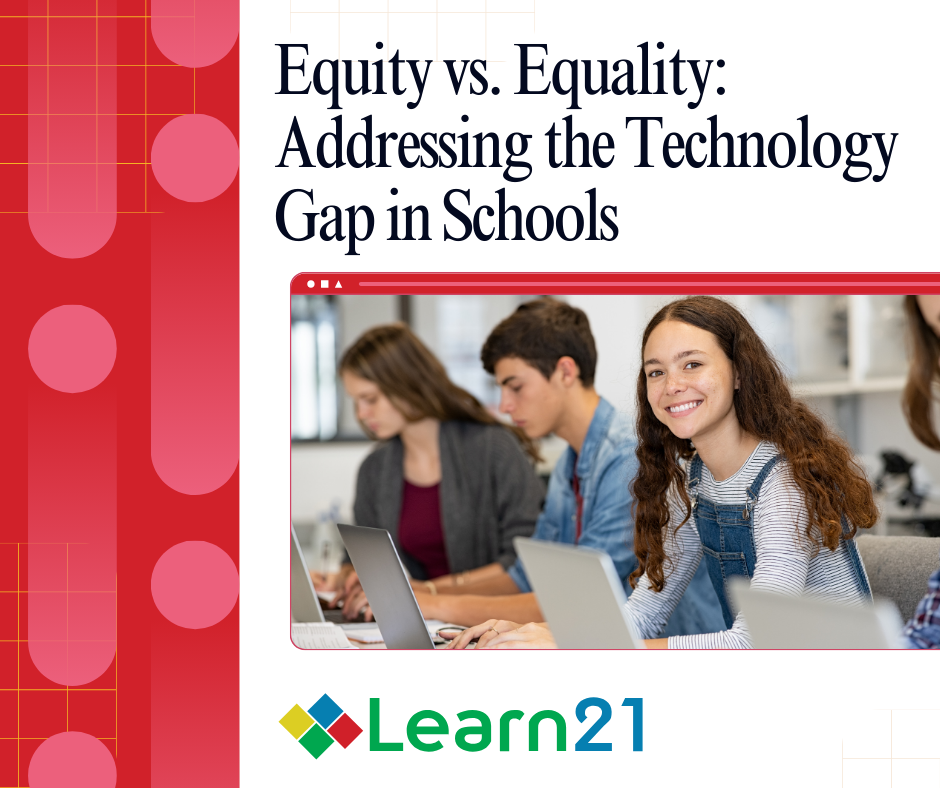
equity image

In education, the terms “equity” and “equality” are often used interchangeably, but they represent fundamentally different approaches to resource allocation—especially when it comes to technology. Understanding the distinction between these two concepts is crucial for creating learning environments where every student has the opportunity to succeed.


Equality focuses on uniformity, ensuring every student receives the same resources. At first glance, this may seem fair—for example, providing every student with a laptop. However, equality overlooks differing circumstances, such as whether students have internet access or know how to use the device effectively.


Equity, on the other hand, recognizes that students come from diverse backgrounds and have varying needs. It emphasizes providing each learner with the specific tools and support required for success, even if that means allocating resources unevenly. This approach is particularly crucial in addressing the technology gap in schools.


The digital divide highlights the importance of equity. Disparities in access to technology and connectivity remain significant barriers to learning. Schools must prioritize high-speed internet and devices for underserved communities while supporting students who have access but lack digital proficiency. Equity-focused strategies acknowledge these disparities and work to bridge them effectively.


Systemic inequities further complicate the issue. Historically marginalized groups often face additional obstacles in accessing and using technology. Initiatives that prioritize equity can help level the playing field through targeted training, mentorship programs, or culturally responsive digital tools. By addressing systemic barriers, schools can foster a more inclusive environment.


Equity also ensures that technology meets individual learning needs. Students with disabilities may require assistive technologies like screen readers or adaptive keyboards, while advanced learners might benefit from specialized software or coding programs. Tailoring resources to each student’s unique abilities and challenges maximizes the potential of digital tools. As educators, we are constantly differentiating our lessons to meet students’ individual needs. As EdTech leaders, we must treat resources the same and meet students where they are.


Promoting equity in technology requires intentional strategies. Below are five strategies that can help as educators begin to focus on equity rather than equality in schools.


  1. Needs Assessment - Before beginning any equity-minded program, you must understand the context of your work. Conduct surveys and assessments to understand the specific technology needs of your student population. Identify gaps in access, proficiency, and support.
  2. Targeted Resource Allocation - Distribute resources based on needs identified in the Needs Assessment, not uniformity. For example, provide mobile hotspots to students without internet at home or prioritize training for teachers working with underserved populations.
  3. Professional Development - Equity is a team effort. Equip educators with the skills and knowledge to use technology effectively in diverse classrooms. Professional development programs should include strategies for integrating equitable practices into digital instruction.
  4. Community Partnerships - Working together doesn’t stop within the school’s walls. Collaborate with local organizations, businesses, and governments to expand access to technology and training. Public-private partnerships can help bridge funding gaps and extend the reach of equity initiatives.
  5. Continuous Evaluation - Continuous evaluation is vital for the success of equity initiatives. Regularly assess the impact of technology programs to ensure they are meeting the intended goals. Use data to refine strategies and address emerging disparities.


True equity requires moving beyond a one-size-fits-all approach. It demands a commitment to understanding and addressing the unique barriers that students face. By focusing on equity rather than equality, schools can leverage technology to empower every learner, regardless of their starting point.


As we strive to create more inclusive educational systems, let’s remember that fairness isn’t about treating everyone the same; it’s about giving each student what they need to succeed.

Media Literacy Minute

Media Literacy Minute

Best Practices for Running Media Literacy Training

The International Journalists’ Network (IJNet) shares expert advice on conducting effective media literacy training programs. Key recommendations include adapting content to audience needs, using real-world misinformation examples, and making sessions interactive to enhance engagement and retention.


Transforming Everyone into a Fact-Checker

Times Higher Education outlines a four-step process that helps individuals become better fact-checkers. The approach includes questioning sources, cross-referencing information, analyzing intent, and verifying credibility, making it an essential skillset in today's media landscape.

Unlocking Hidden Powers: Fun and Obscure Keyboard Shortcuts You Should Know

by Stacy Hawthorne Ed.D.

In today’s fast-paced digital world, knowing your keyboard shortcuts can save time, improve productivity, and even add a little flair to your tech skills. While we’re all familiar with the classics like CTRL + C for copy and CTRL + V for paste, there’s a treasure trove of lesser-known shortcuts that can transform how you navigate, create, and collaborate. Here are some fun and obscure keyboard commands that deserve a spotlight in your repertoire. Mac users may need to substitute Command for ALT or CTRL to make these shortcuts work.


1. CTRL + SHIFT + T: The Tab Savior

Ever accidentally closed a browser tab and panicked? Fear not! CTRL + SHIFT + T is your best friend, reopening your most recently closed tab in an instant. Keep pressing it to resurrect multiple closed tabs. It’s the undo button of your browsing life. Think of it like CTRL + Z for tabs!


2. ALT + SHIFT + ↓ or ↑: Clone Your Line

For PC coders and writers using tools like Visual Studio Code or Sublime Text, this shortcut duplicates the line of text your cursor is on, instantly copying it below or above. It’s perfect for repetitive code snippets or formatting templates. It’s also great for the Bart Simpsons of the world who have to write out “I will not use CTRL commands” 100 times.


3. CTRL + SHIFT + V: Paste Plainly

Say goodbye to mismatched fonts and unwanted formatting. When pasting into most applications, CTRL + SHIFT + V pastes plain text, stripping away any source formatting.


4. CTRL + ALT + M: Comment in a Flash

Working on a collaborative Google Doc? CTRL + ALT + M allows you to quickly add a comment. It’s a great way to quickly leave notes without disrupting the main content.


5. CTRL + ;: Insert the Date (Excel Magic)

Need today’s date in a spreadsheet? Tap CTRL + ; in Excel, and the current date appears like magic. Pair it with CTRL + SHIFT + ; to add the current time. 


6. CTRL + ALT + DEL: Not Just for Task Manager

While famous for pulling up the Task Manager on a PC, this shortcut is a gateway to many functions, including signing out, switching users, and opening settings. It’s like a tech Swiss Army knife.


7. CTRL + ALT + ARROWS: Flip Your Screen

Want to prank a coworker or see your screen from a new perspective? On Windows, pressing CTRL + ALT and any arrow key rotates the display. Use CTRL + ALT + UP ARROW to reset it to normal.


8. CTRL + D: Delightful Duplications

In many text editors and design tools, CTRL + D duplicates the selected item. In browsers, it bookmarks the current page, making it a dual-purpose gem.


9. CTRL + K: Hyperlink Hero

Highlight text and press CTRL + K to insert a hyperlink in tools like Word, Google Docs, or email clients. It’s a quick way to add clickable links without hunting through menus.


10. CTRL + H: Find-and-Replace Wizardry

Forget manually correcting repeated errors. Use CTRL + H to open the Find and Replace dialog in most applications. This shortcut is a lifesaver when editing long documents. Be careful on a Mac as CMD + H will actually hide your windows!


11. CTRL + ALT + V: Paste Special

Want more control over how you paste? In Excel and other applications, CTRL + ALT + V opens the Paste Special menu, letting you choose how to paste data (values, formatting, etc.).


12. CTRL + ALT + ? (or /): Shortcut Discovery

In Google and many other applications, pressing CTRL + ALT + ? or / opens a searchable list of all available shortcuts. It’s the shortcut for shortcuts! (Mac users can just use CMD + ?). It’s like your hidden shortcut dictionary!


Honorable Mentions: Beyond CTRL

  • Windows Key + V: Clipboard History (Windows)
  • See a history of items you’ve copied and paste them selectively.
  • Command + Space: Spotlight Search (Mac)
  • A quick way to find anything on your Mac or perform a web search.
  • F2: Rename Files
  • Highlight a file and press F2 to rename it without right-clicking.


The Fun of Mastery

Keyboard shortcuts may seem small, but they offer big rewards in efficiency and creativity. Whether you’re a coder, writer, or spreadsheet wizard, mastering these commands can make your day-to-day tasks smoother—and even impress your colleagues. Try a few out today and see how much time you save!


What’s your favorite shortcut? Let us know—there’s always room for more hidden gems in the arsenal!

Big Ideas

Major Security Flaws in Apple Chips

Ars Technica reports on security researchers who have uncovered vulnerabilities in Apple’s latest chips that allow sensitive data to leak through Safari and Chrome. These flaws highlight the ongoing arms race between cybersecurity and hackers, raising concerns about how safe even the most advanced consumer devices really are. With personal data at stake, should tech companies be doing more to stay ahead of these threats?


Picking the Right AI in 2025

With AI advancing at breakneck speed, which tools should you trust? A new guide from One Useful Thing evaluates the strengths and weaknesses of major AI models, offering an opinionated take on where they shine (and where they fail). Whether you're looking for creative brainstorming, coding assistance, or research support, choosing the right AI companion is more important than ever. Make sure you read the privacy policy before using any genAI tool!


How to Cook the Perfect Boiled Egg

With egg prices on the rise, every yolk counts! This guide breaks down the science of boiling eggs to perfection—whether you want a jammy center or a firm, easy-to-peel result. The secret? Start with cold water, control your timing, and don’t skip the ice bath. Mastering this simple skill not only saves frustration but ensures you get the most out of each (increasingly expensive) egg. [AP]

If you'd like to take a hiatus from Bytes & Insights, please use the Update Profile link below. This will allow you control over which emails you receive from Learn21.

X Share on X
LinkedIn Share on LinkedIn

www.learn21.org

LinkedIn        X        YouTube        Instagram