|
One Cool Tip Newsletter
December 15, 2025
| Your daily dose of tech-savvy brilliance! | |
😀Greetings!, Happy Back-To-Work Monday, Cool Tipper!
Get ready to streamline your digital life with simple, actionable tips delivered straight to your inbox.
Today's Cool Tip Theme: Google Docs Cover Image
IN THIS ISSUE
- 🚨 Watch Out for Reshipping Job Scams
- 📈 AI Use at Work Is Surging
- 🚀 Kick-Start Your Job Search With AI
- 🎥 Create a Professional Video Interview Background
- 🎨 Give Your Google Docs a Visual Makeover
- 📋 How to Add a Cover Image in Google Docs
- ⚡ Power Tips to Level Up Google Docs
- 🖼️ Create AI Images Directly in Google Docs
- 📊 Make Better Tables in Google Docs
- 💾 How to Save Images From Google Docs
New here? Subscribe to the One Cool Tip Newsletter for daily updates. It's FREE!
-
😂 Laugh with Us! Enjoy our Tech Joke of the Day, Haiku and Cool Tip Comics.
-
🌐 Stay Informed! Check out ICYMI, and our One Cool Tip Video.
| | |
3️⃣
If you enjoy the One Cool Tip newsletter, please forward this newsletter to THREE friends or colleagues or share it on social media using the links below.
Leave a Tip!
Share this One Cool Tip Newsletter!
| | |
Today's Tech Trivia
Answer at the end of this newsletter.
| |
| Which company introduced the first widely-used cloud-based document editor? | | | | |
🚨Watch Out for Reshipping Job Scams🚨
If a “work-from-home” gig asks you to receive packages, rebox them, and ship them overseas, it’s not a job, it’s a scam.
The FTC warns that scammers pose as legit companies and use stolen credit cards to send you high-value items.
You’re unknowingly helping move stolen goods, and you won’t get paid.
Red flags to watch for:
- Fancy titles like “delivery operations specialist”.
- Requests to discard receipts and original packaging.
- No verifiable company info or payment follow-through.
If you’ve shared personal info, visit IdentityTheft.gov for next steps. Report scams at ReportFraud.ftc.gov and USPIS.gov.
And in Other News...
- AI Use at Work Is Surging
According to Gallup’s latest workplace survey, 23% of U.S. employees now use AI at least a few times per week, nearly double the rate from mid-2024.
The most common uses?
Consolidating data, generating ideas, learning new skills, automating tasks, and spotting problems.
If you’re not using AI tools like ChatGPT, Gemini, Claude, or Copilot yet, now’s the time to explore how they can streamline your workflow.
| | |
🚀 Make It a Great Week!
Copy/Paste this AI-powered prompt. Try it in the One Cool Tip AI Companion (free ChatGPT account required) or Copilot, Gemini or ChatGPT:
Looking for a new job? Start with this simple AI prompt. Upload/attach your draft résumé:
“I’m applying for a [job title] role. Attached is my current résumé draft.
Please rewrite it to better match the role, create a short cover letter, and list keywords recruiters are likely searching for.
| | | |
Try this Cool Gemini prompt:
Need a new background for your next video interview call? Try this:
"Generate a photorealistic image to use as a virtual background for a video job interview. It should look like a modern, clean, well-lit home office with a blurred background (bokeh effect) so I stand out. The style should be [Insert Style: Minimalist, Scandinavian, or Cozy Library] with soft natural lighting and no people in the shot."
| | |
Give Your Google Docs a Visual Makeover with Cover Images
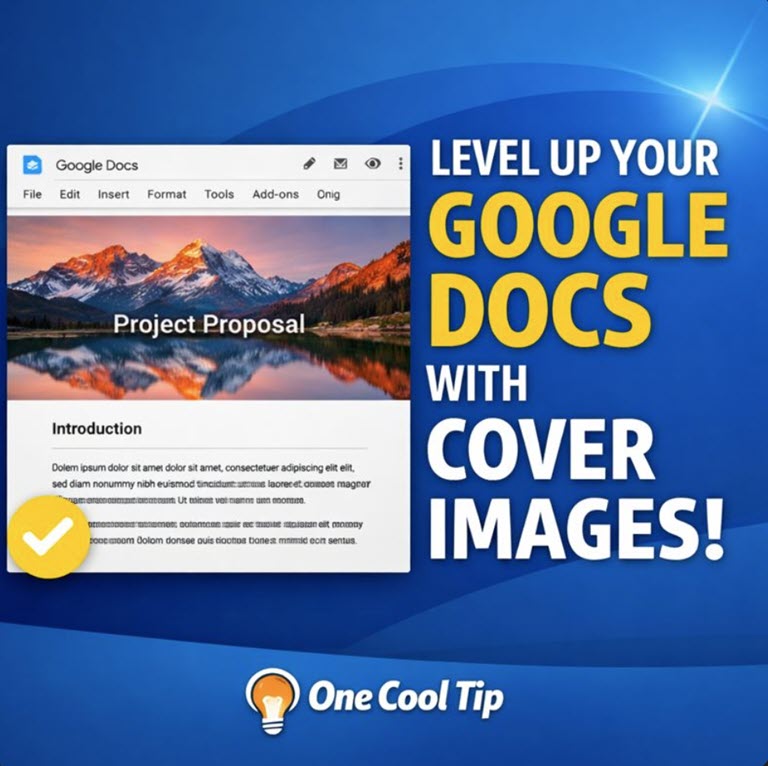
Learn how to instantly upgrade the look of your documents by adding full-width cover images. This Cool Tip walks you through the simple steps to turn boring text files into engaging, professional wikis and reports that elevate your corporate branding and impress clients.
Have you ever opened a Google Doc and felt immediately bored by the endless wall of white background and black text?
We have all been there.
While tools like Notion and Coda have long allowed users to beautify their workspaces with splashy header images, Google Docs often felt strictly utilitarian.
Here's a Cool Tip: Use the Cover Image feature in Google Docs.
Google has introduced a native Cover Image feature that allows you to add a splash of personality, branding, or visual context right at the top of your document.
It is a small change that makes a massive difference in how your work is perceived.
Feature Explanation
The Cover Image feature allows users to place a large, edge-to-edge image at the very top of a Google Doc.
This is distinct from simply inserting an image into the body of the text.
A cover image sits above the title, acting as a visual header similar to a blog post or a social media profile banner.
However, it also functions in standard paginated mode, adding a defined visual block at the top of the first page.
It transforms a standard document into something that looks like a published article or a polished internal wiki.
For business professionals, this feature transforms standard documentation into branded assets.
It allows teams to align client-facing proposals with corporate identity or visually distinguish internal project hubs for better team navigation.
What You’ll Gain
-
Instant Polish: Make internal memos and project specs look like professionally designed assets.
-
Visual Context: Use images to immediately signal the topic (e.g., a code snippet image for technical documentation).
-
Brand Consistency: Apply company branding or colors to client-facing documents without complex formatting.
Step-by-Step Instructions
Here's how to do it.
Web / Desktop (Chrome, Edge, Safari)
-
Launch Google Docs and open the file you wish to edit.
-
Go to File > Page setup and select Pageless for the best visual effect.
-
Click on Insert in the top menu bar.
-
Click Cover image from the dropdown list.
-
A sidebar appears:
-
Select Generate an Image (AI, requires subscription).
-
Select a file from your computer.
-
Choose from your Google Photos library.
-
Select from a curated gallery of high-quality stock photos provided by Google.
-
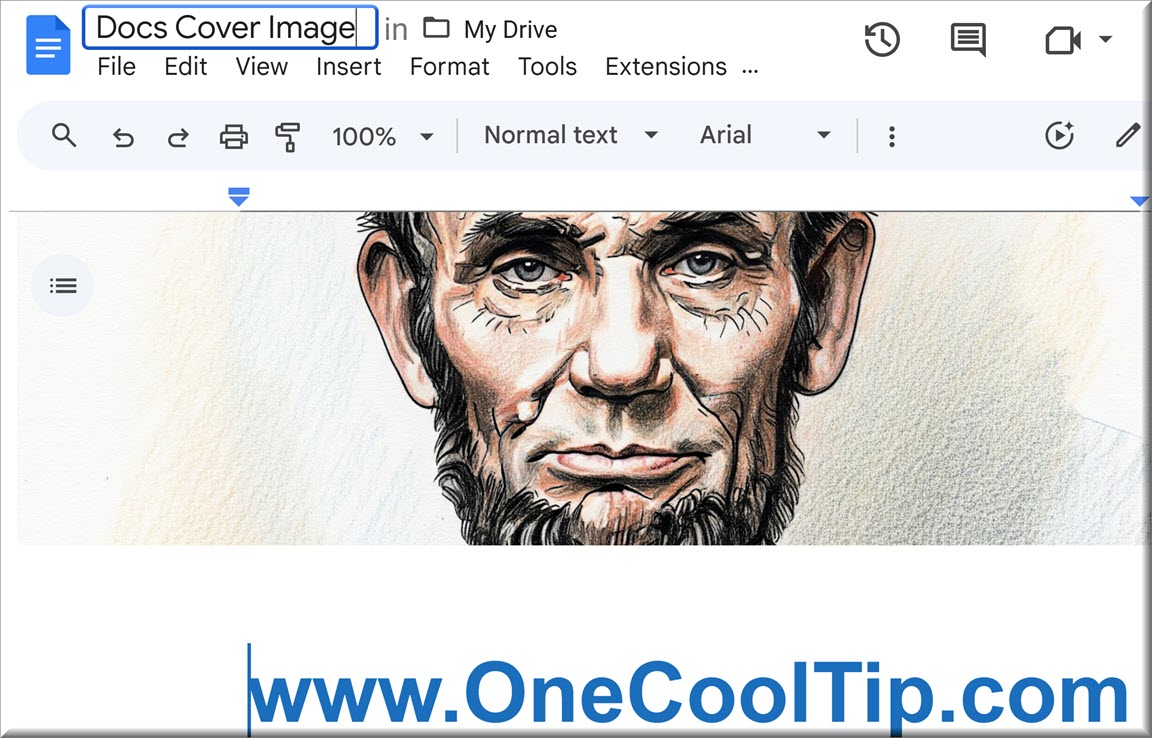
Once the image loads, hover over it and click the Reposition button (icon with arrows) to drag the image up or down for the perfect crop.
| | fig. 1 - Google Docs Cover Image | |
iOS & Android
- You cannot currently add a cover image from the mobile app. You must use a computer to insert the image.
-
Once added via desktop, the cover image is visible on your mobile device when you open the document in the Google Docs app (iPhone / Android).
Pros and Cons
Pros
-
Aesthetics: Instantly makes documents feel modern and engaging.
-
Ease of Use: No need to mess with margins or header settings; it just works.
-
Stock Library: The included gallery provides high-quality, royalty-free options so you do not have to hunt for images.
Cons
-
Screen Real Estate: On smaller laptop screens, a large cover image pushes the actual content "below the fold."
-
Printing: In paginated mode, cover images can sometimes use a lot of ink or create awkward page breaks if not sized correctly.
-
Mobile: You cannot currently insert or reposition cover images using the iOS or Android apps; these actions are restricted to the desktop version.
Feature Access
This feature is widely available to all Google Workspace customers, Google Workspace Individual subscribers, and users with personal Google accounts.
It has rolled out globally to all regions.
Score
Criterion | Score (0–10) | Justification
Value 8
It does not change the data, but it drastically improves the consumption experience of the data.
Usability 9
Extremely intuitive; the "Reposition" tool makes it nearly foolproof to get a good look.
Wow Factor 7
It catches Google Docs up to competitors like Notion, finally shedding the "boring office suite" vibe.
Total: 24/30 👍 Good
A welcome visual update that brings Google Docs into the modern era of document creation. While functionally simple, it allows users to create work that feels polished and web-native.
Key Takeaways
Cover images transform Google Docs from static text files into engaging, visual workspaces.
They work in Pageless mode for a modern, app-like feel.
This feature is free and available to everyone, making it an easy win for your next report.
Cool Tip Snapshot
-
Feature Name: Google Docs Cover Images.
-
Platform(s): Web, iOS, Android.
-
Quick Benefit: Adds a professional, full-width header image to documents.
-
Access Type: Free.
Try It Yourself
Open a Google Doc you use frequently, switch it to "Pageless" view, and add a cover image from the stock gallery today to see how much more inviting your work can look.
READ MORE
Read the Full Cool Tip.
| | |
Help support One Cool Tip. Use this Amazon link when you shop online.
Look at these Cool Products:
|
-
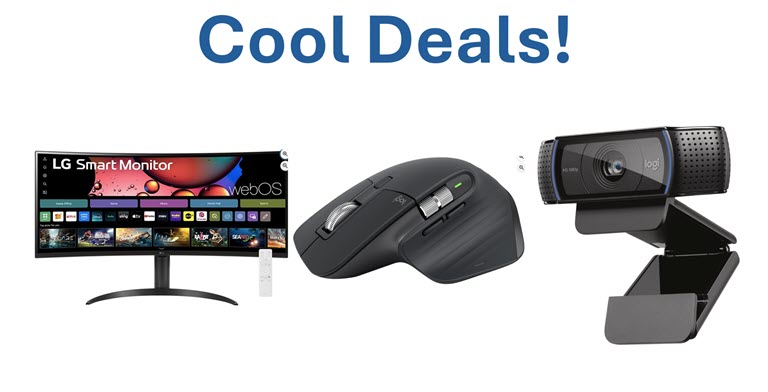
🖥️ LG UltraWide Monitor: The extra screen width is perfect for viewing "Pageless" documents and spreadsheets side-by-side. $327. Check it out on Amazon!
-
🖱️ Logitech MX Master 3S: The hyper-fast scroll wheel makes navigating long, cover-image-rich documents a breeze. Save 33% $79.99 Check it out on Amazon!
-
📸 Logitech C920x HD Pro Webcam: Look as clear on your video calls as your new documents look on screen. Save 14% $59.99 Check it out on Amazon!
Prices accurate at time of publication
| | |
🆒Tell Me More
-
Pageless is Key: While cover images show up in standard "Pages" mode, they look like a letterhead. Switching to "Pageless" makes them full-bleed and immersive.
-
Stock Options: Google includes a gallery of royalty-free stock images directly in the tool, so you do not have to leave the tab to find a picture.
-
Global Rollout: This feature is available to all Google Workspace customers, including personal Google accounts.
⏩Quick Tips
- 🖼️ Reposition It: Hover over your cover image and click the "Reposition" icon to drag the image up or down for a better focal point.
- 🗑️ Remove It Fast: If you don't like the look, simply click the image and look for the trash can icon in the bottom right corner of the header.
- 🌓 Dark Mode Check: Remember that your image might look different if a recipient is viewing your doc in dark mode, so choose images with good contrast.
- 📱 Check Mobile: Always open your doc on your phone after adding a cover image to ensure the text overlay remains readable on smaller screens.
- 🏷️ Add Alt Text: Right-click the cover image (or use the options menu) to add Alt Text so your document remains accessible to screen readers.
| | ✅ More Must-Read Tech Tips | |
|
📄 Try these Cool Google Docs Tips:
-
Voice Typing: Dictate your text. Go to Tools > Voice Typing to speak instead of type. MORE
-
Pageless View: Remove page breaks. Go to File > Page Setup and select Pageless for a continuous canvas.
-
Smart Chips: Link people and files. Type the "@" symbol to instantly insert links to people, files, or dates.
-
Dropdown Menus: Add status trackers. Type "@dropdown" to insert a clickable status menu for project tracking.
-
Compare Documents: Spot the differences. Go to Tools > Compare Documents to see changes between two files.
-
Building Blocks: Insert templates fast. Go to Insert > Building blocks to add meeting notes or email drafts instantly.
-
Dictionary Shortcut: Define words quickly. Highlight a word and press Ctrl+Shift+Y (Cmd+Shift+Y on Mac) to see the definition.
-
Substitutions: Auto-fix text. Go to Tools > Preferences > Substitutions to create shortcuts (e.g., replace (c) with ©).
-
Translate Document: Change languages instantly. Go to Tools > Translate Document to create a copy in another language.
| |
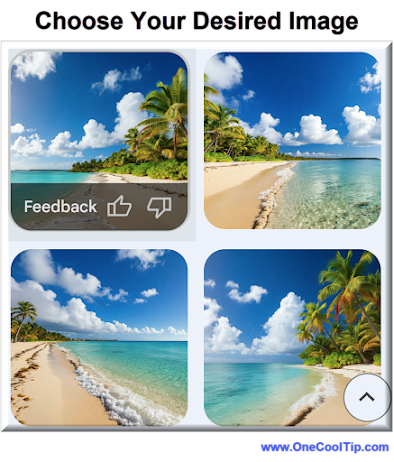
👀 How Do I Create AI Images in Google Docs?
Imagine this: you're crafting a report, presentation, or even a simple flyer in Google Docs, and you need the perfect image to complement your text.
Google has integrated its powerful AI image generation model into Google Docs, accessible through Gemini.
This allows users to generate unique, high-quality images directly within their documents by simply providing a text description.
Here's how to do it.
-
Open a Google Doc at https://docs.google.com/
-
Start a new document or open an existing one.
-
Go to Insert > Image > Generate an image.
-
In the panel that appears, type a detailed description of the image you want. Be specific about the subject, style, composition, and any other relevant details.
-
Click "Add a style" to choose a specific artistic style for your image, such as photography, watercolor, or cyberpunk.
-
Click Create. Gemini generates several image options based on your input.
-
Choose the image you like best and click on it to insert it into your document.
This feature is available to Google Workspace business users and personal accounts with a Google One Premium account.
By leveraging the capabilities of this AI image generator, you can enhance your documents, boost your creativity, and save valuable time.
Discover more HERE.
| | |
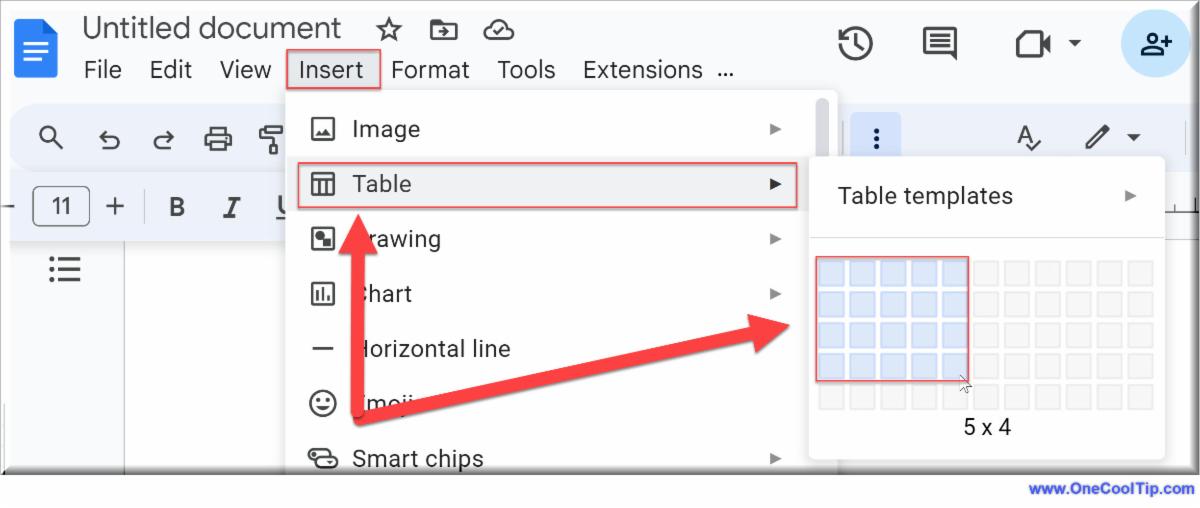
🤔 Have You Ever Wondered How to Create Tables in Docs?
Have you ever wished you could make your tables in Google Docs more visually appealing and functional?
Google Docs has been hard at work upgrading its table features, and the results are impressive.
Here's how to do it.
- Go to docs.google.com
-
Open an existing doc or create a new one.
- Click inside the doc where you want the table to go.
- Select Insert from the menu bar.
- Select Table.
- Select the number of columns and rows.
- Get creative and format to your heart's content!
If you're ready to take your Google Docs to the next level, don't miss out on this game-changing upgrade.
Find out more HERE.
| | |
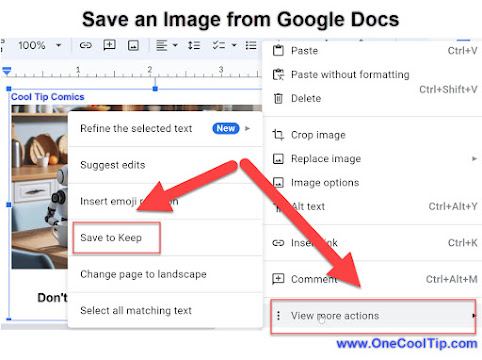
🙋♂️ Here's How to Save Images from Google Docs.
While Google Docs is a powerful tool for collaboration and document creation, it can be surprisingly tricky to save images directly from a document.
Fortunately, there's a simple workaround that lets you download any image within seconds.
Here's how to do it.
-
Launch the Google Doc containing the desired image.
-
Right-click on the image and select "... View More Actions"
-
Select "Save to Keep."
-
The image will be saved as a note in Google Keep.
-
In Google Keep, right-click on the image and choose "Save image as..." to download it to your preferred location.
You can easily extract visuals.
Whether it's for personal projects or professional use, you now have the steps to harness the full potential of Google Docs and its embedded images.
Learn more HERE.
| | |
❓Did you share this newsletter with three friends yet?
😎 Cool Facts
-
3 Billion: Google Workspace has more than 3 billion users. Source.
-
65%: 65% of the population are visual learners. Source.
-
13 Milliseconds: The brain can identify images seen for as little as 13 milliseconds. Source.
⌨️Today's Cool Keyboard Shortcuts
Try these Google Docs Keyboard Shortcuts:
-
Ctrl + ?: Open Shortcut menu.
-
Ctrl + K: Insert a link.
-
Ctrl + S: Save.
😜 Tech Joke of the Day 😅
Why did the font break up with the document?
It just wasn't their type.
🔎 Do you have a Cool Tip or tech question? Email us at onecooltip.com@gmail.com.
| | |
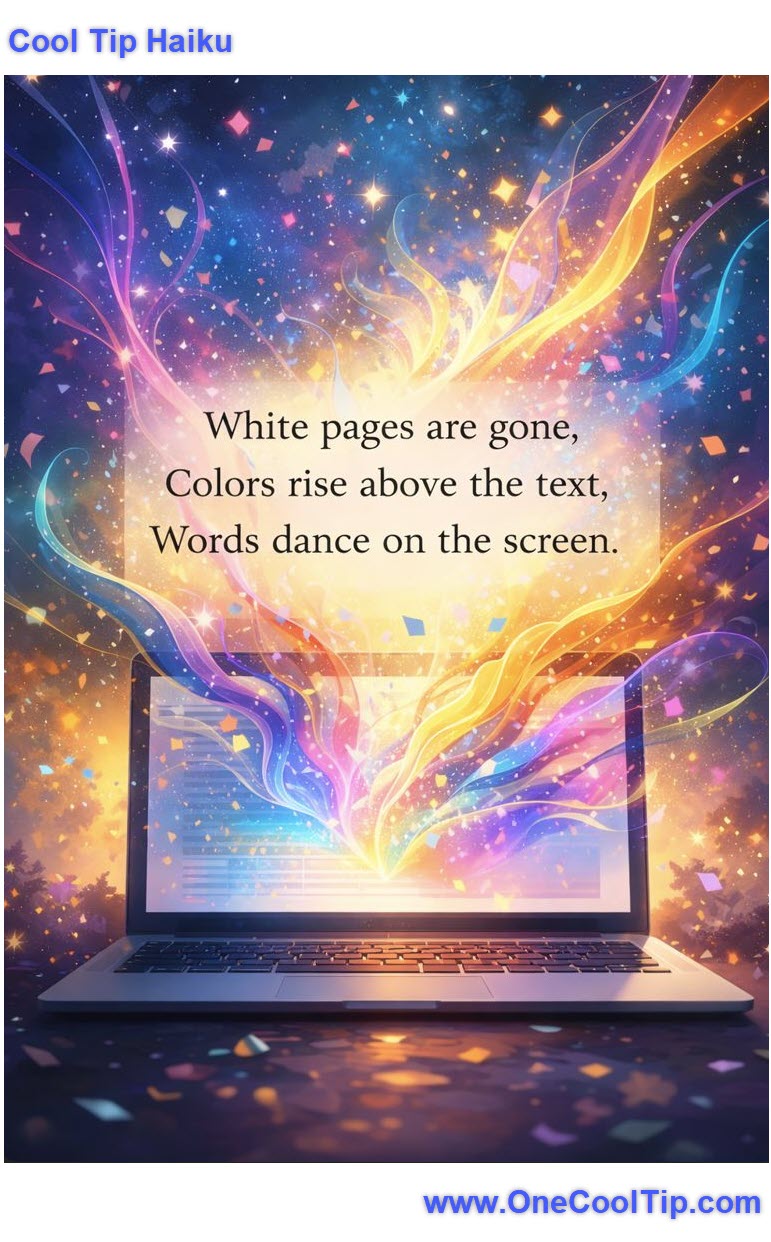
White pages are gone,
Colors rise above the text,
Words dance on the screen.
| |
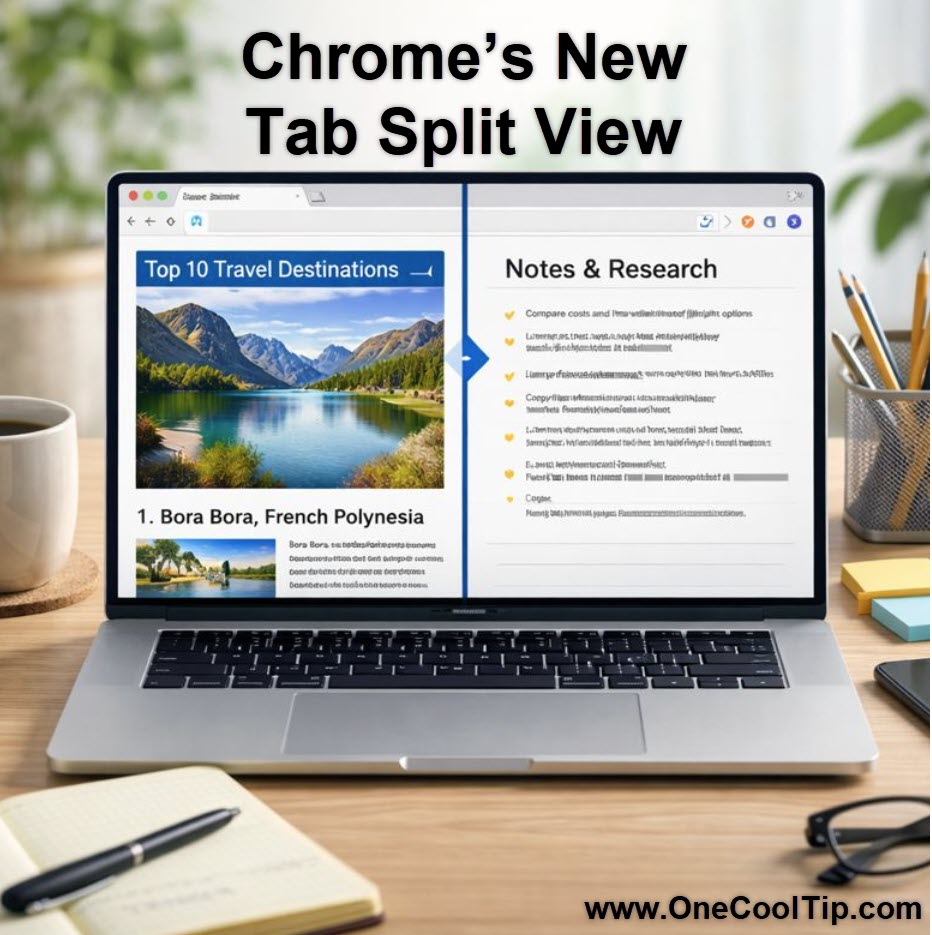
| 🤔 Do you use the "Pageless" view in Google Docs? | | | | Did You See These Cool Tips This Week? | | | | How to Use Google Chrome’s New Tab Split View | |
See two websites side by side in one browser window and stop juggling tabs. Google Chrome’s new Tab Split View makes it easier to compare content, copy information, and work faster without bouncing between tabs.
Read the Newsletter Version.
| | | | Control Your Instagram Reels Algorithm | |
Take back control of what shows up in your Reels feed with new tools that let you shape, reset, and fine-tune what Instagram recommends. With a few taps, you can steer recommendations toward what actually matters to you.
Read the Newsletter Version
| | ICYMI - In Case You Missed It ... | | | | Real-Time Scareware Protection Expands in Microsoft Edge | |
Microsoft is rolling out a powerful real-time scareware and support scam protection in Edge, making one of the internet’s most persistent threats a thing of the past for a wider audience. This expanded feature significantly enhances online safety by blocking deceptive websites before they can even load their malicious messages.
Read the Newsletter Version.
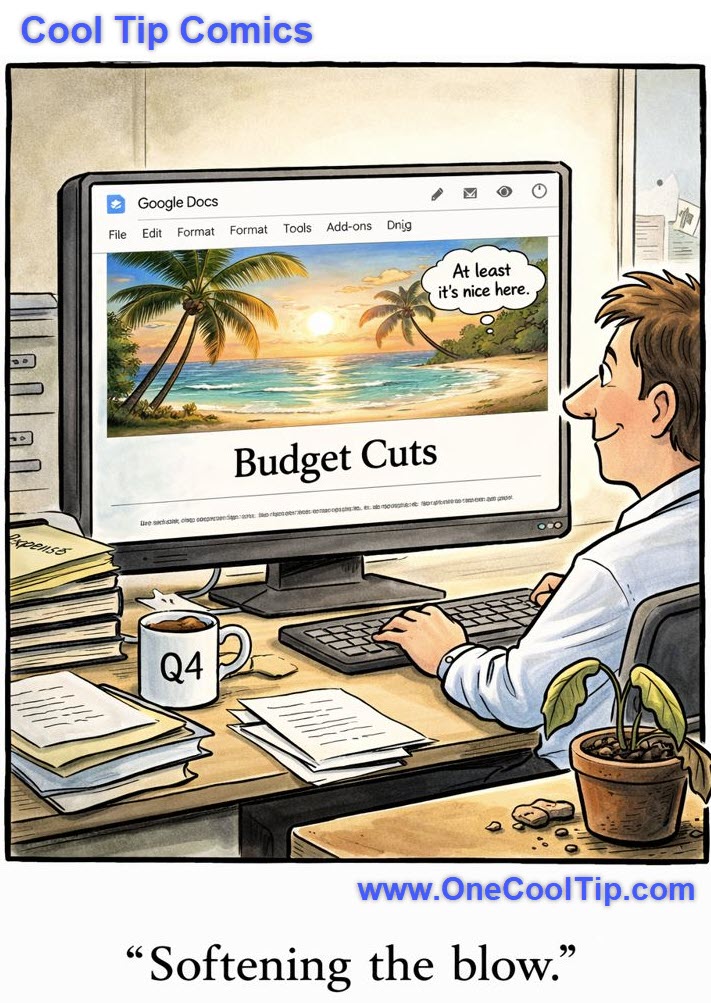
| | "Nothing says 'we're suspending 401k matching' quite like a sunset over Bora Bora." | | |
Trivia Answer: C) Google
Google Docs launched in 2006, revolutionizing how users collaborate on documents in real time.
It built on Writely, a web-based word processor acquired by Google, and quickly became a staple for students, businesses, and remote teams.
----------
Tomorrow's Cool Tip is waiting to amaze you.
Until then, go forth and conquer the tech world with your newfound knowledge!
Be sure to visit www.OneCoolTip.com for Cool Tech Tips for a Cooler Life!
And if you Like One Cool Tip, please support with TipJar!
Enjoy!
Rodger
Chief Cool Tipper
onecooltip.com@gmail.com
| |
| What do you think of today's OneCoolTip newsletter? | | | |
Please Share the One Cool Tip Newsletter!
You asked for it. You got it. There is now a One Cool Tip Newsletter archive. Did you delete a newsletter and want to read it again? Check it out HERE.
Want to help One Cool Tip grow? Please forward this email using the link above. And if you see an OCT social media post, please LIKE, COMMENT and SHARE!
Have you subscribed to the One Cool Tip YouTube channel? Subscribe HERE.
| | Connect with One Cool Tip!! | | |
|
As an Amazon Associate, One Cool Tip may earn a small commission from qualifying purchases.
Our media content is intended solely for informational purposes only. Please do not construe anything here as legal, tax, investment, financial, marital or other advice.
Copyright © 2025 | www.OneCoolTip.com | All Rights Reserved
|
| | | |